Feature Overview
Clock is used in PlugClaw to manage alarms, world clocks, timers, and the stopwatch in the Android Clock app.
Supported Capabilities
You can query, add, update, and delete alarms, and view alarm ringtone and sorting configuration. For world clocks, you can query, add, rename, or remove cities and time zones. For timers, you can query, add, update, delete, start, pause, resume, reset, or stop them. For the stopwatch, you can view its status and start, pause, resume, lap, reset, or stop it.
Usage Examples
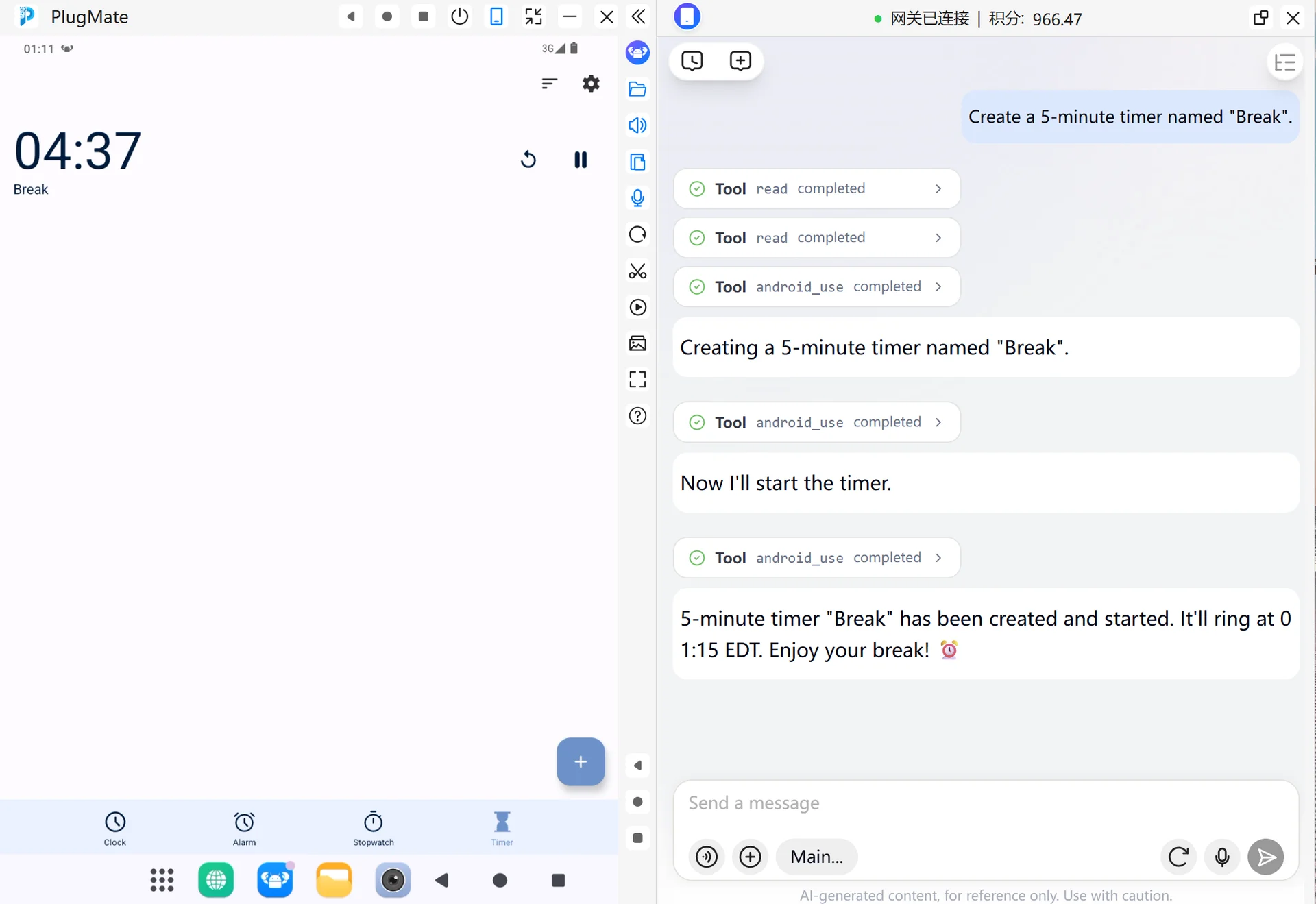
Create a Timer
When you need a countdown reminder for a task, you can create a timer. Describe the countdown duration and name. After creation, the timer may not be started yet. If you want the countdown to begin immediately, continue by asking to start the timer.
- Enter this in the PlugClaw conversation:
Create a 5-minute timer named "Break".
- Check the timer information returned by PlugClaw and confirm that the duration, name, and current state are correct.
View Alarms
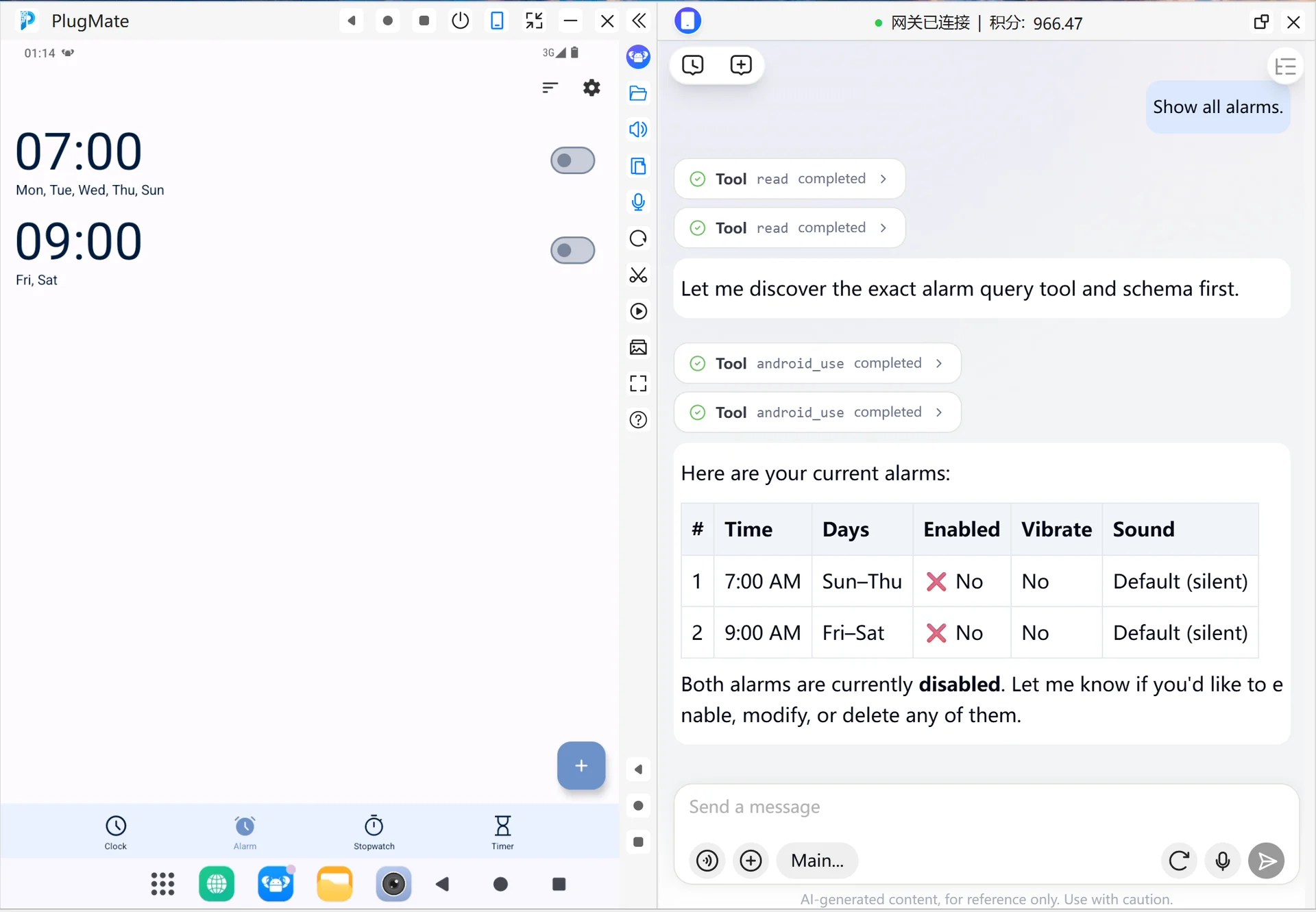
When you need to confirm the existing alarms on the device, or before modifying an alarm, you can view the alarm list first.
- Enter this in the PlugClaw conversation:
Show all alarms.
- Check the alarm list returned by PlugClaw and confirm each alarm's time, enabled state, and ID. If you want to modify or delete an alarm later, you can continue based on the returned result.
Open the Stopwatch Page
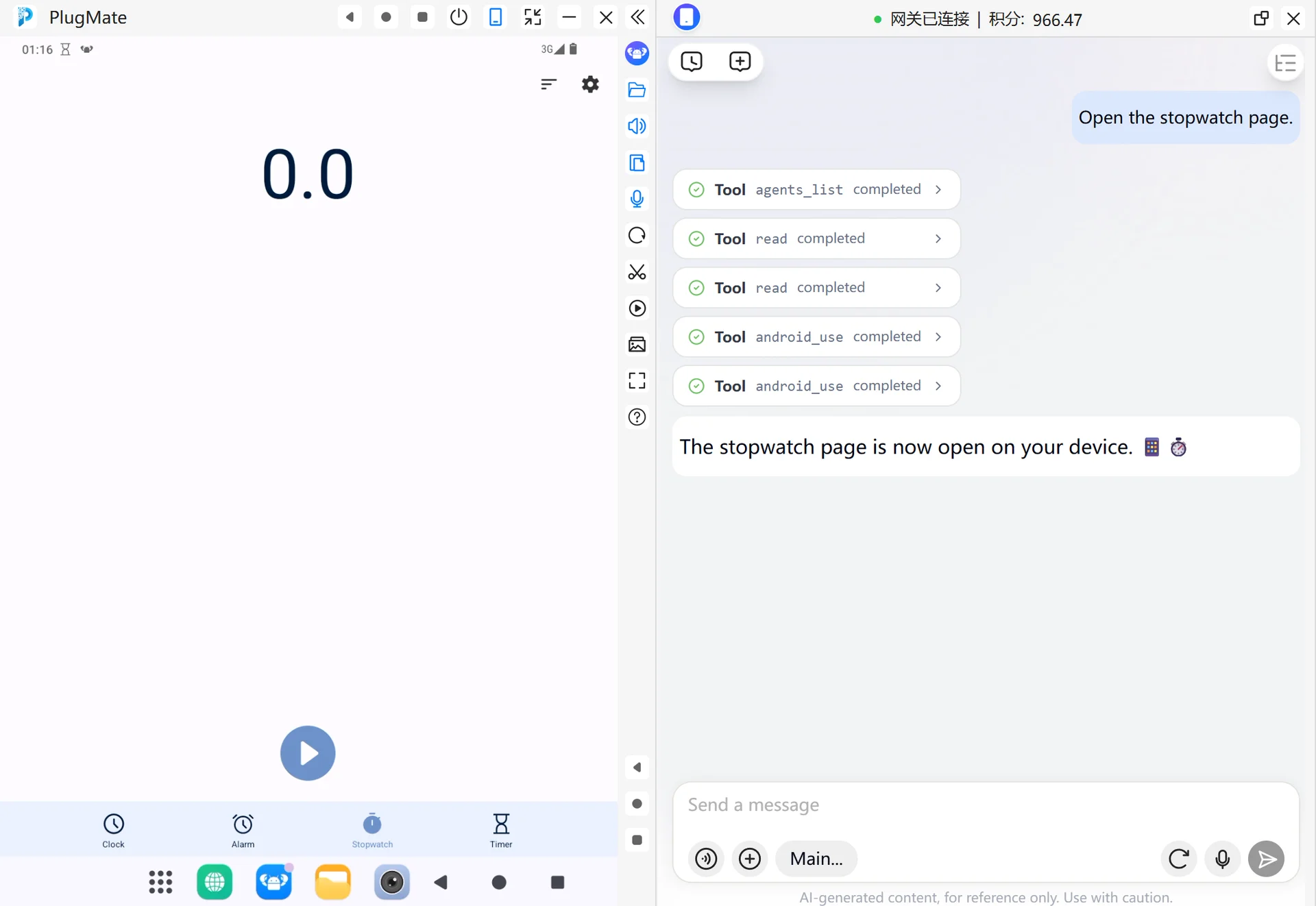
When you need to time something or view stopwatch status, you can open the stopwatch page and then start, pause, or record laps.
- Enter this in the PlugClaw conversation:
Open the stopwatch page.
- Wait for the device to switch to the stopwatch page. Then you can ask PlugClaw to query the stopwatch status, or start, pause, or lap it.
 PlugOS — Privacy isn't an option. It's the foundation
Secure, Ad-free, Tracking-free, No Telemetry
