Feature Overview
File management is used in PlugClaw to view, search, and handle files and folders on an Android device.
Supported Capabilities
You can view directory contents, search for files, view file information, and read or write text files. When organizing files, you can create files or folders, and copy, move, rename, or delete files. For more complex processing, Android files can be staged into the container for processing, and the generated results can then be saved back to Android public directories.
Usage Examples
View a Specific Directory
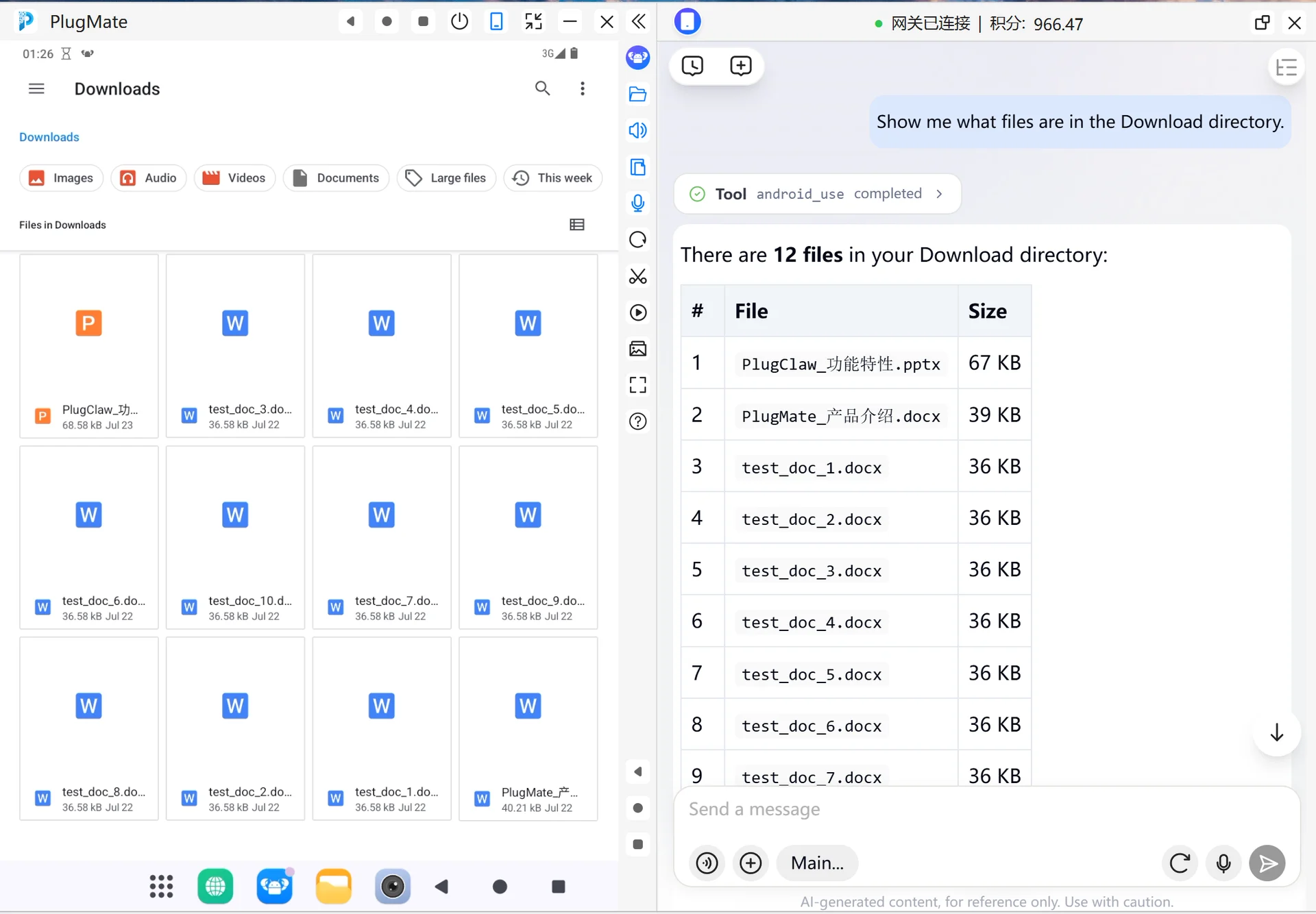
When you need to confirm which files are in a device directory, you can view that directory first, then decide which file to read, copy, or move based on the result.
- Enter this in the PlugClaw conversation:
Show me what files are in the Download directory.
- Check the file and folder list returned by PlugClaw, and confirm the target file name and location. You can then ask PlugClaw to read the file, copy it, or move it to another directory.
Search for a File
When a directory contains many files, or you only remember part of a file name, search first to avoid checking directories one by one.
- Enter this in the PlugClaw conversation:
Search for report in the Documents directory.
- Check the search results and confirm whether the target file appears. If multiple similar files are returned, add a file type, date, or directory range to narrow the result.
Read a Text File
When the file is in a text format such as .txt, .md, .json, or .csv, you can read its contents directly for viewing, analysis, or further editing.
- Enter this in the PlugClaw conversation:
Read the contents of notes.txt in the Download directory.
- Confirm whether the returned content is complete. If further processing is needed, you can ask PlugClaw to summarize the content, extract key information, or generate a new text file as required.
 PlugOS — Privacy isn't an option. It's the foundation
Secure, Ad-free, Tracking-free, No Telemetry
