Step 1: Click "Create or Join Enterprise."
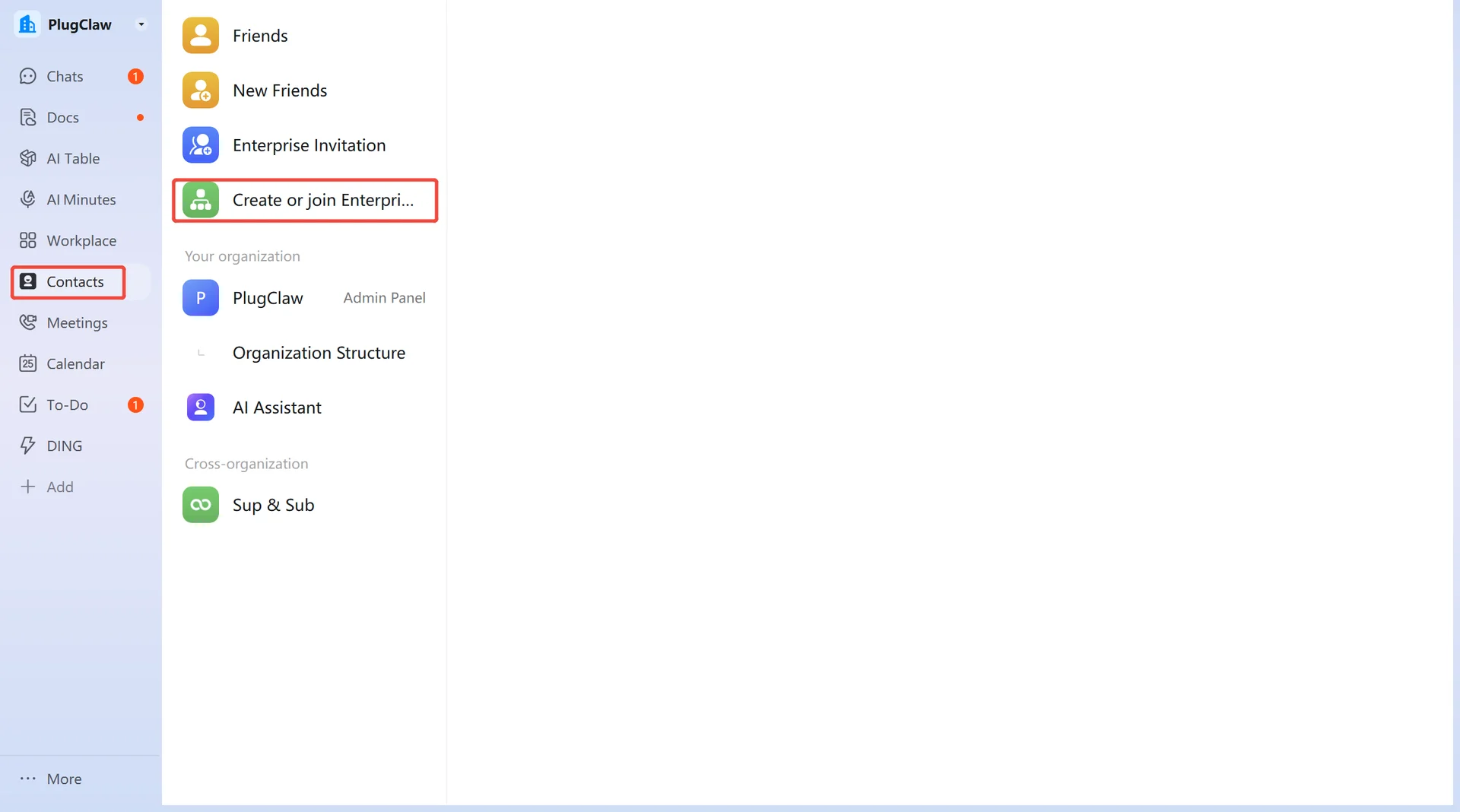 Select "Create Organization/Group."
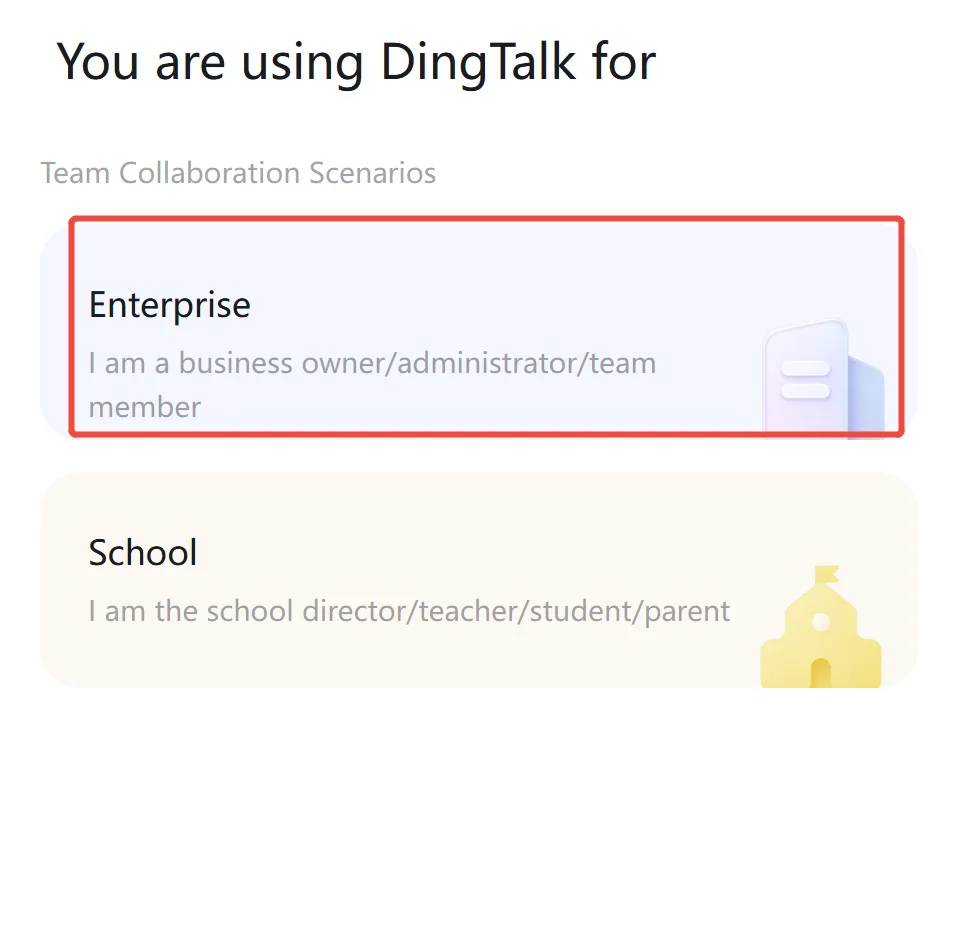
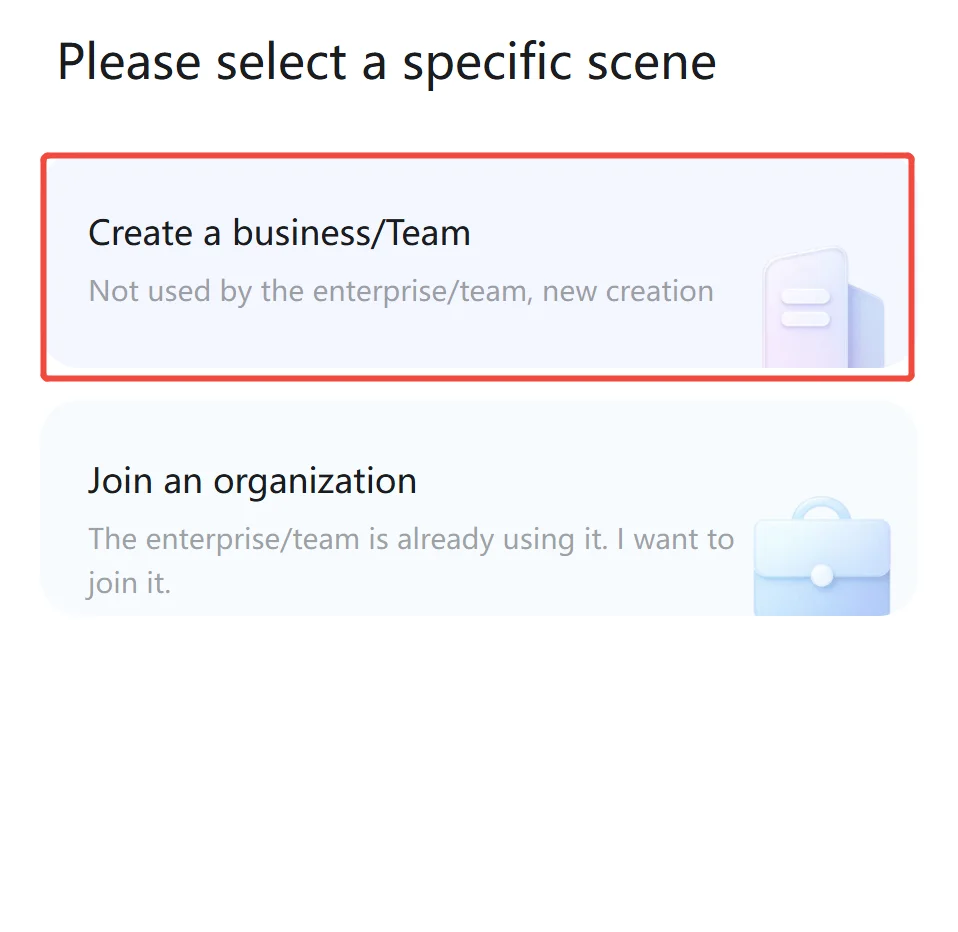
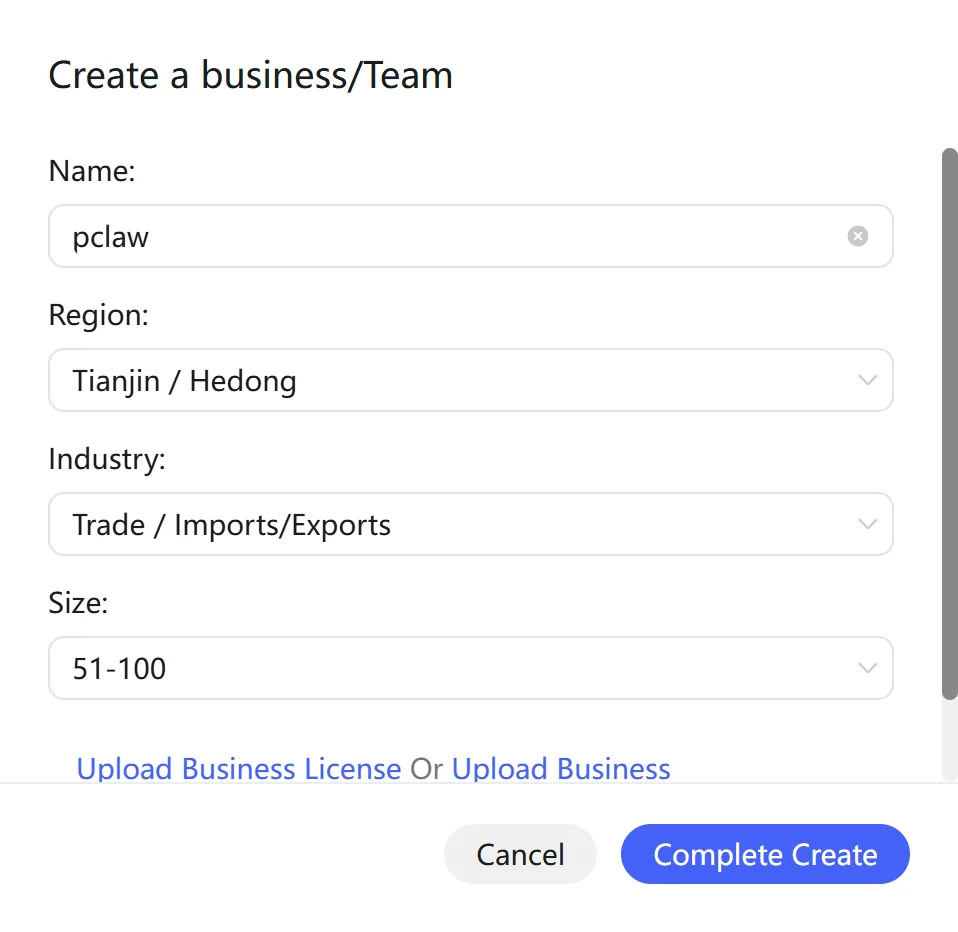
Fill in the required information and create.
Note: After entering the "Organization Name" (must be more than three characters), additional fields will appear. You may fill these in as you wish; there are no specific requirements.
Step 2: Create a Bot in the DingTalk Open Platform
Access the DingTalk Open Platform: https://open-dev.dingtalk.com.
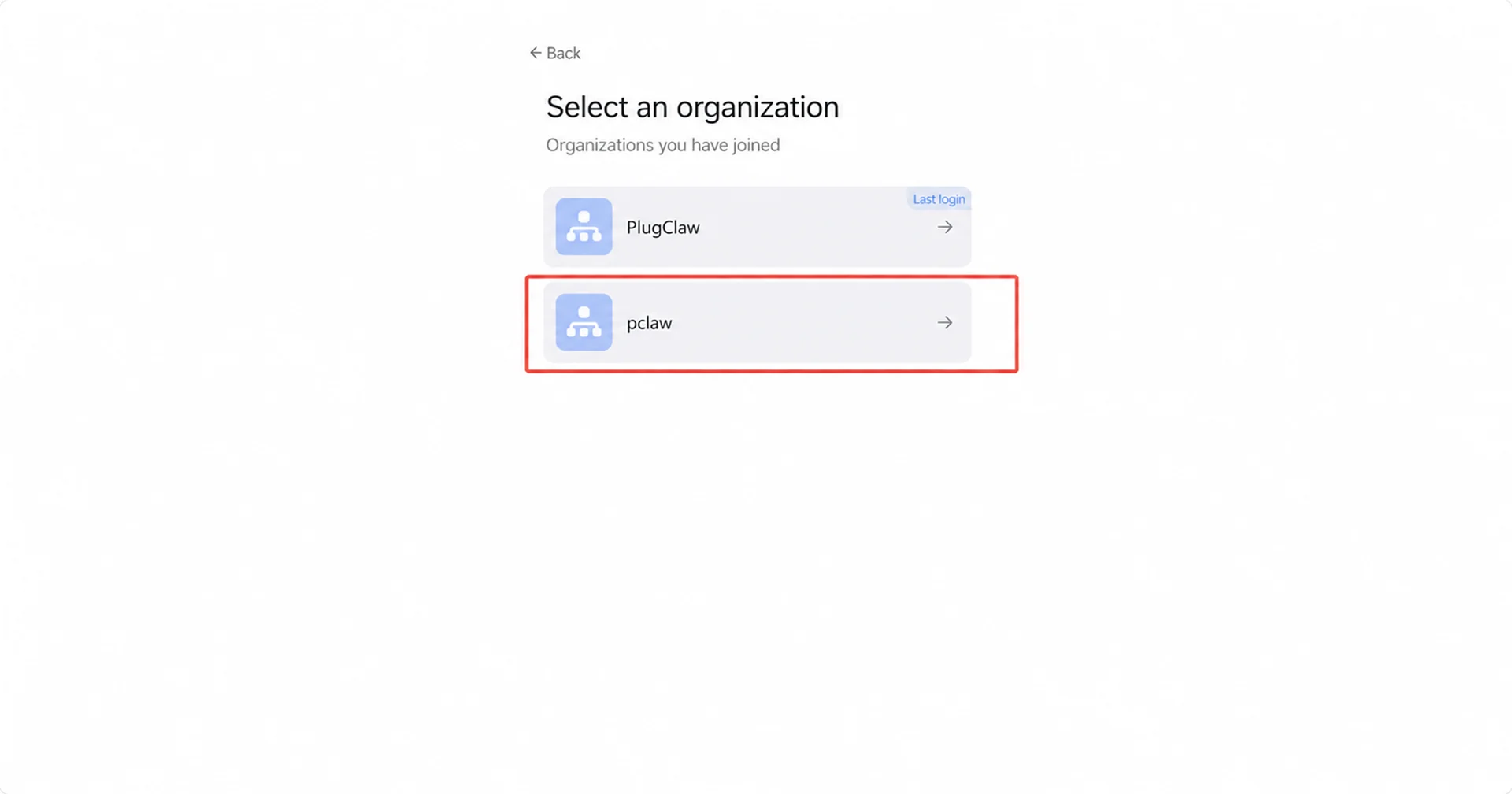
Select the organization you just created.
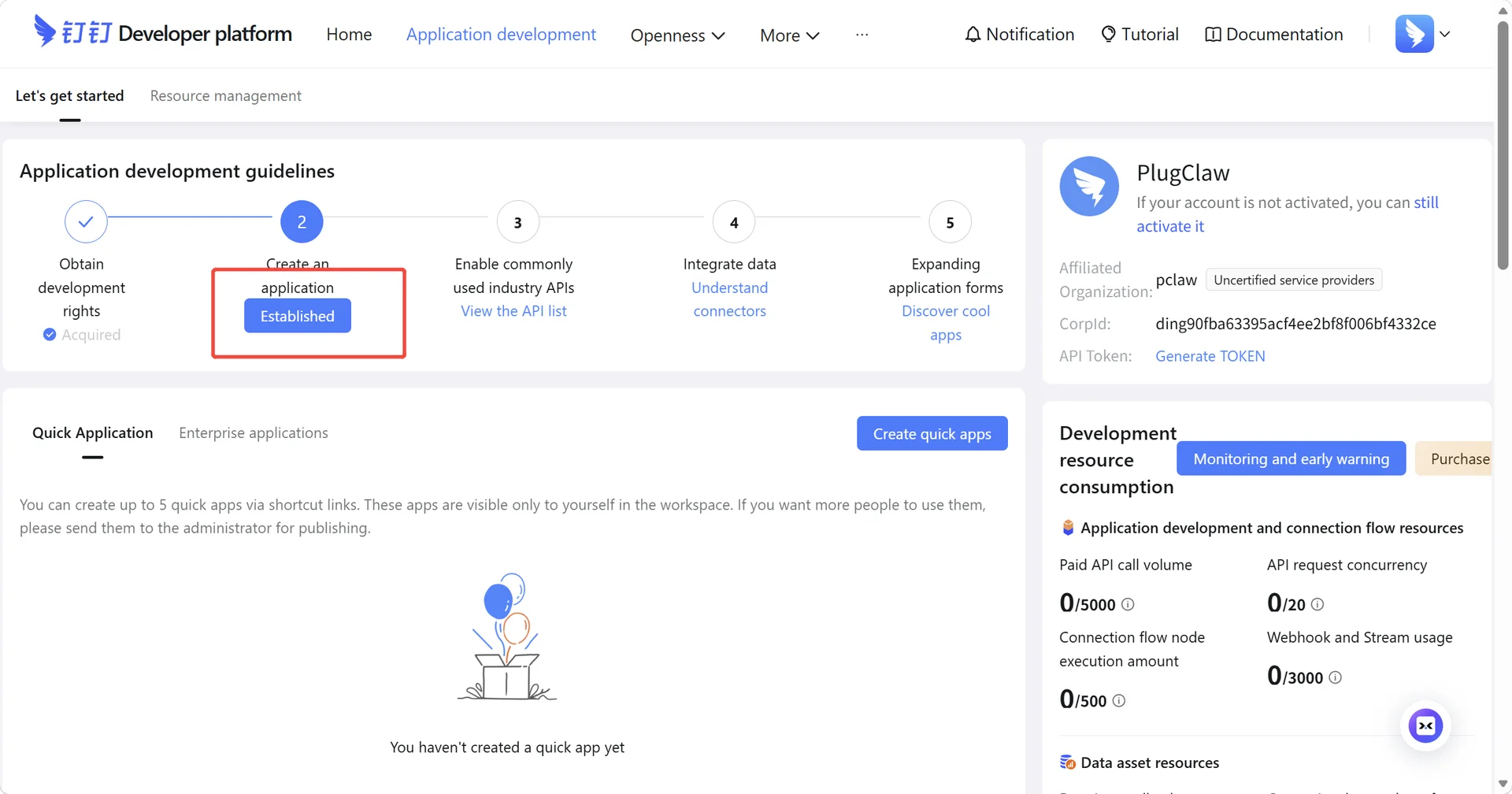
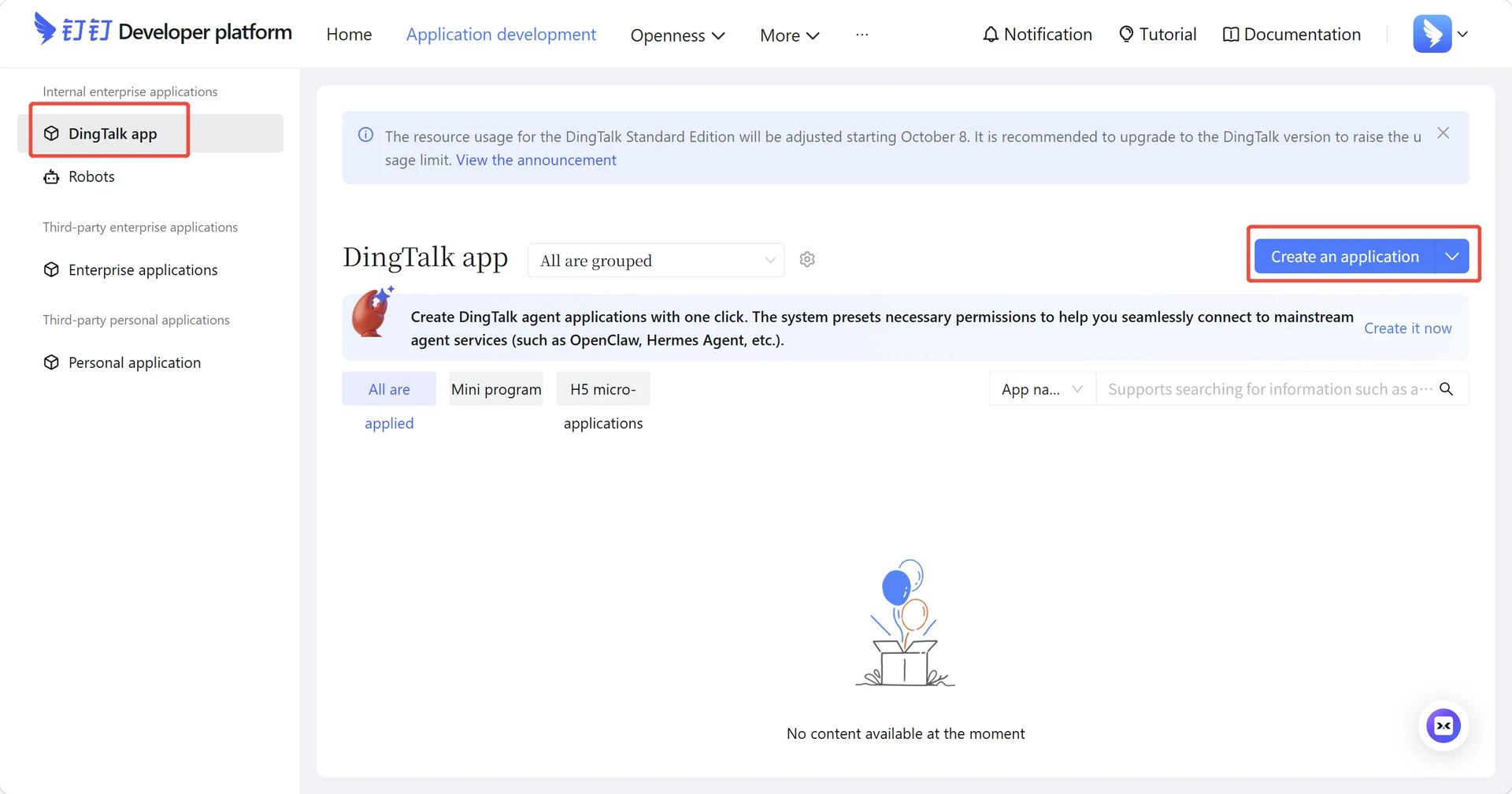
Click "application development" and on the left sidebar, select "DingTalk App" and click "Create Application."
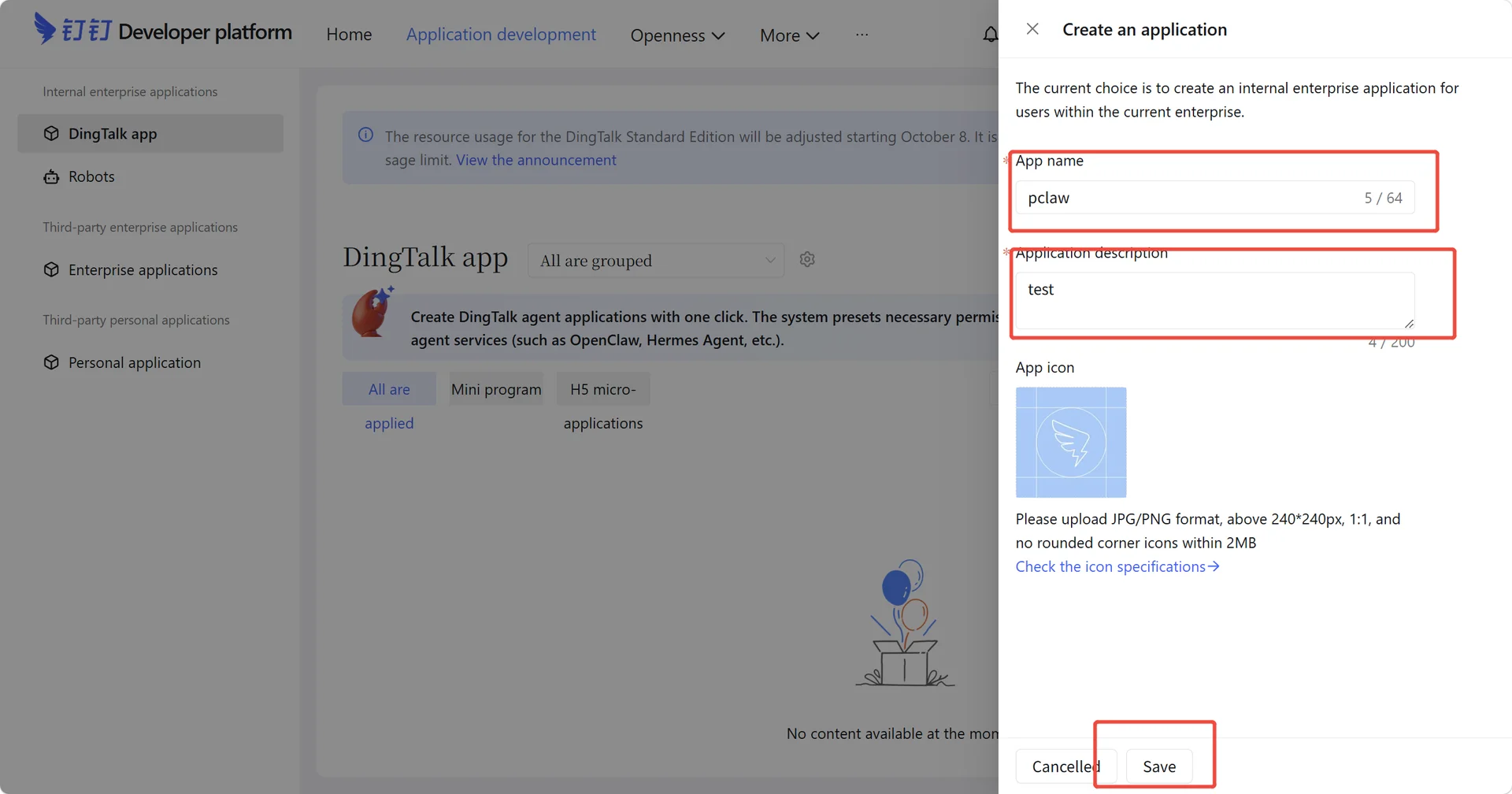
Enter the "App Name" and "App Description," then click "Save."
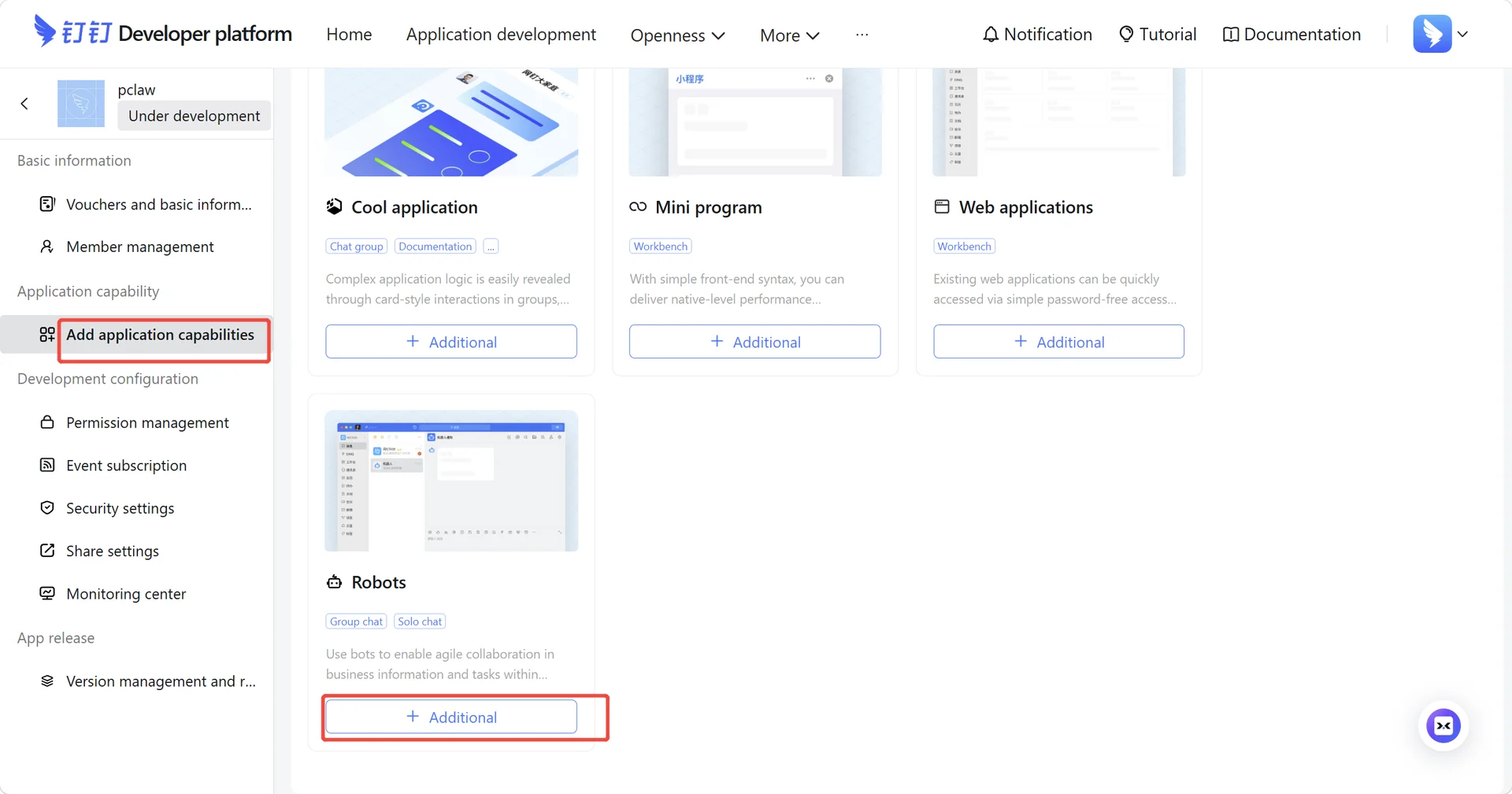
In the left sidebar, select "Add App Capabilities" and choose "Robot."
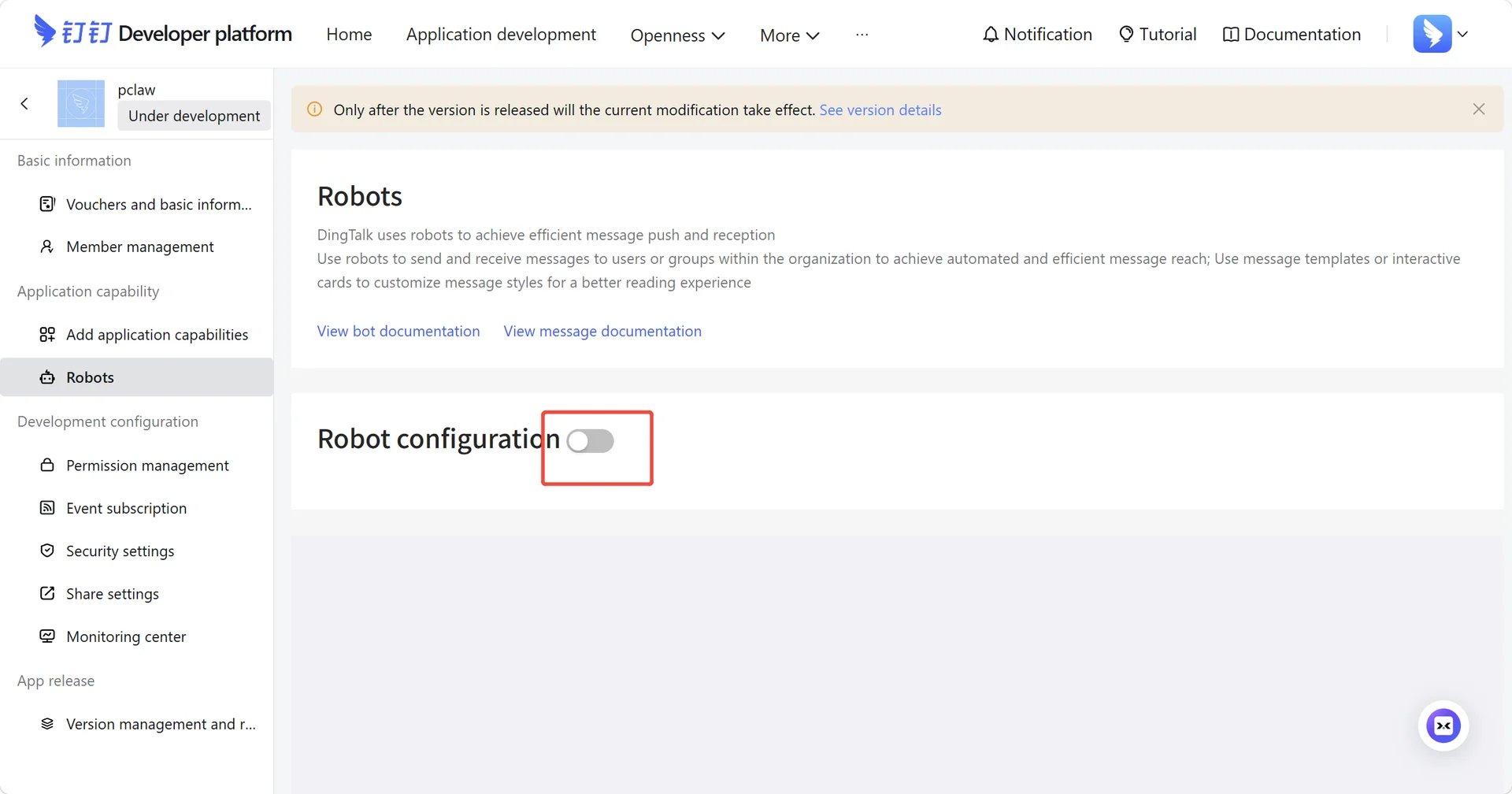
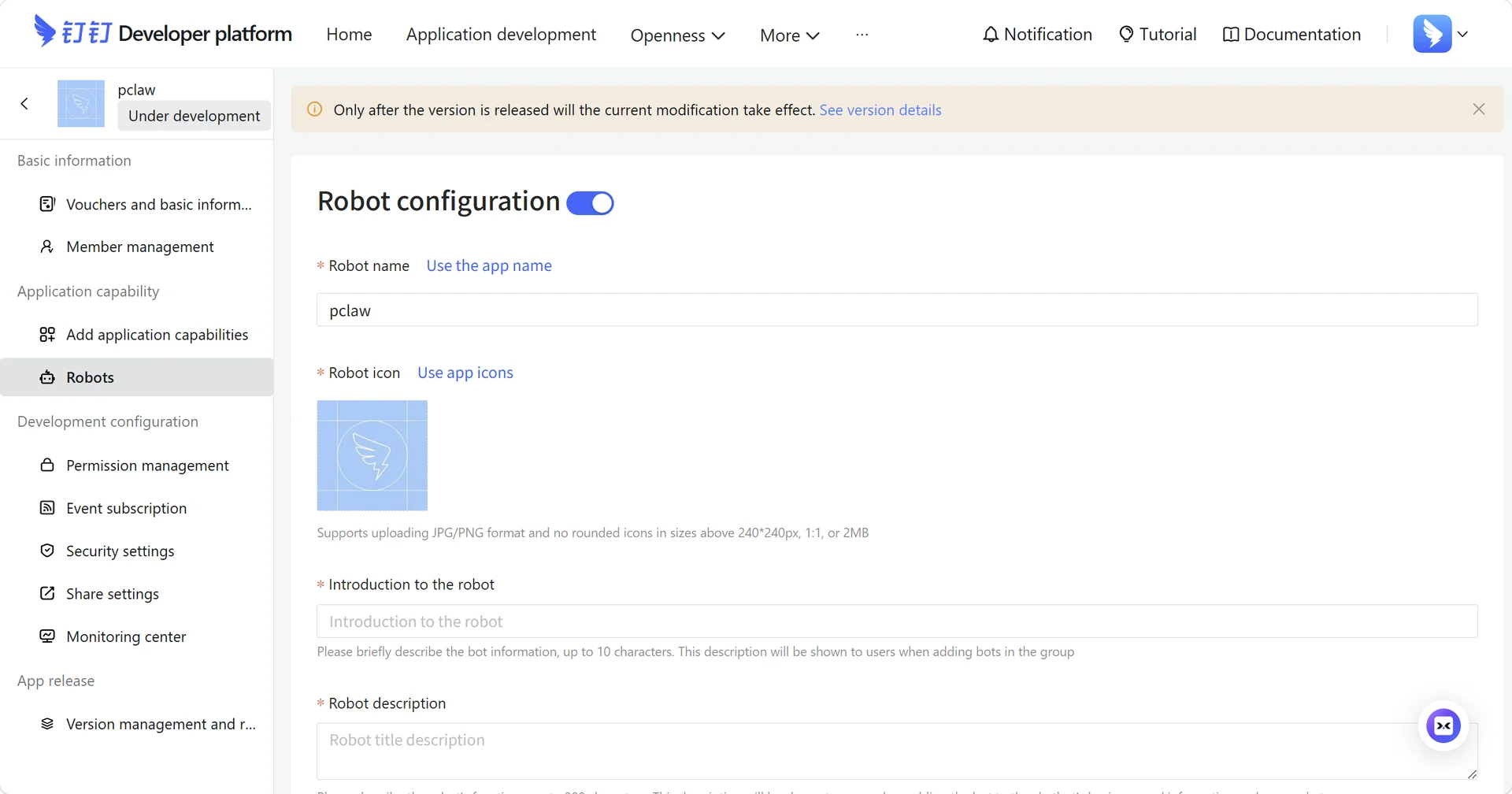
Enable the robot configuration and fill in the required details.
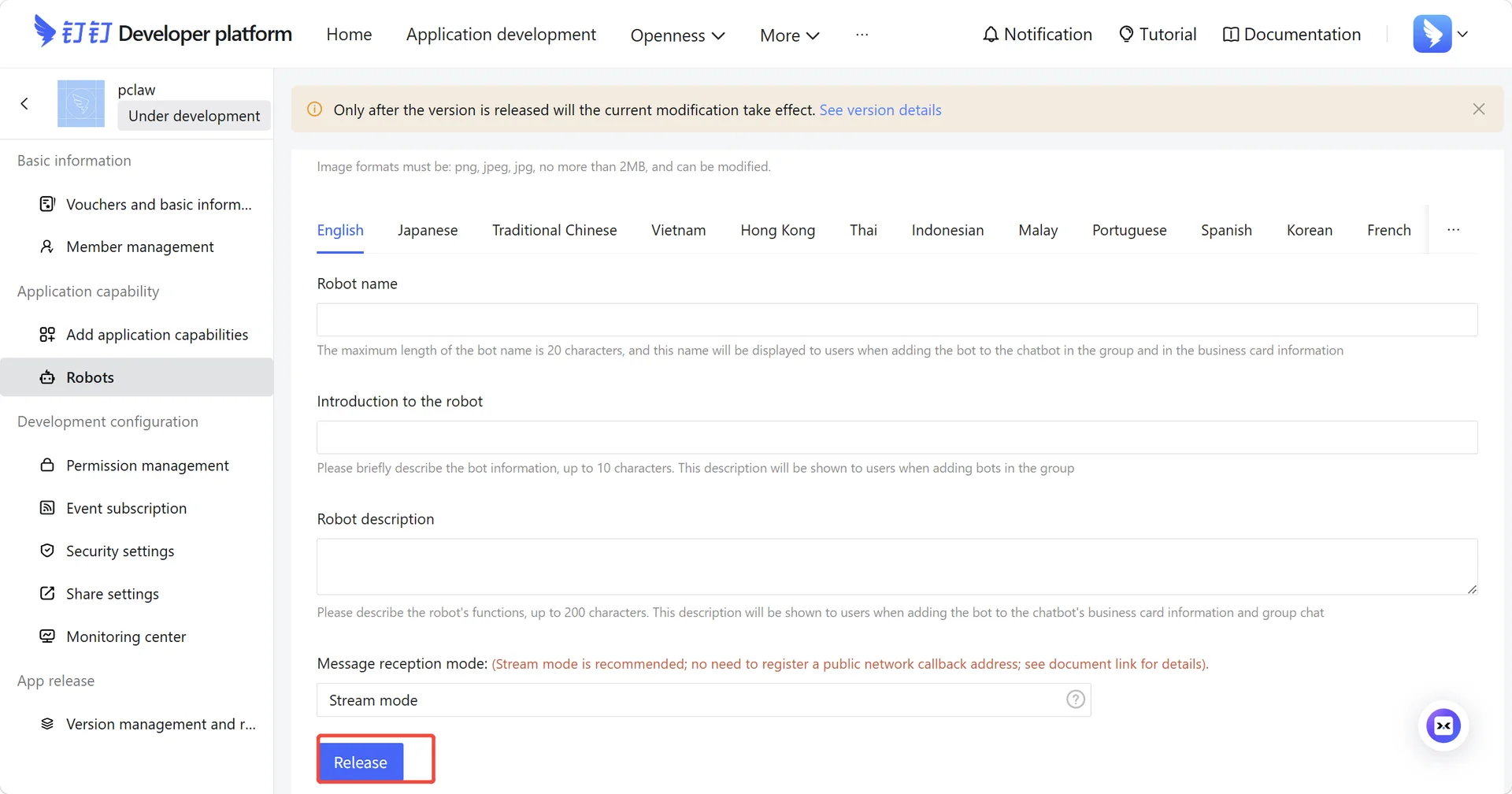
Step 3: Adjust Permissions and Publish to Bind
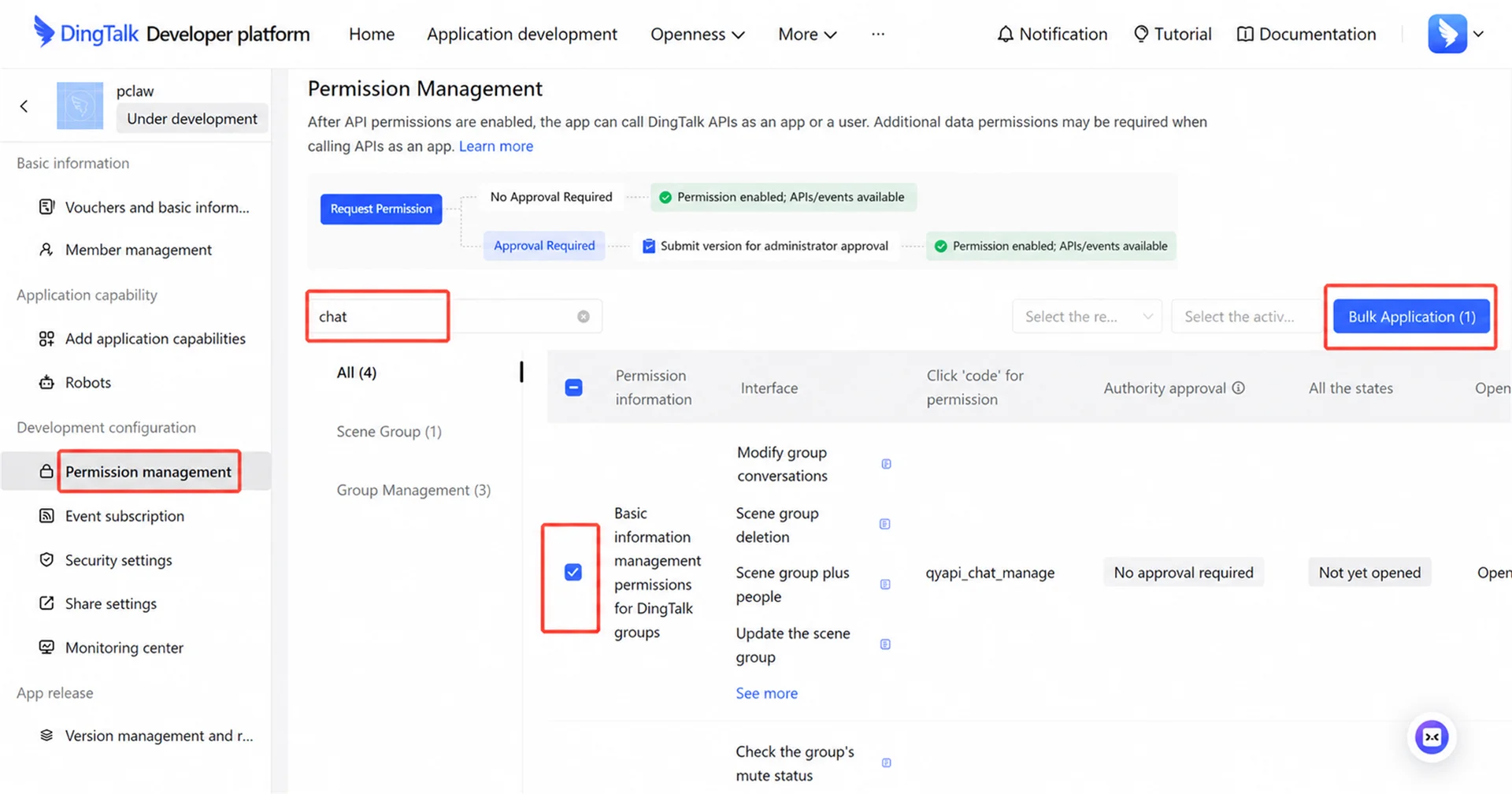
Select "Permission Management" in the left sidebar. Search for "Message," check the two items shown in the diagram, and click "Batch Request".
Select "Version Management & Release" in the left sidebar and click the Edit button.
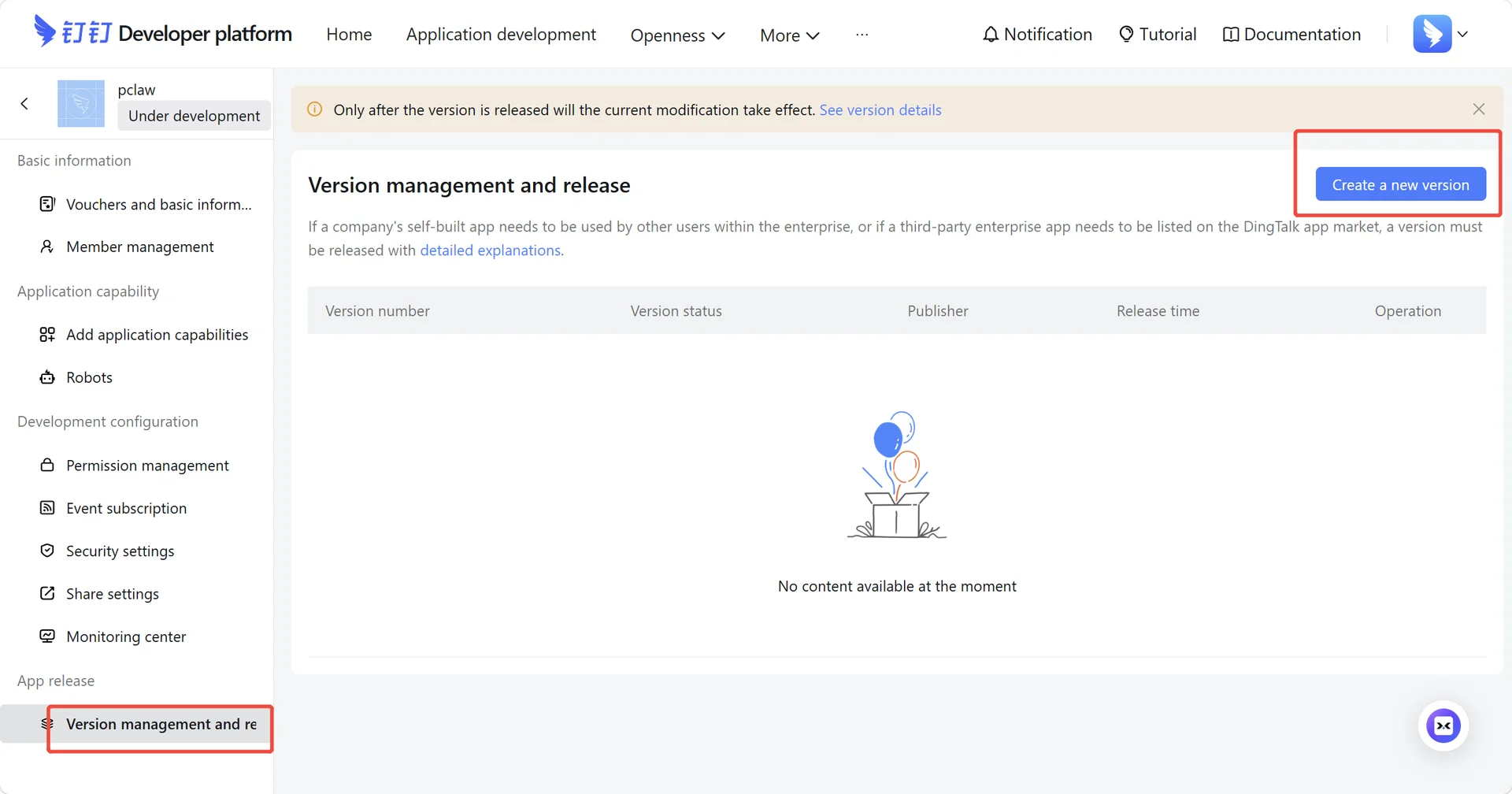
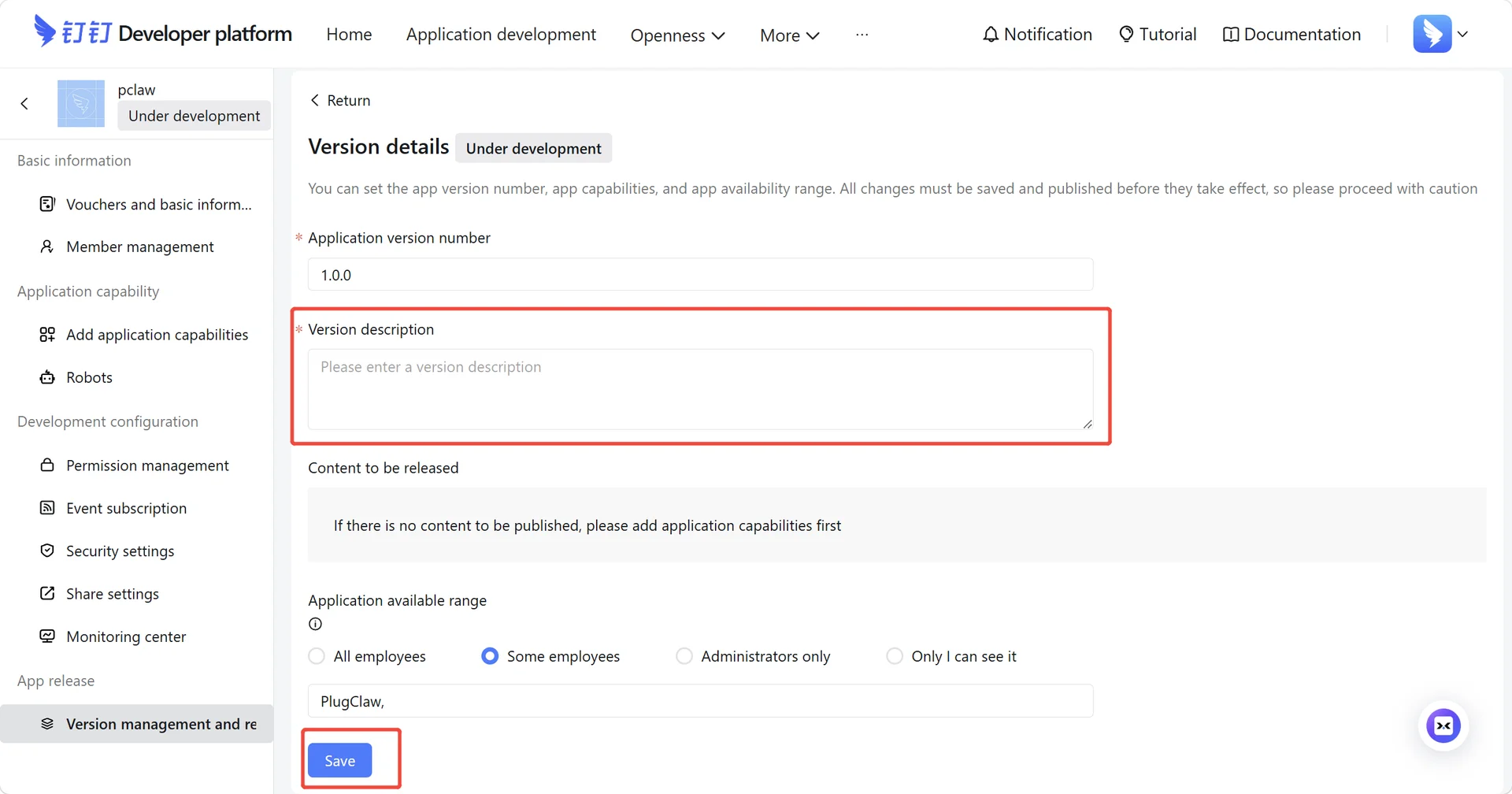
Note: You must edit the version information before you can publish.
Enter a "Version Description," click "Save," and the release is complete.
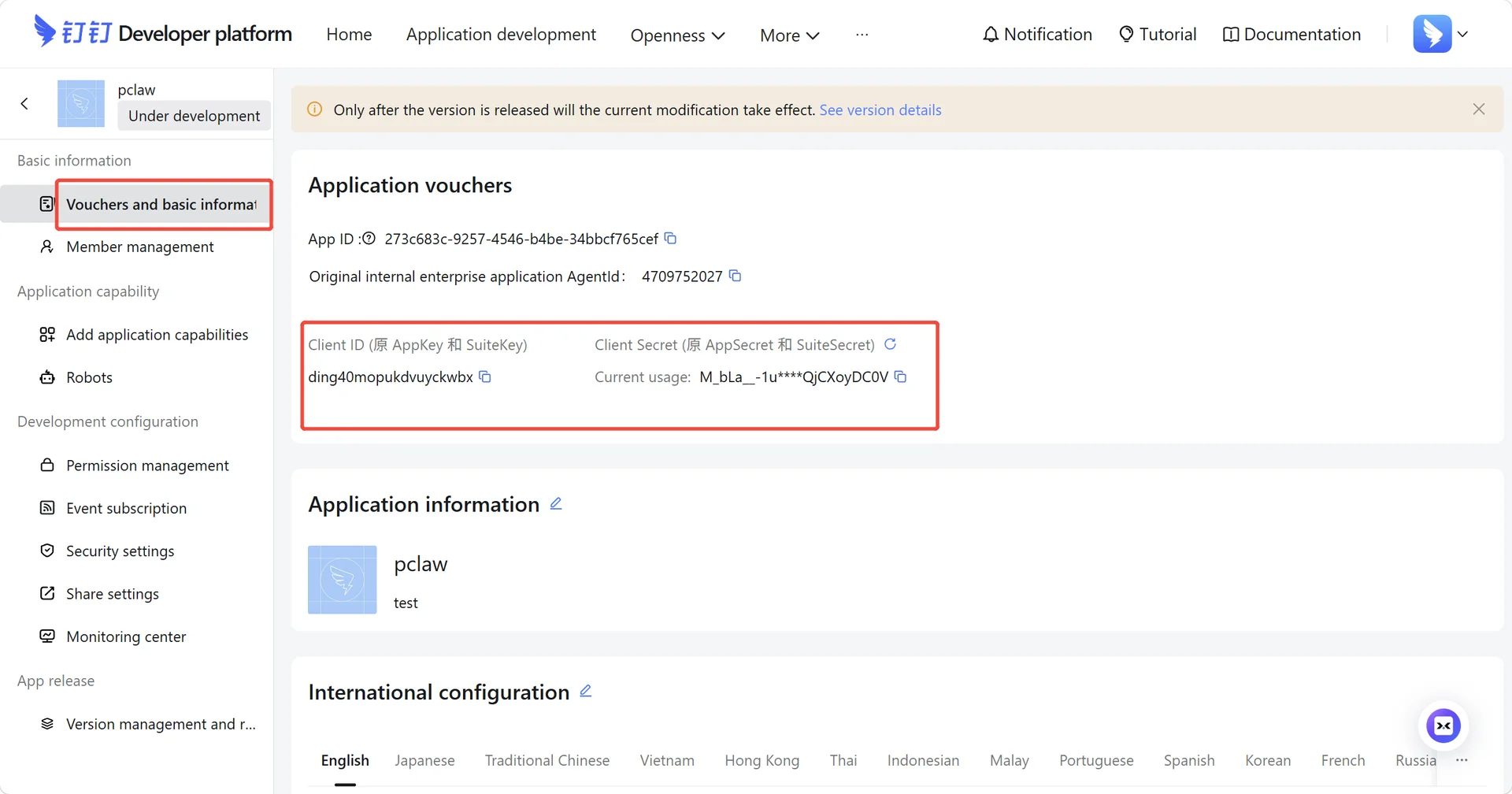
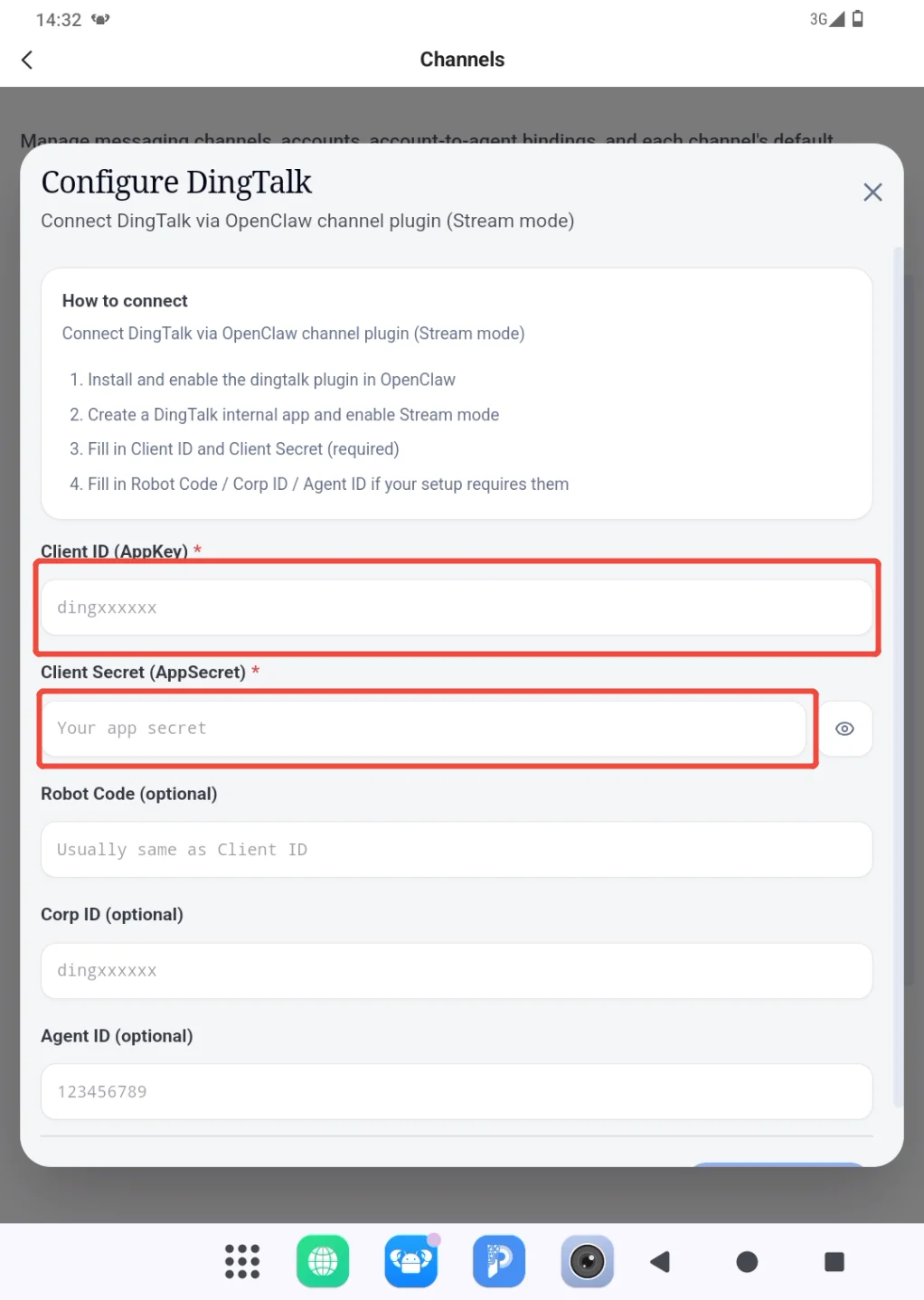
Select "Credentials & Basic Info" in the left sidebar. Copy the App ID and Client Secret, paste them into the PlugClaw client, save, and connect to finalize the integration.
Step 4: How to Locate Your Robot
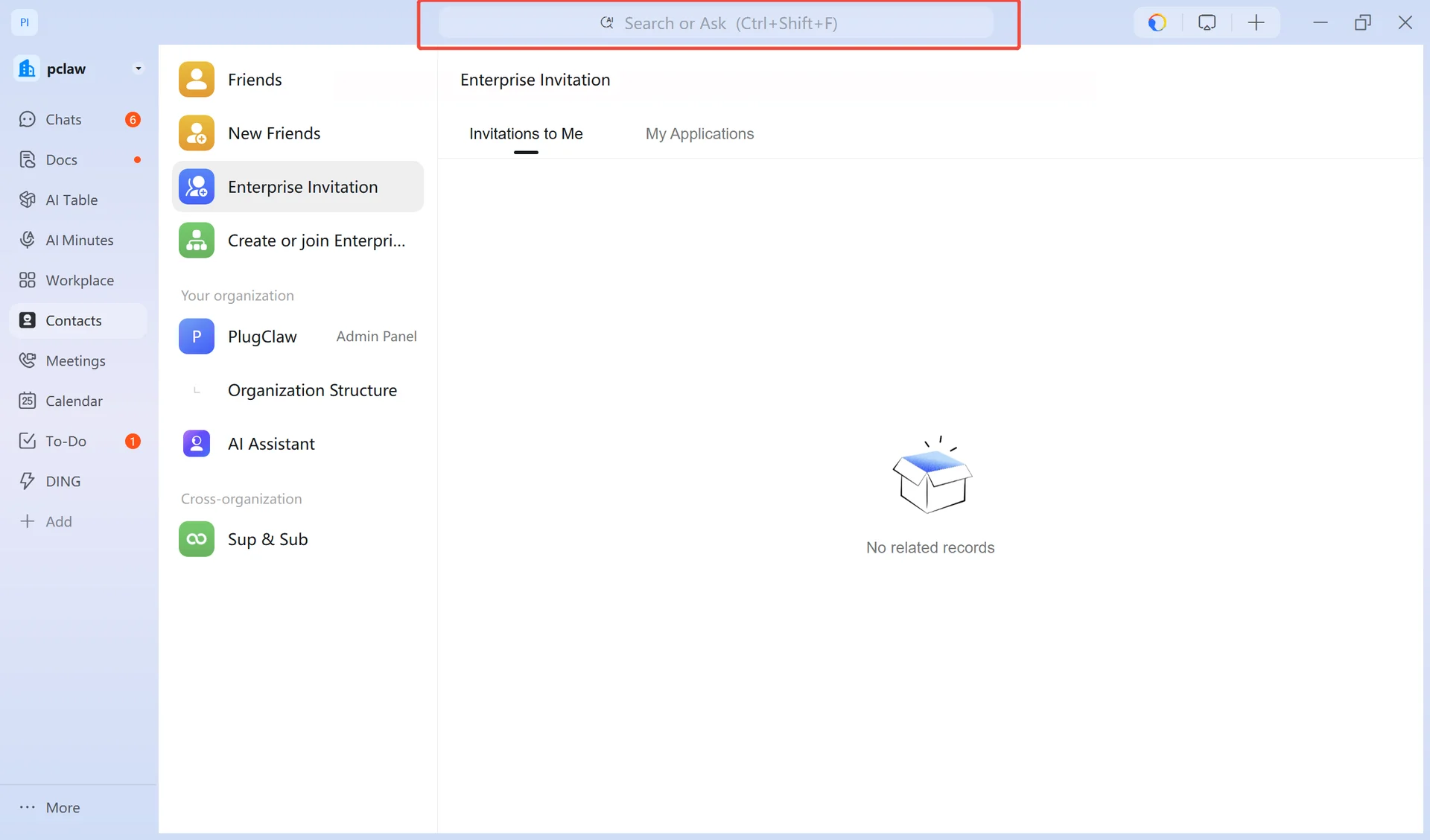
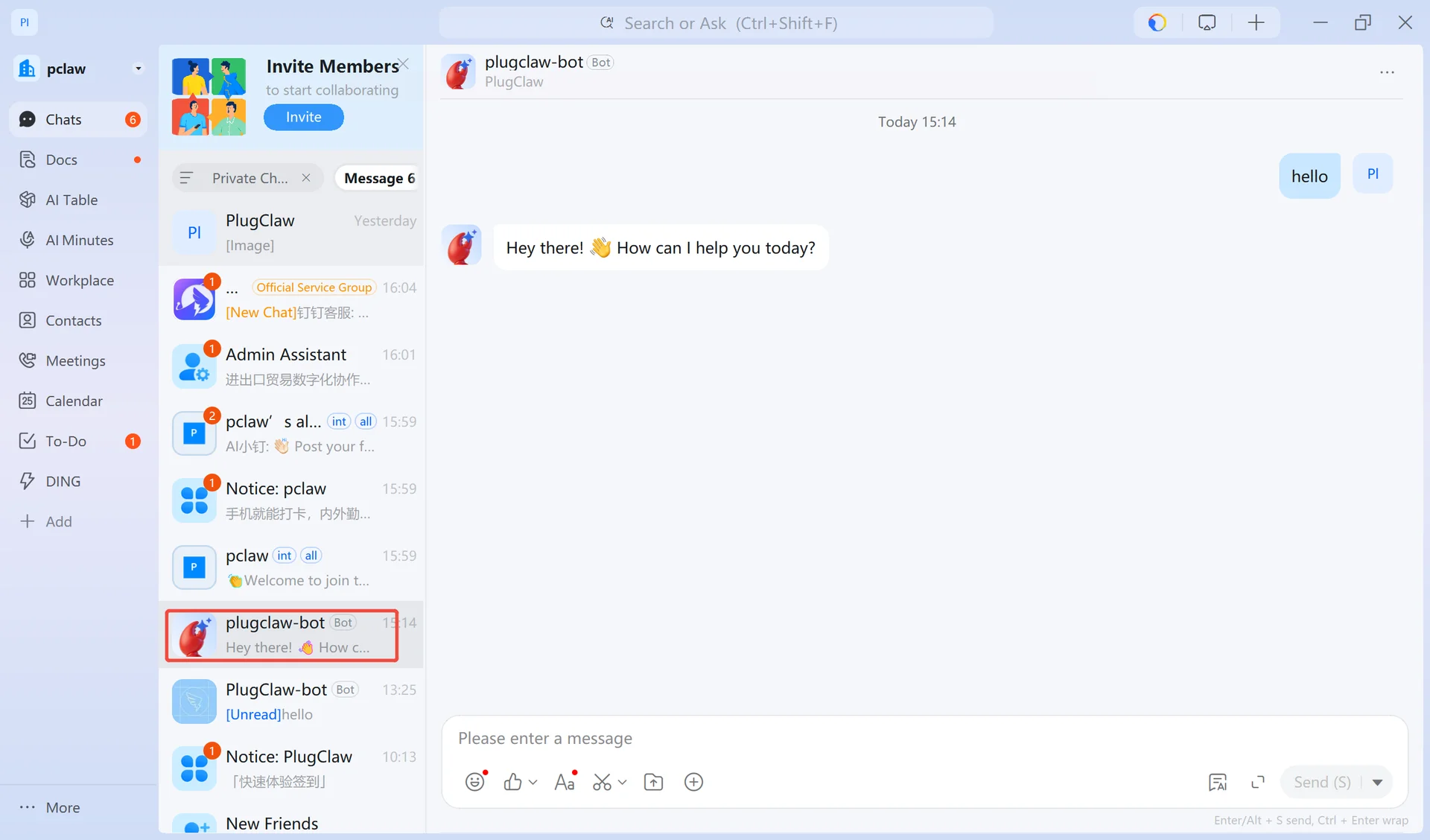
In the DingTalk "Messages" tab, go to the Search Bar. Search for the "Robot Name" you created. The robot will appear under the "Functions" section.
 PlugOS — Privacy isn't an option. It's the foundation
Secure, Ad-free, Tracking-free, No Telemetry
