1. Overview
When a user needs a temporary tool, wants to try a new app, or needs to extend mobile capabilities, PlugClaw can install the specified app directly without requiring manual search and download in the app library.
This case uses Easy Notes as an example to show the process from sending an installation request to opening the app and confirming the result. The same approach can be used for calendars, file managers, messaging tools, productivity tools, and other apps.
2. Send the Installation Request
To install an app, provide the app name.
Example prompt:
Please install
Easy Notesfor me.
A shorter version also works:
Install
easynotes.
PlugClaw finds the corresponding installation resource and starts the download and installation process.
3. Check Installation Progress
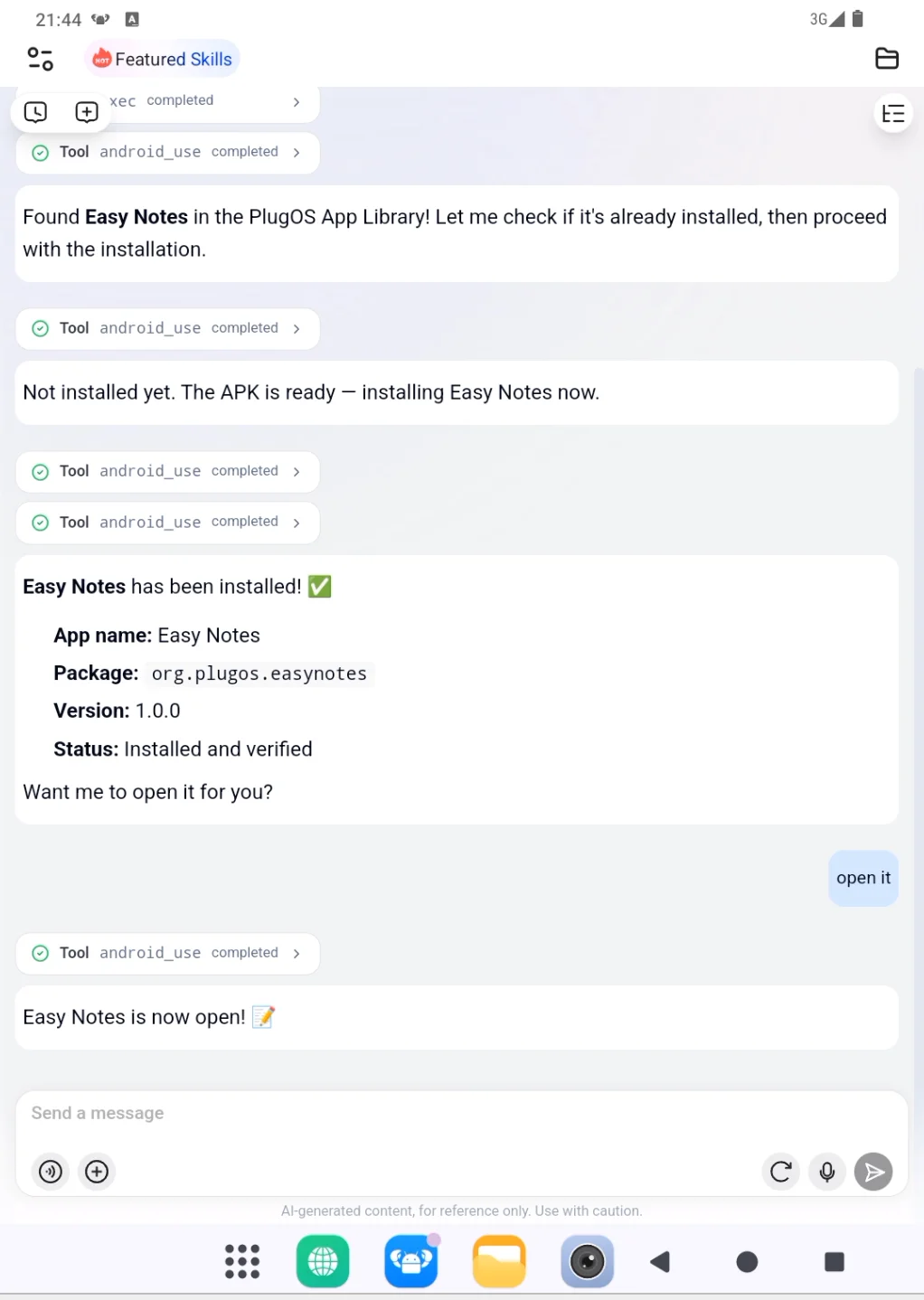
After receiving the request, PlugClaw searches for the app, downloads the installation package, installs it, and checks the result. When the page shows that the Easy Notes installation package is being downloaded, the installation process has started.
No repeated installation requests are needed during the process. Wait for the completion message before continuing.
4. Open the App After Installation
After the app is installed, users can ask PlugClaw to open it.
Example reply:
Open it.
Result preview:
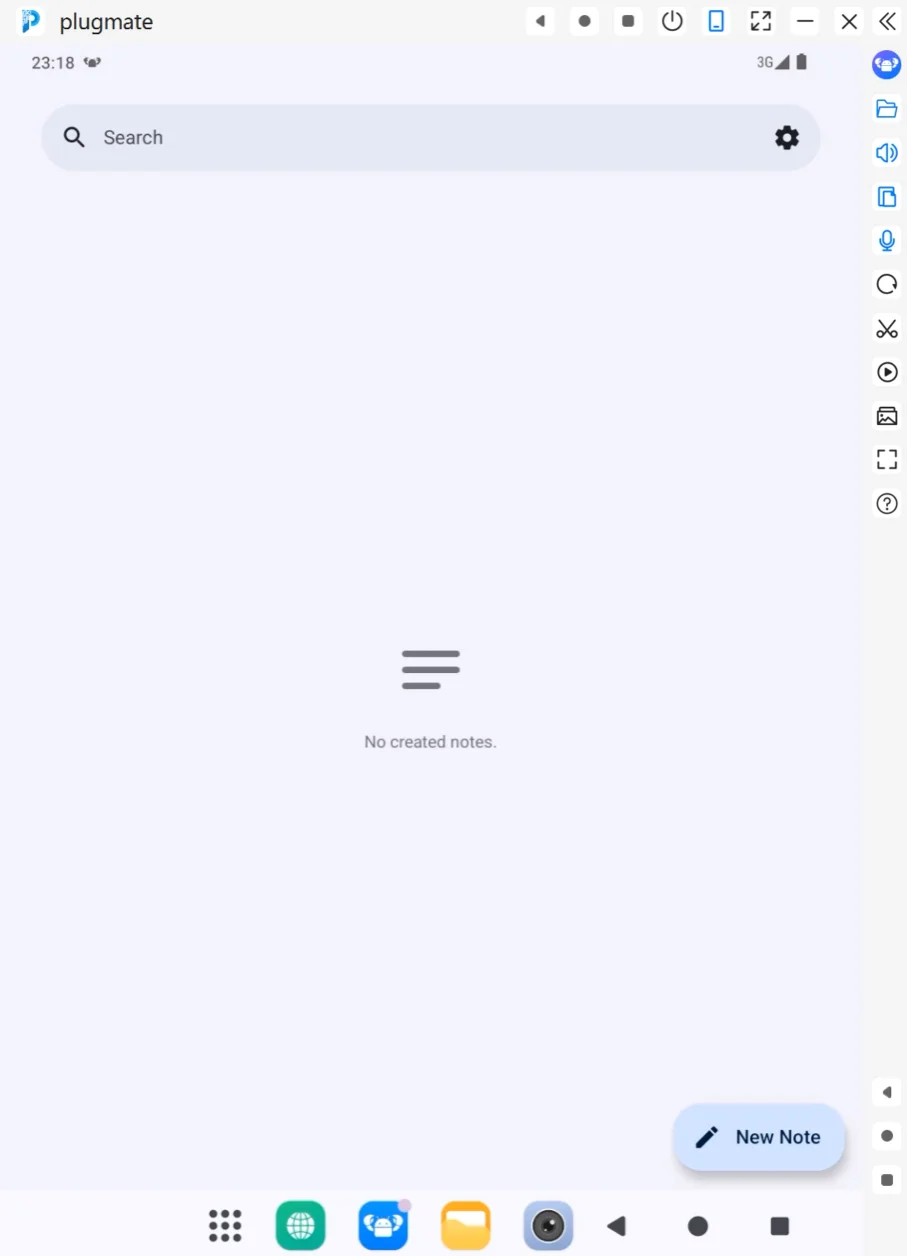
The system then enters the installed app. In this example, Easy Notes opens to the notes home page, where the search bar, settings entry, and new note button are visible, confirming that the app has been installed and launched successfully.
Result preview:
5. Tips
- Use an accurate app name: If the app has an English name, Chinese name, or abbreviation, use the clearest one.
- Wait for installation to finish: Avoid sending repeated installation requests while the current process is running.
- Continue after opening: Once the app is open, you can ask
PlugClawto create content, find features, or perform the next task.
 PlugOS — Privacy isn't an option. It's the foundation
Secure, Ad-free, Tracking-free, No Telemetry
