1. Overview
When a workday is spread across conversations, file processing, research, and task execution records, manually reviewing everything can take significant time. With PlugClaw, users can generate a structured work daily report directly from the day's chat history.
This case uses the request “organize today's chat history and write a daily report” to show the process from sending the instruction to generating the report file.
2. Generate a Daily Report
To summarize the day's work, specify the scope and desired output.
Example prompt:
Help me organize today's chat history and write a daily report.
The request does not need to be complex. Once the scope and output are clear, PlugClaw extracts key information from the current conversation context and organizes it into a report.
3. Report Result
After generation, the daily report is saved to the local Documents directory, and a summary is shown in the conversation.
Result preview:
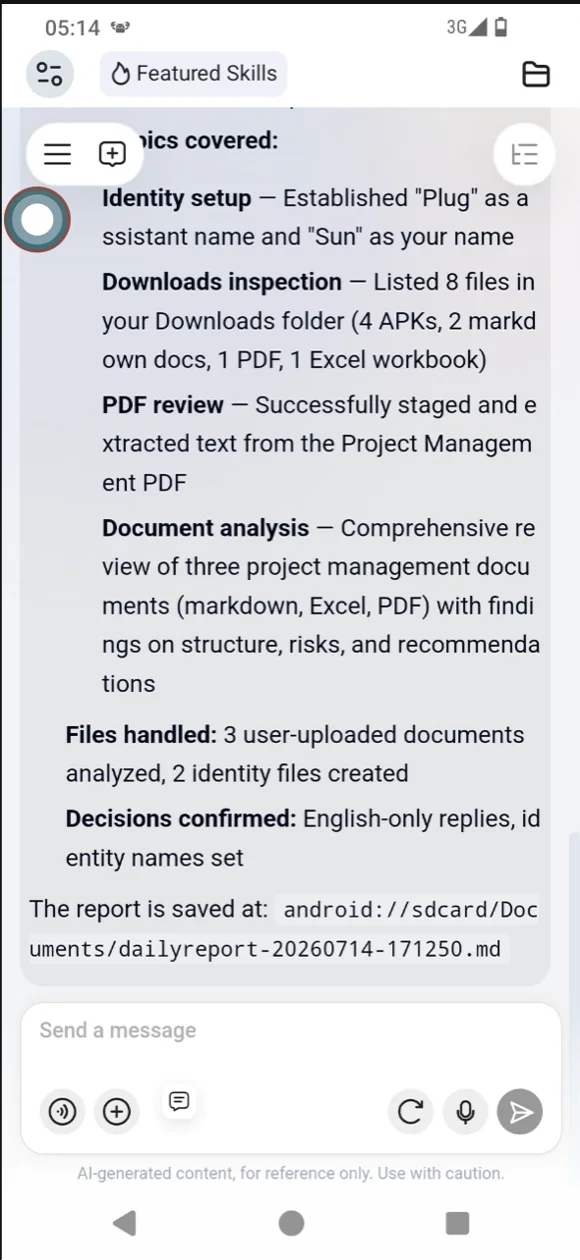
In this example, the report is saved as a Markdown file:
android://sdcard/Documents/dailyreport-20260714-171250.md
Open the file to view the complete daily report. The conversation shows the main summary, while the saved file keeps a fuller version for review, copying, archiving, or further editing.
The report is organized by topic, such as:
- Initial identity setup.
- Downloads directory analysis and
PDFsummary. - Encyclopedia information lookup.
- Functional test report review.
- Number of completed tasks and unfinished items for the day.
This helps turn scattered work records into reusable documentation for daily report systems, team updates, or project archives.
4. Suitable Content
Message memory can generate daily reports and also organize other types of conversation records:
- Work daily reports: summarize completed tasks, processed files, research, and unfinished work.
- Meeting minutes: extract conclusions, owners, and action items from discussions.
- Project updates: organize requirements, issues, risks, and next steps by topic.
- Issue reviews: summarize the handling process, causes, attempted solutions, and final outcome.
- Knowledge records: turn multi-turn Q&A into documents for future reference.
If a fixed structure is needed, include it in the prompt, for example:
Please organize the report into four sections: “Completed Today”, “In Progress”, “Risks and Issues”, and “Plan for Tomorrow”.
5. Follow-Up Edits
After the report is generated, users can refine it without reorganizing the entire chat history. For example:
- Please shorten the report to within
300words. - Please add a “Plan for Tomorrow” section.
- Please adjust the tone so it is suitable for a direct manager.
- Please keep only the content related to project progress.
- Please turn completed items into a table with item, result, and notes.
This makes it easy to generate a first draft and then refine it for the actual reporting scenario.
6. Tips
- Specify the time range: For example, “today”, “this week”, or “this conversation”.
- Specify the output format: Daily report, minutes, task list, table, or Markdown document.
- Provide a fixed template: If the team has a daily report format, ask
PlugClawto follow it. - Review key facts: Check data, conclusions, customer information, and externally shared content carefully.
- Summarize promptly: Generating the report soon after the conversation keeps context complete and easier to trace.
 PlugOS — Privacy isn't an option. It's the foundation
Secure, Ad-free, Tracking-free, No Telemetry
