What a Configuration Backup Contains
Configuration Management backs up and restores PlugClaw settings such as gateways, Skills, channels, and related configuration. Export a configuration before changing environments, attempting recovery from a serious problem, or reinitializing PlugClaw. Import a previously exported file when those settings need to be restored.
A configuration export is not a file backup. Documents, images, and other important workspace or device files must be saved separately.
Both importing configuration and reinitializing PlugClaw affect the current environment. Import is marked as irreversible because it restores settings from the selected file. Reinitialization rebuilds the PlugClaw runtime and is also irreversible. Before either operation, export the current configuration, separately back up important files, and make sure the source file and intended action are understood.
Export and Import Configuration
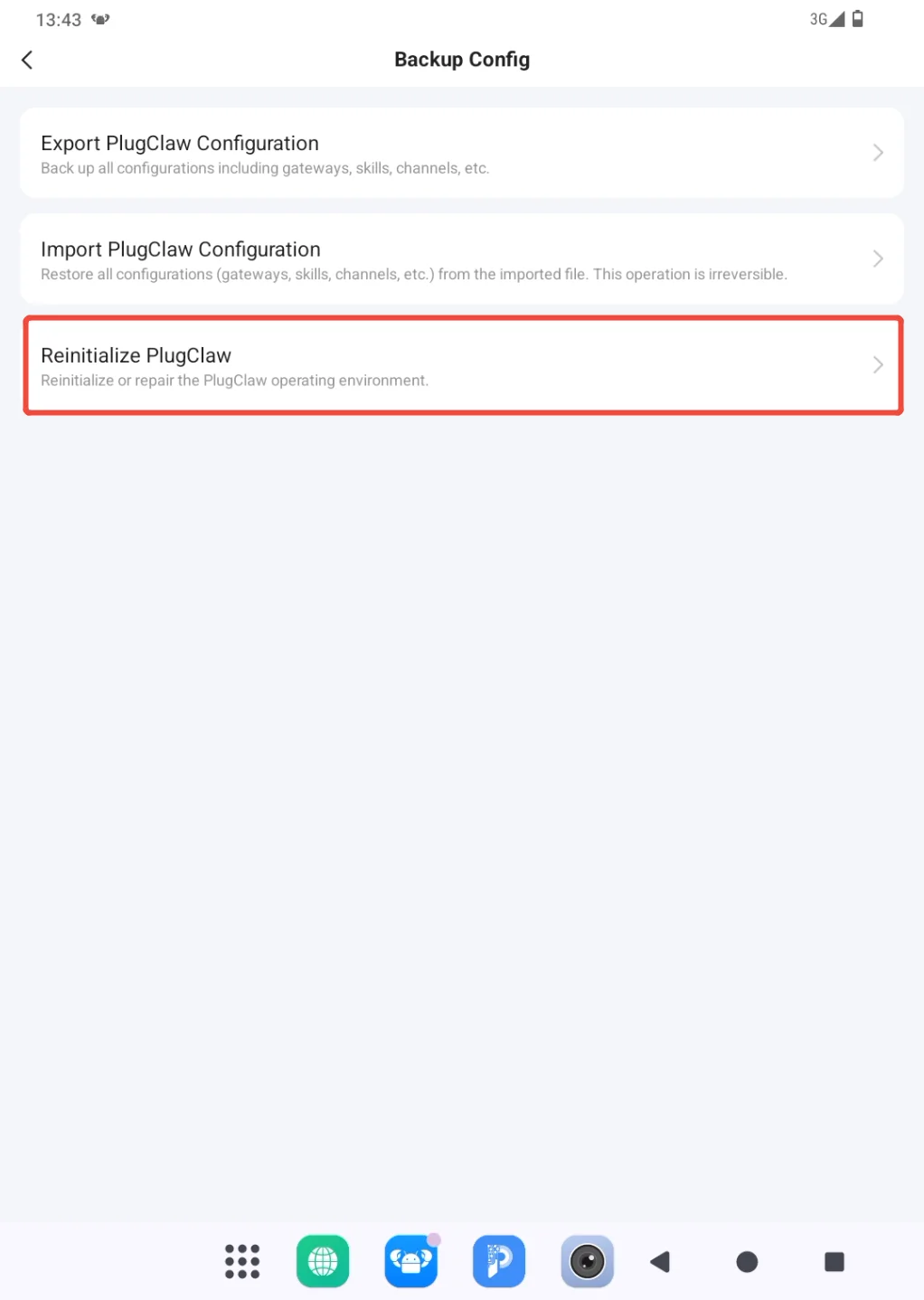
Open the sidebar and go to Backup Config. The page provides Export PlugClaw Configuration, Import PlugClaw Configuration, and Reinitialize PlugClaw. Use export for a backup and import to restore a previous backup. Do not use reinitialization as the first step in ordinary troubleshooting.
Export Configuration
- Choose Export PlugClaw Configuration.
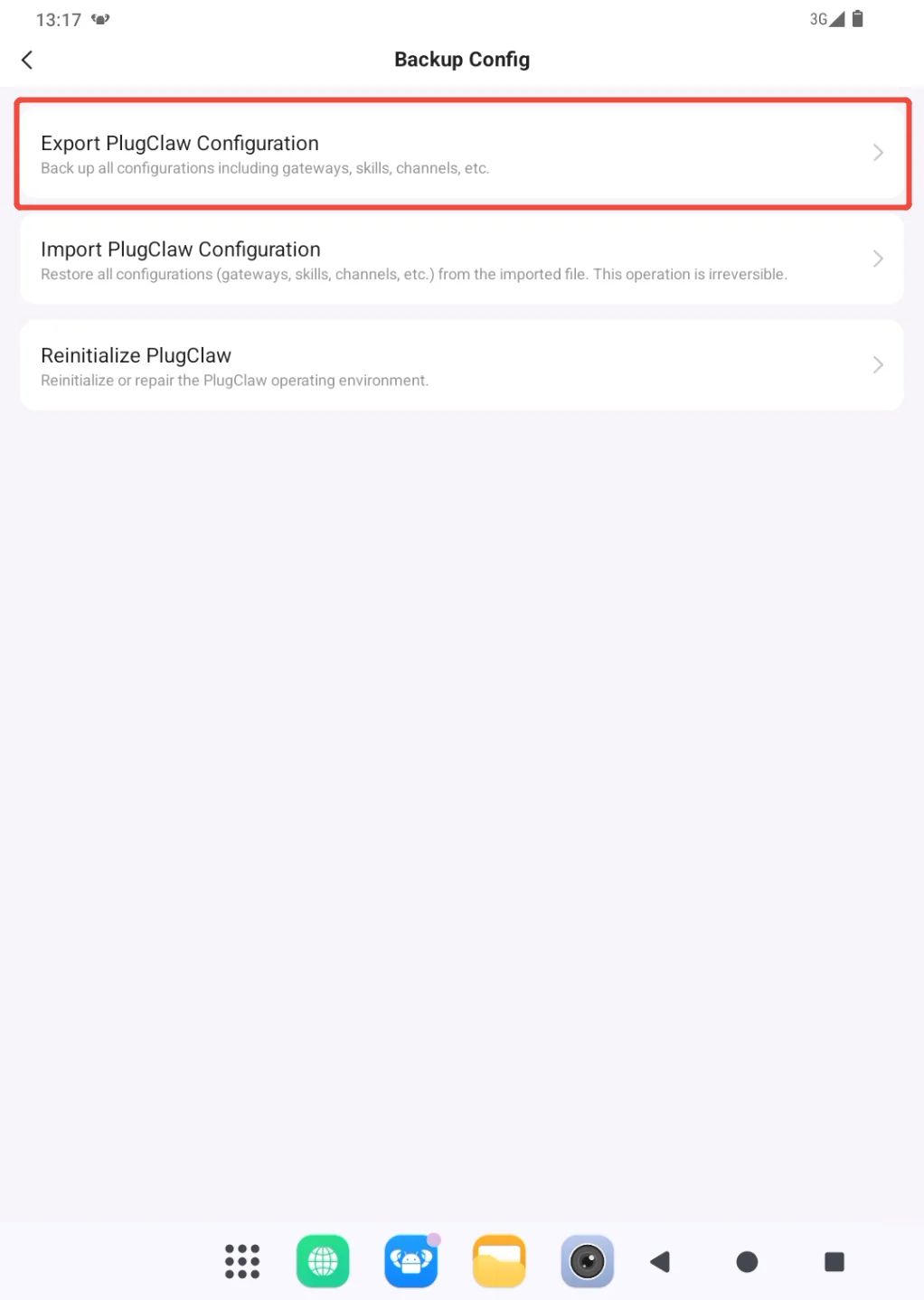
- Review the destination in the export dialog. Choose an easy-to-find folder with enough free space, then start the export.
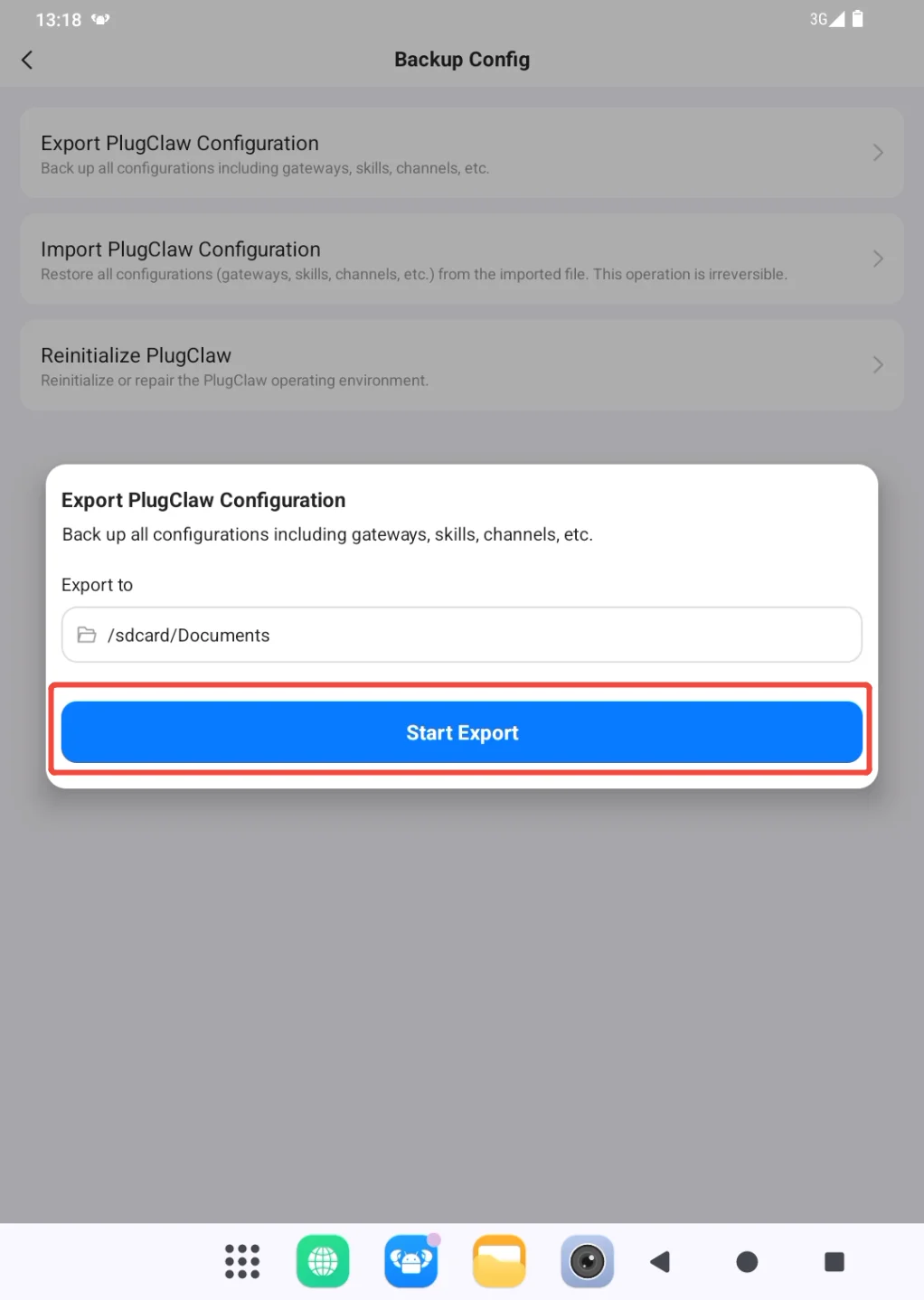
Open the selected destination afterward and confirm that the configuration file exists. Record the export date and keep another copy outside the device when possible. Treat the file as sensitive because it may contain service connection information.
If export fails, confirm that the destination is available and has enough storage. Do not continue to reinitialization until a usable export has been verified.
Import Configuration
Importing replaces the current gateway, Skills, channels, and related settings with those stored in the selected file. There is no one-click undo after the import finishes. If you exported the current configuration beforehand, you can restore the earlier settings by importing that backup again. A damaged, incomplete, or mismatched configuration may give the gateway an incorrect port, channel, or service setting and prevent it from connecting. Export the current configuration first, then confirm the source, export date, and intended environment of the file you plan to import. If any of these details are uncertain, do not continue.
- Choose Import PlugClaw Configuration.
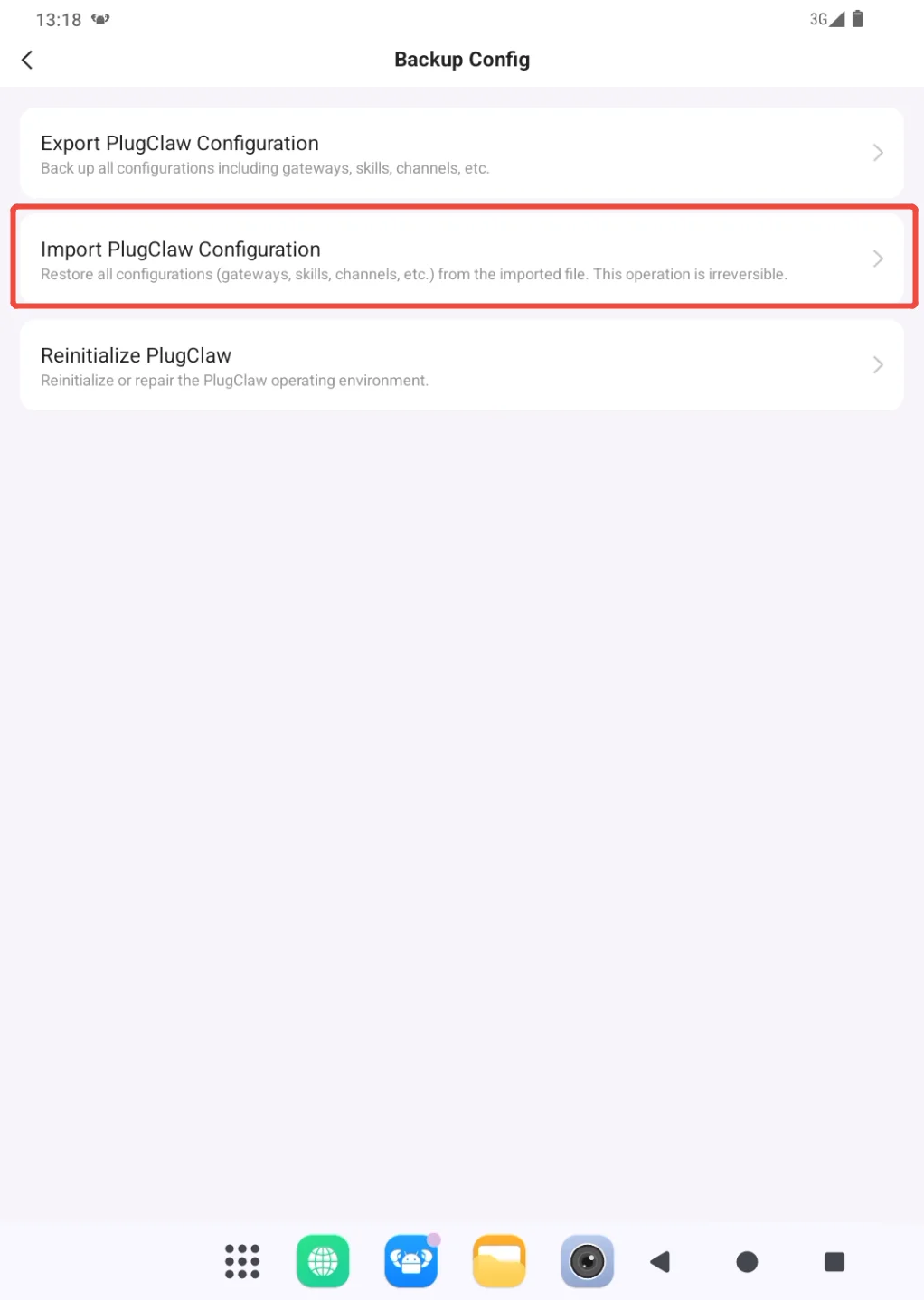
- Select the exported configuration file. Review its name, export date, and source, and make sure it is the configuration you intend to restore before starting. Keep the device online and do not close PlugClaw or restart the device during import.
After import, Restart the gateway, then check that the models, Skills, and channels match what you expected. Send a short test message; a normal reply confirms that the gateway has reconnected.
If the gateway cannot connect after import, do not continue trying configuration files from uncertain sources. If you exported the current configuration before importing and can still open Backup Config, import that earlier backup, restart the gateway, and test again.
When no usable earlier backup is available, or restoring it does not recover the connection, reinitializing PlugClaw is another recovery option. Reinitialization rebuilds the runtime and cannot be undone, so separately back up important workspace documents, images, and other files first. Then follow Reinitialize PlugClaw below. After reinitialization, set up PlugClaw again or import a configuration that has already been confirmed to work.
If you are unsure whether reinitialization is appropriate, keep the imported file, the earlier backup, the complete page message, and the time of import, then submit them through Settings > Feedback. This information helps determine whether the configuration itself is invalid or the gateway failed to load it correctly.
Edit a Configuration File Manually
Configuration files contain parameters, paths, and feature switches required by PlugClaw. A malformed edit can prevent PlugClaw from starting or disable a feature. Change one only when a specific guide or support instruction identifies the exact file and field.
Before editing, confirm that:
- The required file and field are known.
- The original location is known and accessible.
- No important task is currently running.
- Workspace documents and other important files have a separate backup.
- Locate the target file under the PlugClaw folder and copy the original to a safe backup location. Include a date and
backupin the copy's name if that makes it easier to identify. - Open the file in an editor suitable for its format. Change only the documented value and preserve field names, quotation marks, commas, brackets, hierarchy, and file extension.
- Save the file, restart the relevant application or gateway as instructed, and first confirm that it starts normally. Then test the feature affected by the change.
If startup or behavior becomes abnormal, stop editing, restore the backup, and restart. Keep the backup, exact change, and error message for support if the problem remains.
Reinitialize PlugClaw
Reinitialization rebuilds the PlugClaw runtime and cannot be undone. Export the PlugClaw configuration and separately back up important workspace and device files before continuing.
- Open the sidebar and go to Backup Config.
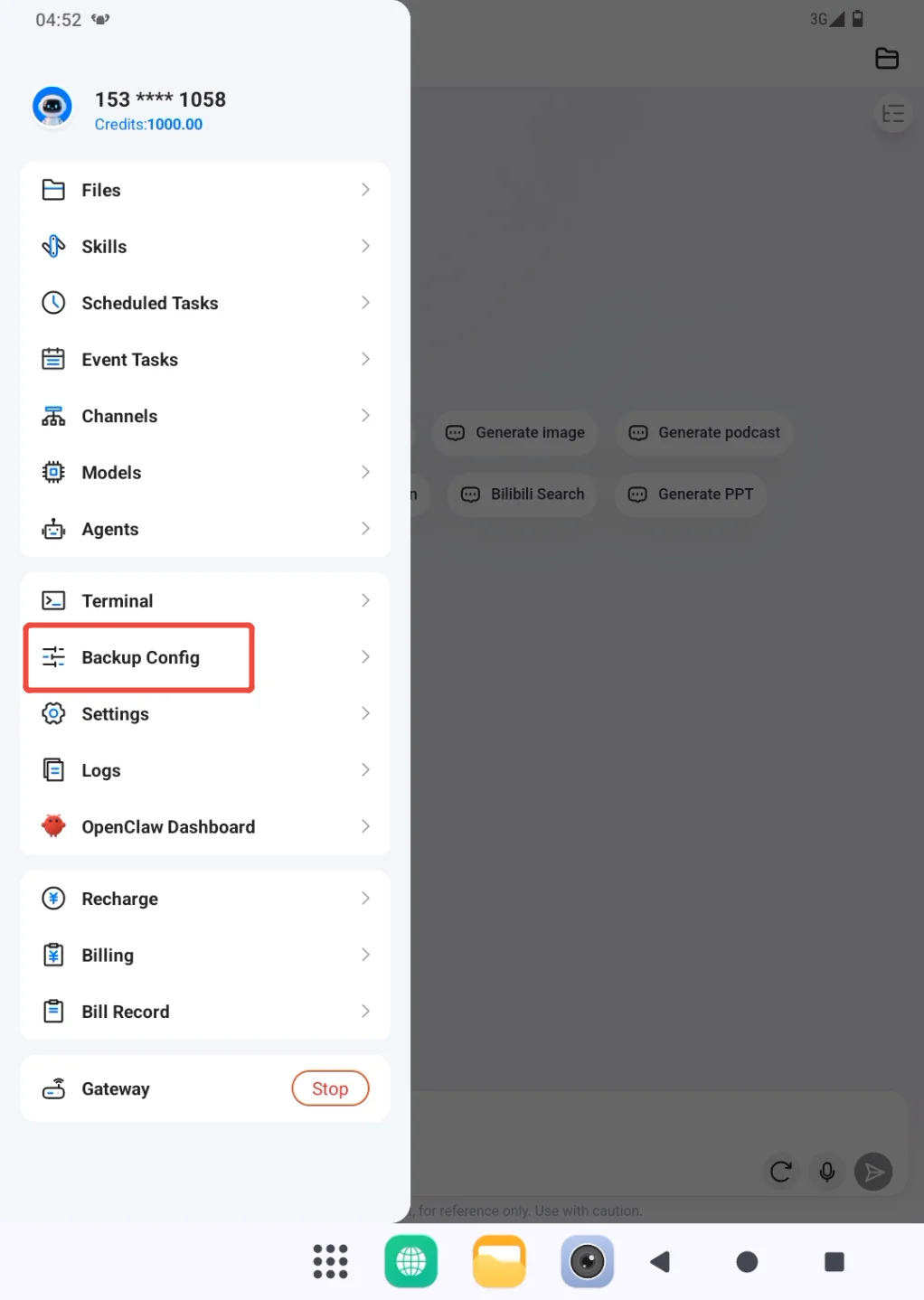
- Choose Reinitialize PlugClaw.
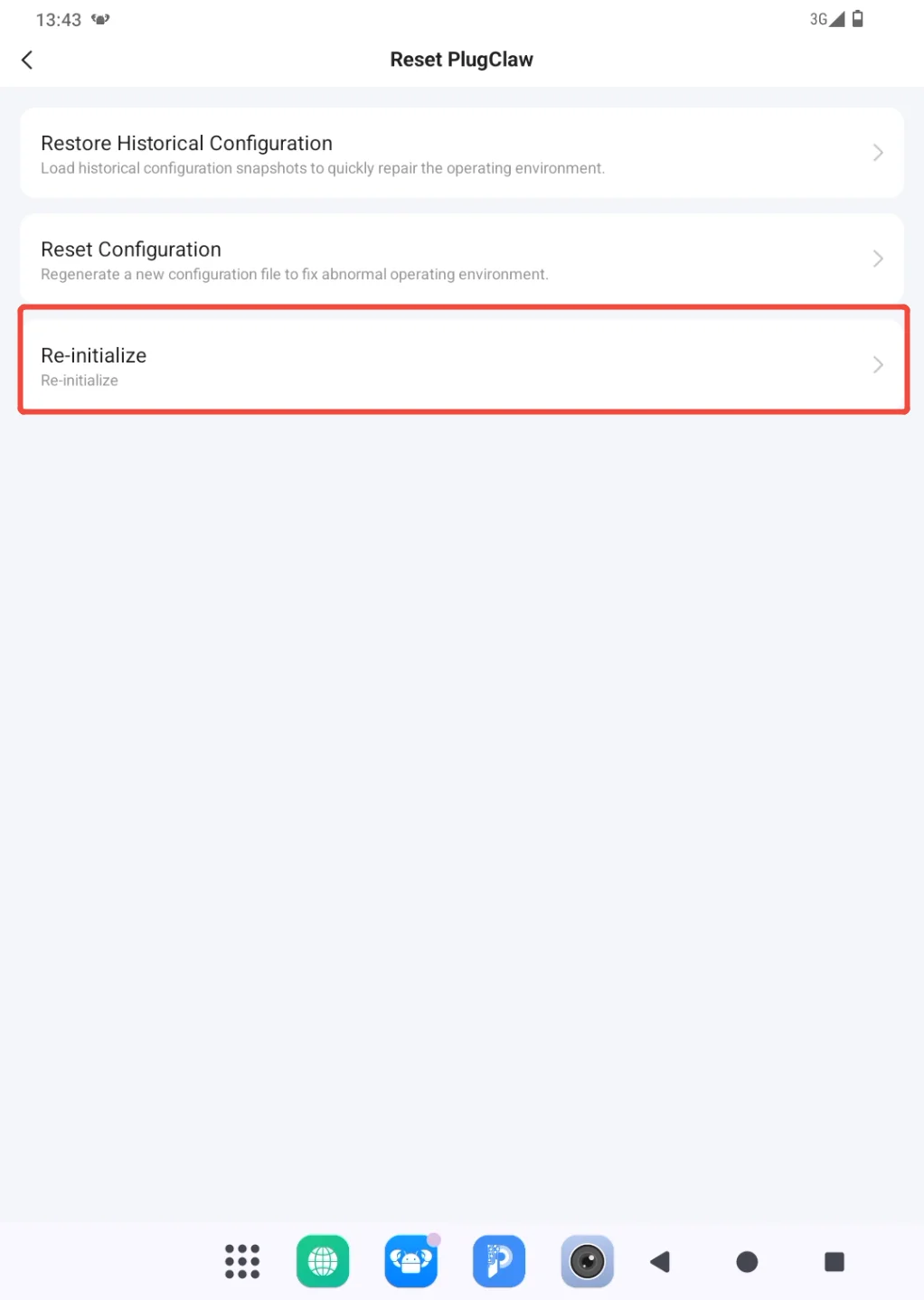
- The reset page offers options for restoring history, resetting configuration, and reinitializing. Choose Re-initialize only when the runtime environment genuinely needs to be rebuilt.
- Read the confirmation carefully. Continue only after configuration and important files have been backed up; otherwise cancel and complete the backups first.
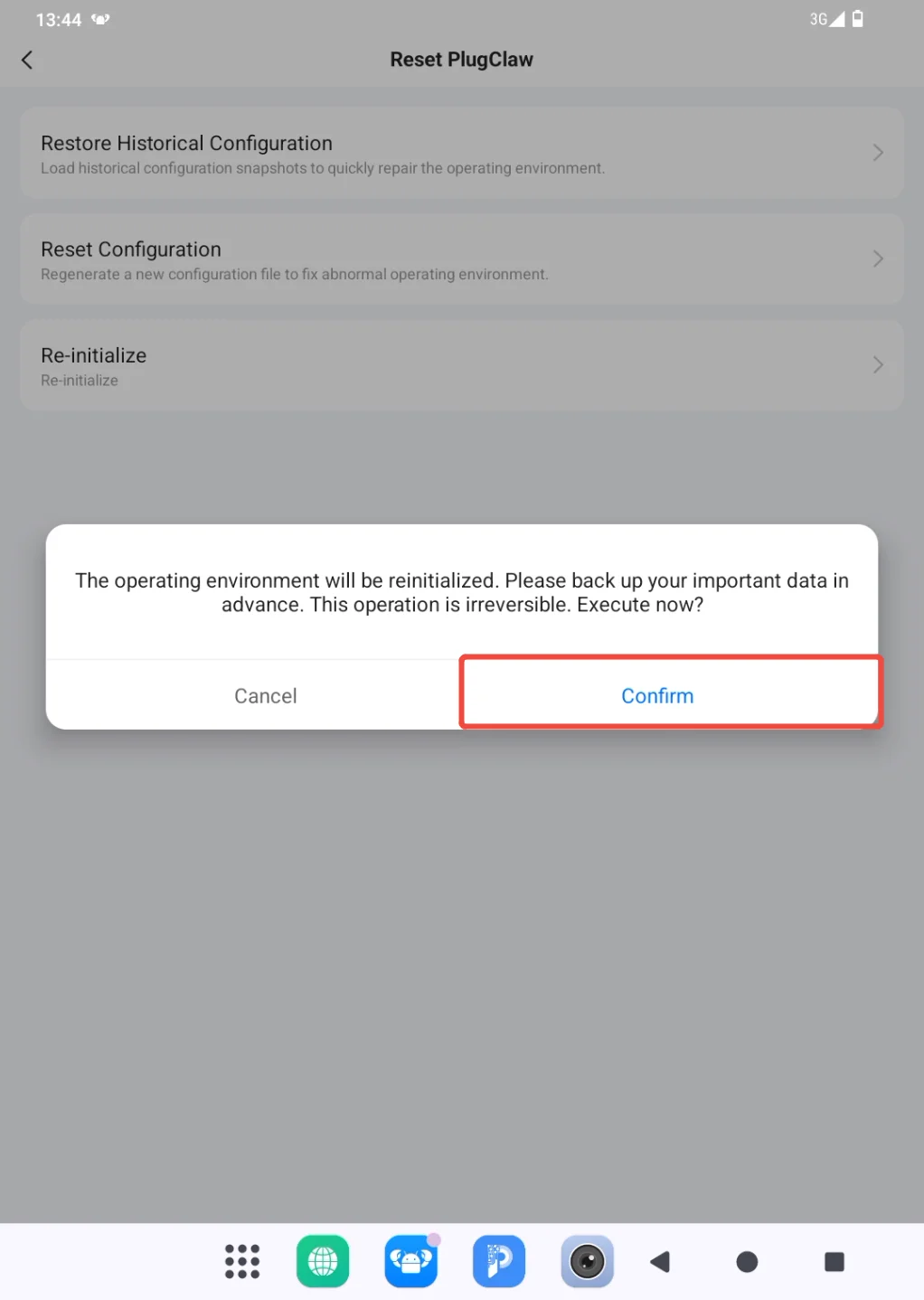
Keep the device online and wait for the process to finish, then follow Initialization. Afterward, check login status, models, Skills, channels, and the gateway, and send a short test message. Import the saved configuration from Backup Config when restoration is required.
 PlugOS — Privacy isn't an option. It's the foundation
Secure, Ad-free, Tracking-free, No Telemetry
