What Scheduled Tasks Do
Scheduled Tasks let an Agent repeat work at a chosen time, such as preparing a daily brief, checking information regularly, or sending a reminder. Before creating one, decide what it should do, which Agent should run it, when it should run, and where the result should be delivered.
PlugClaw must be running at the scheduled time. If it is not running, the task is not discarded: PlugClaw runs the missed task after it starts again. For example, a 9:00 AM brief will run after PlugClaw returns at 10:00 AM, but the result will arrive later than planned.
For time-sensitive reminders or external delivery, keep PlugClaw running at the expected time. After a restart, watch for delayed results so they are not mistaken for newly scheduled work.
Results can remain inside PlugClaw or be delivered through a configured external channel. External delivery requires a channel, a sending account, and a receiving target.
Create a Task
Before starting, follow View and Control the Gateway to confirm that the gateway is connected, and make sure the Agent can reply normally. Configure the relevant platform first if the result will be sent outside PlugClaw.
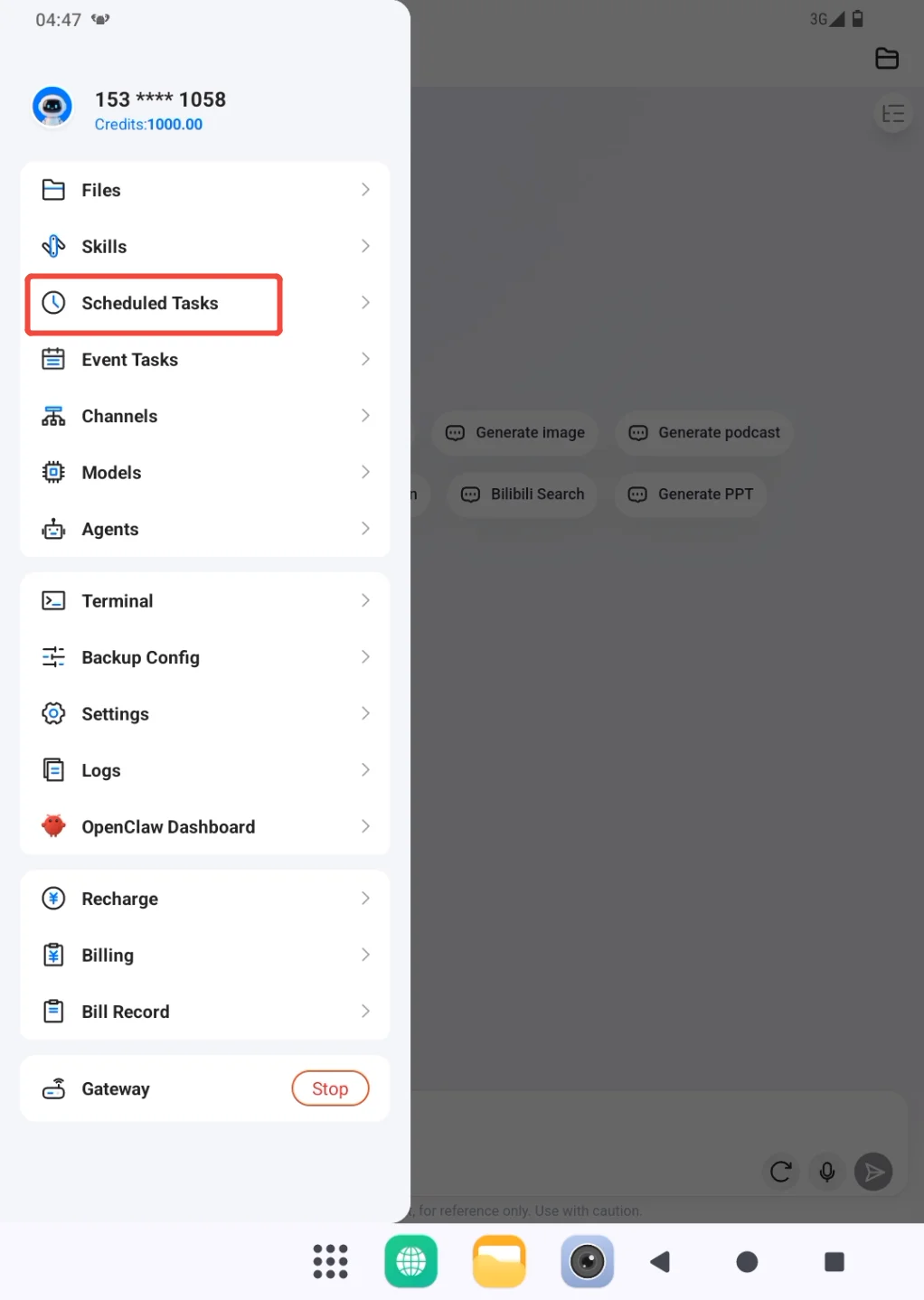
- Open the sidebar and go to Scheduled Tasks.
The page summarizes total, running, paused, and failed tasks. A new environment shows that no tasks exist yet.
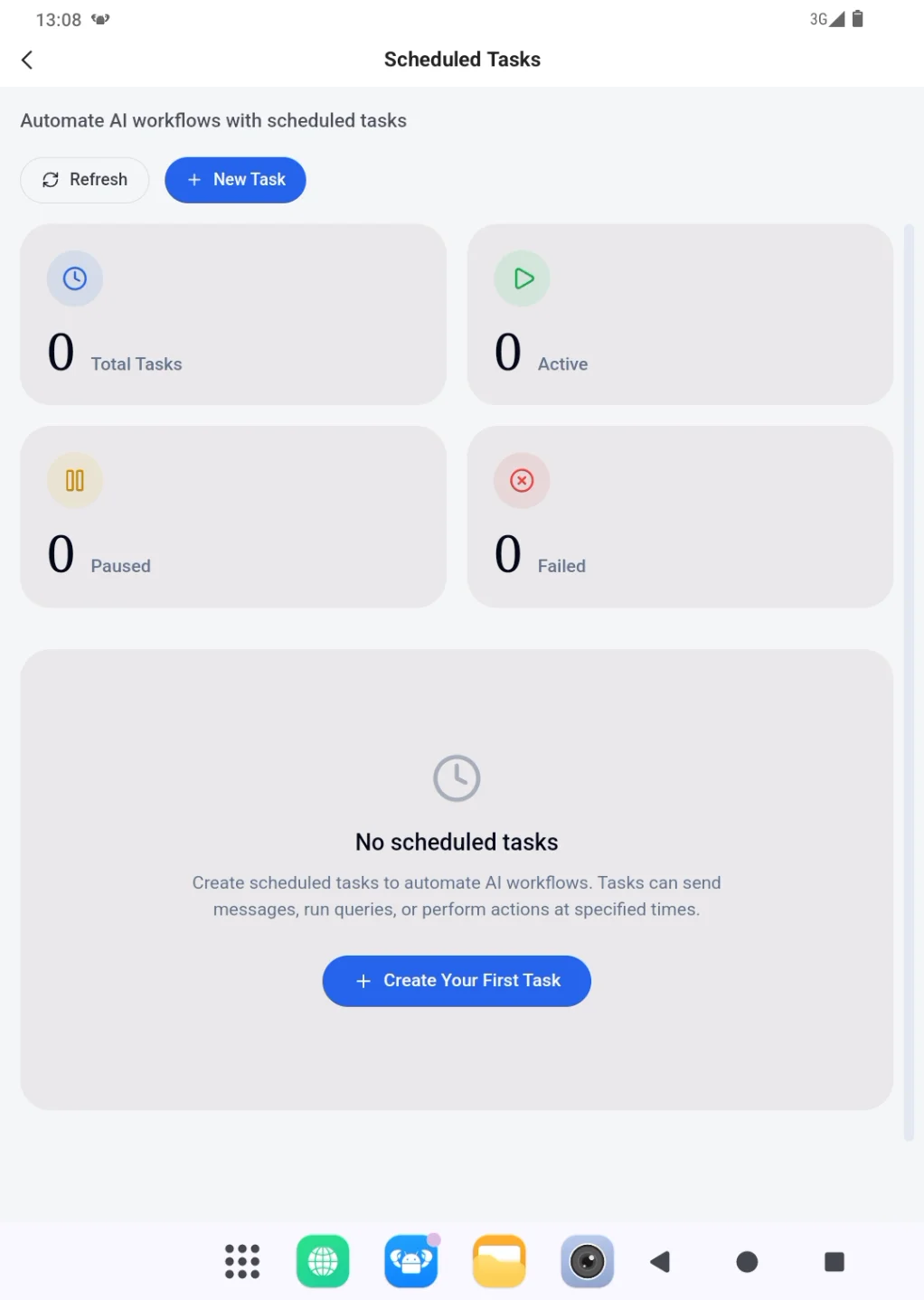
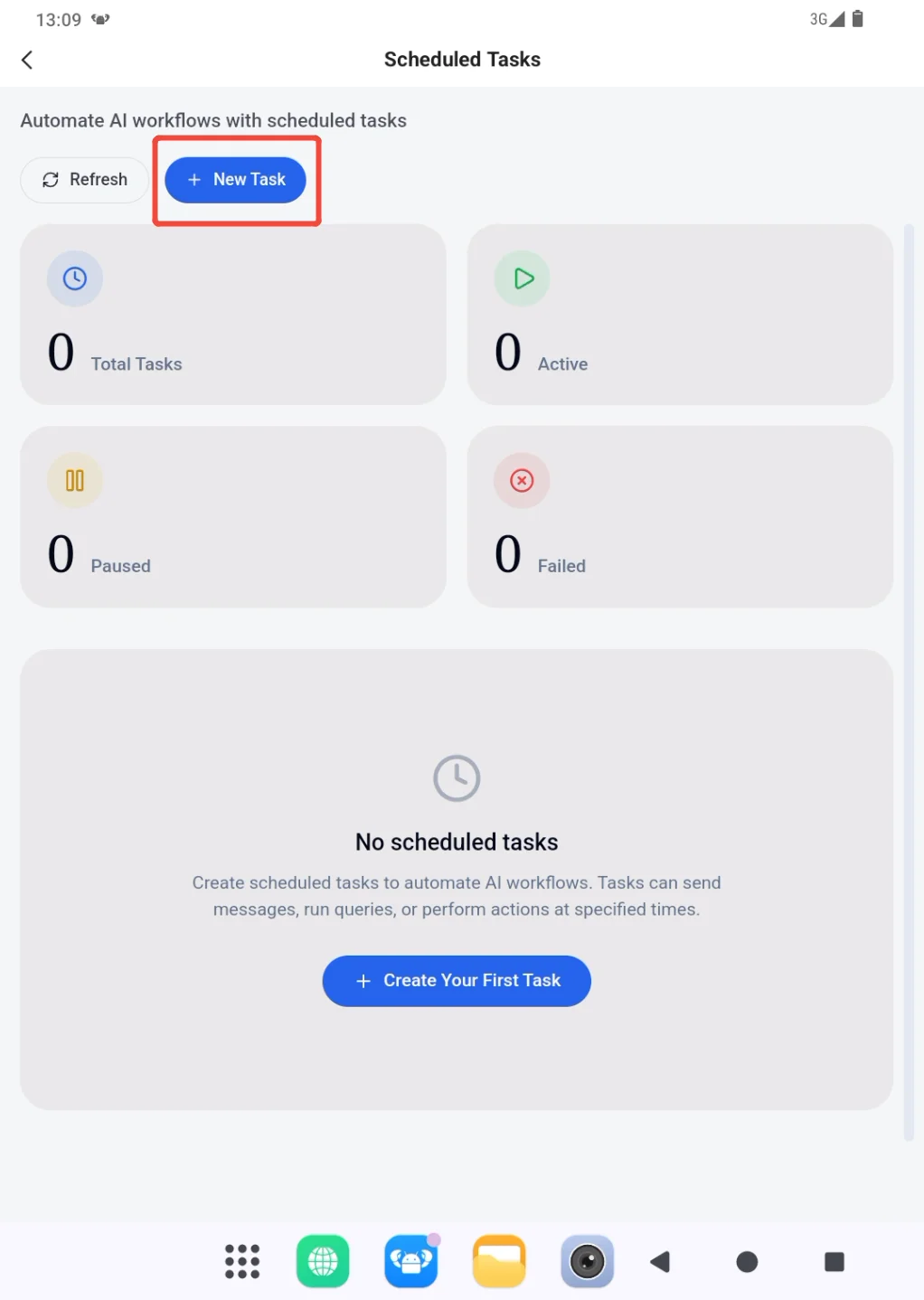
- Start with New Task. When the list is empty, Create First Task leads to the same form.
- Give the task a recognizable name and write its Message/Prompt. The prompt is the instruction the Agent receives every time the task runs. Include the data range, action, and expected format. For example: "Summarize yesterday's sales, including total sales, the top three products, and any anomalies."
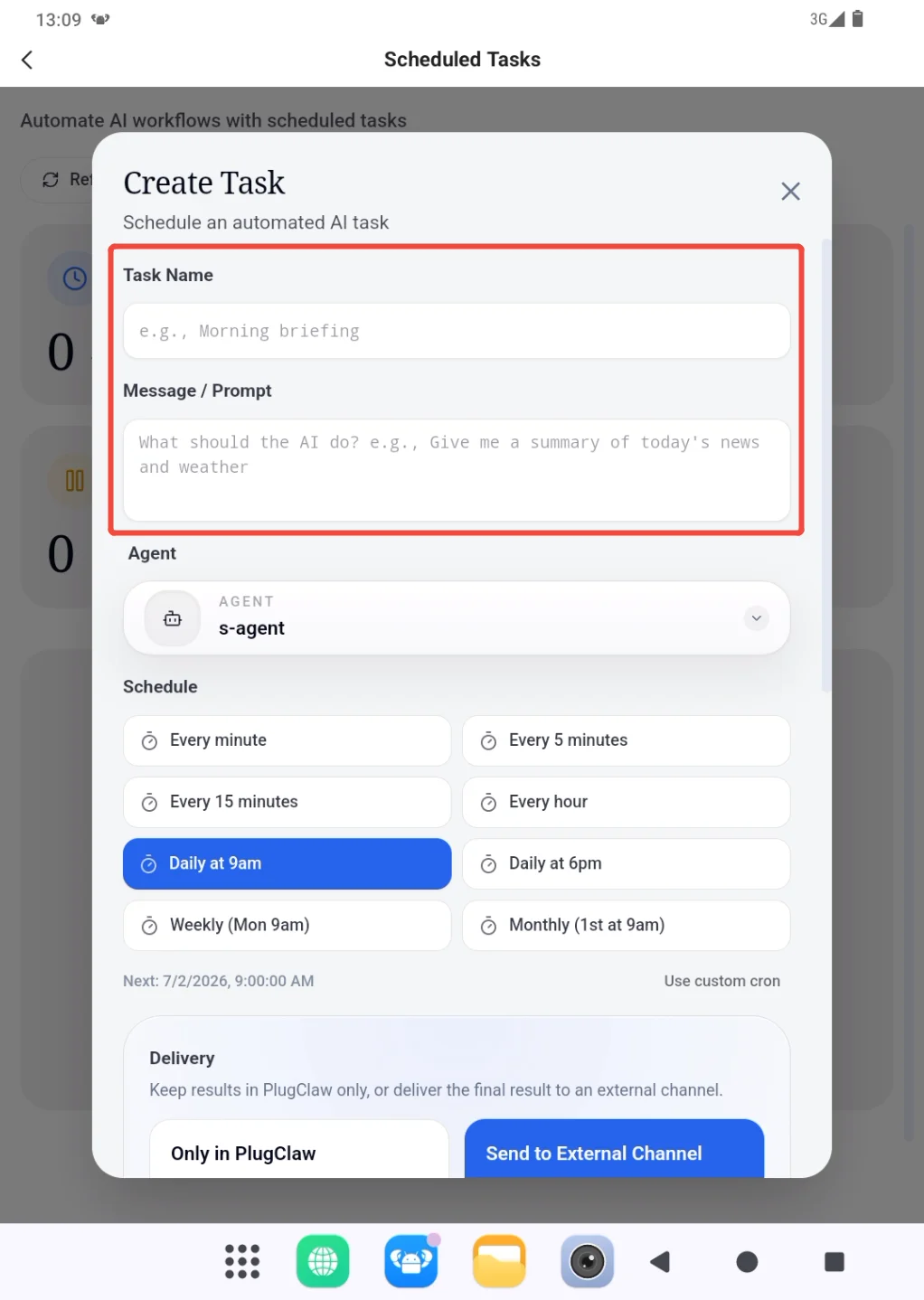
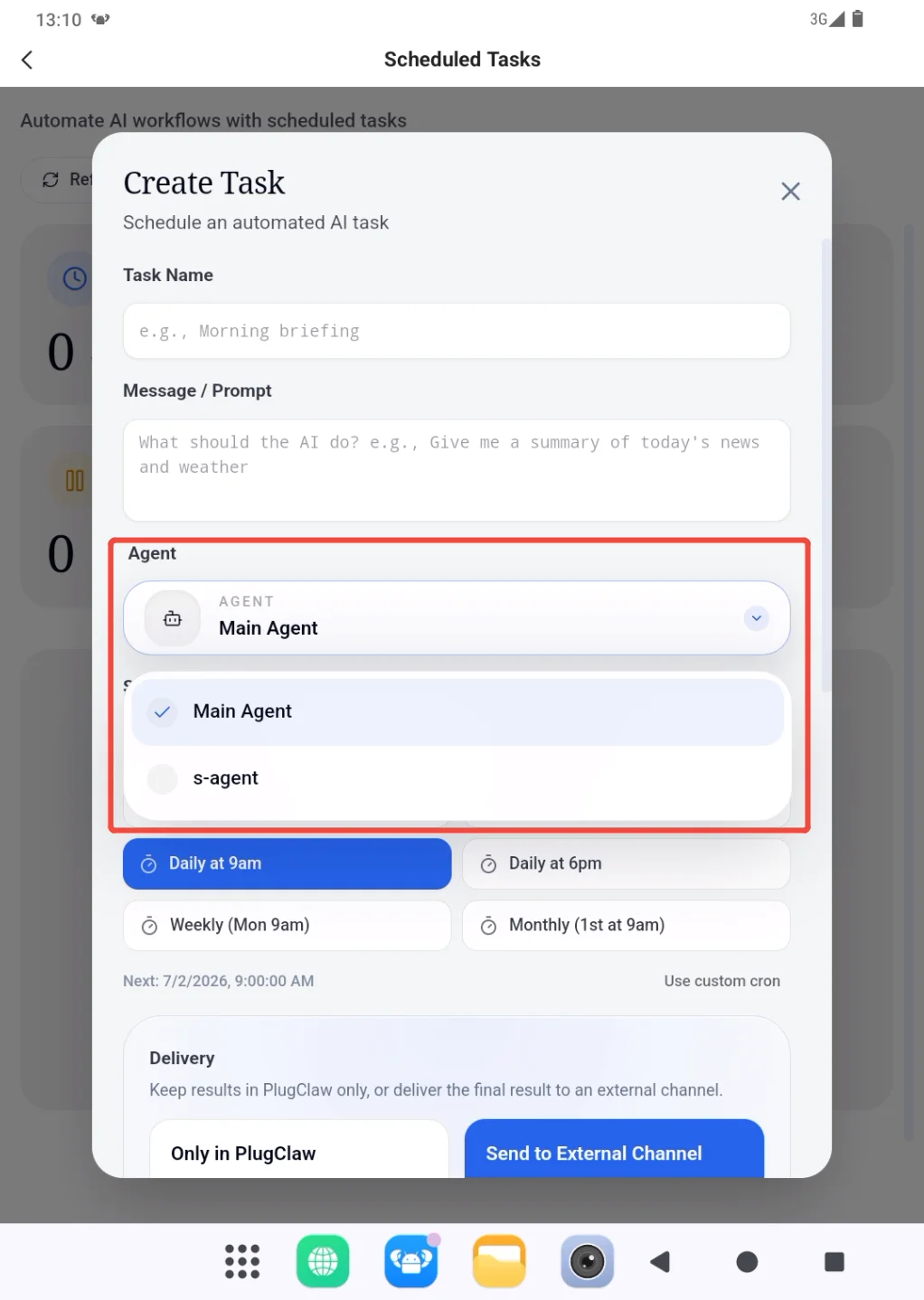
- Choose the Agent that will run it. A new PlugClaw environment contains only Main Agent, so keeping the default is appropriate for a first task. To use a dedicated Agent such as Research or Weekly Report, create it first in Agent Management, then return to this form.
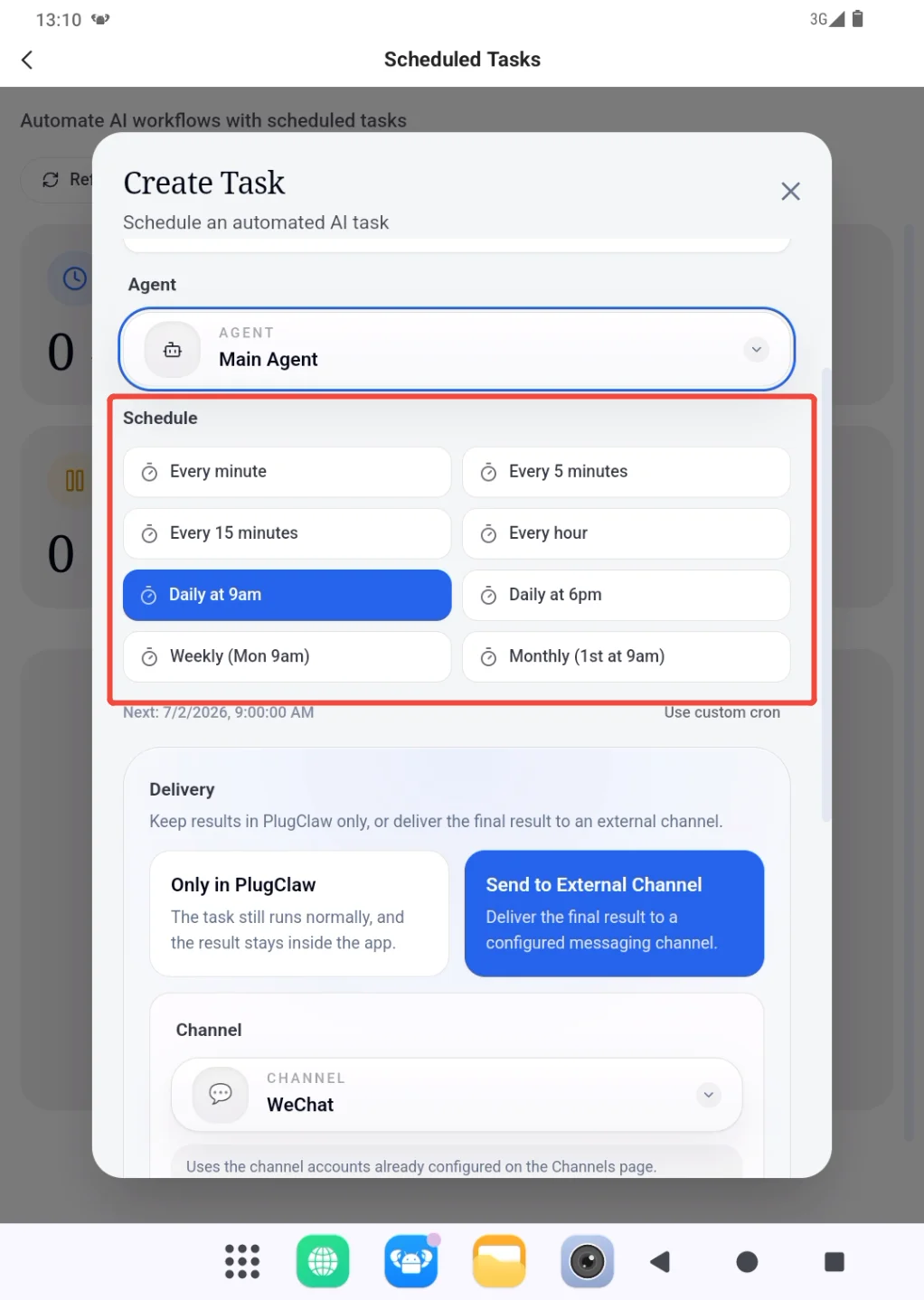
- Set the frequency under Schedule Plan. Review the displayed next-run time to confirm both the date and time. This is the planned time; a task missed while PlugClaw is stopped runs after PlugClaw starts again.
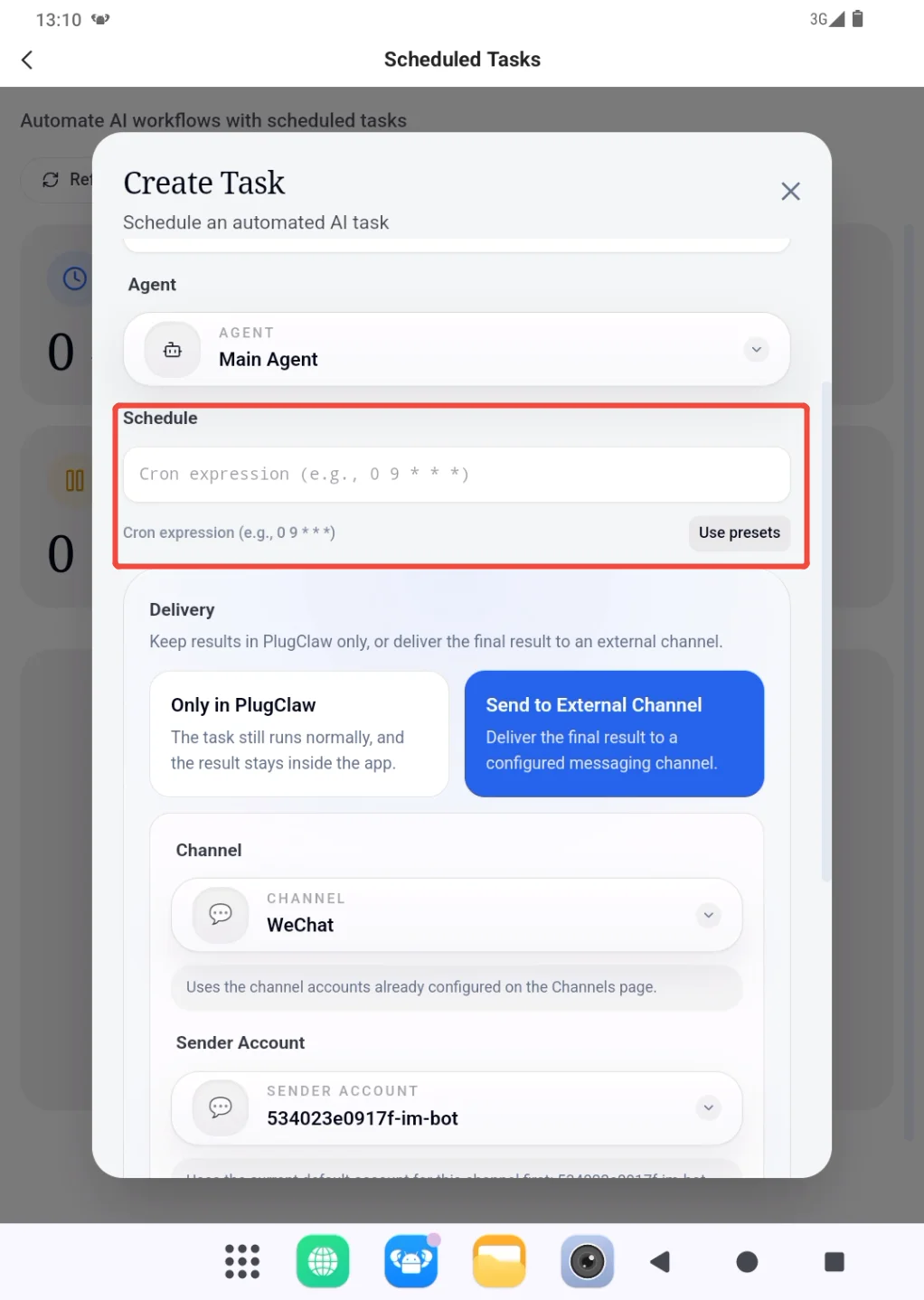
Use Custom Cron only when the presets do not meet the requirement and the Cron expression has been checked carefully.
- Choose where the result should go. Only in PlugClaw keeps it in the application and is a good choice for the first test run.
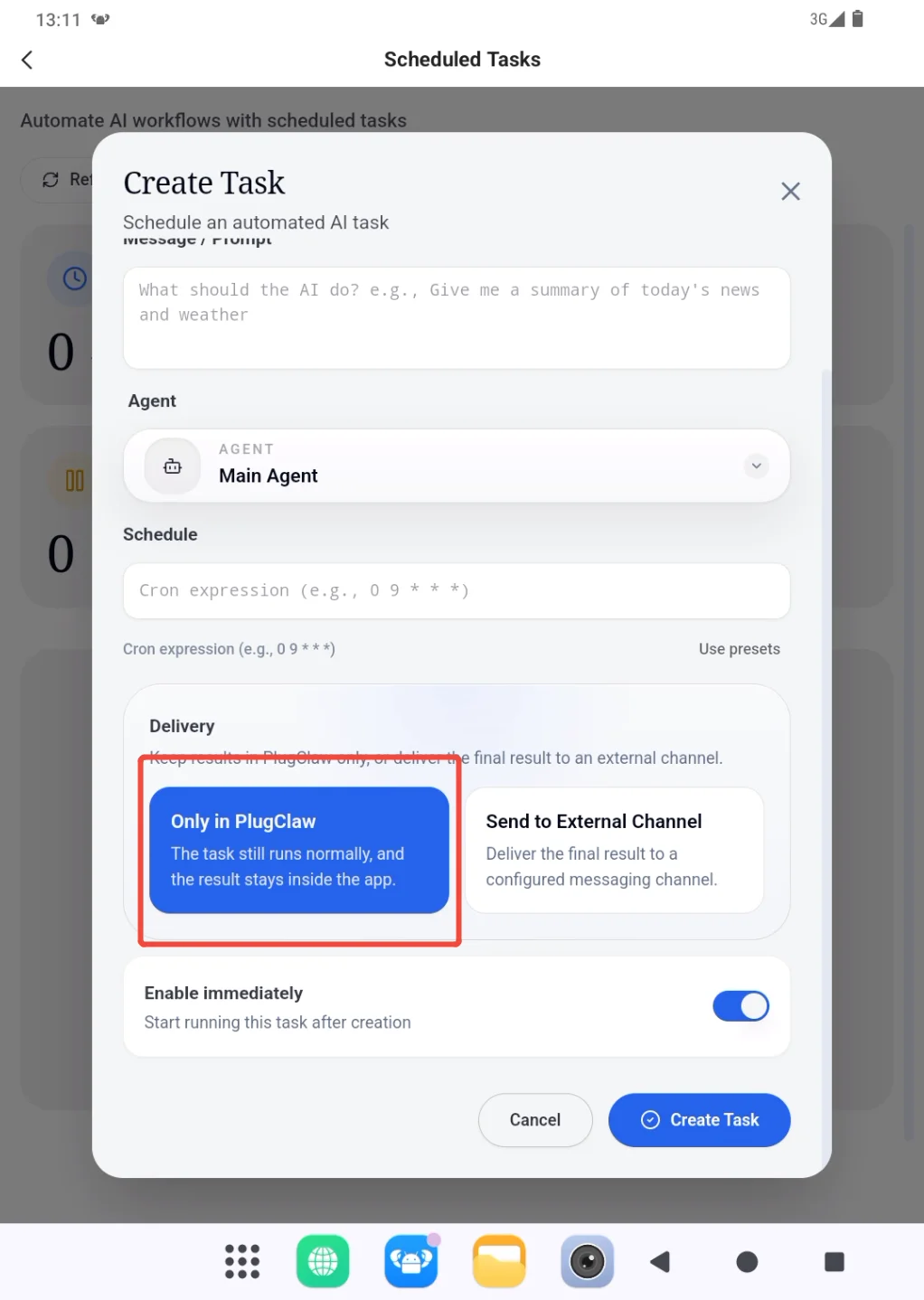
For external delivery, select Send to External Channel, then choose:
- Channel: the configured platform, such as WeChat or another supported channel.
- Sending account: the account or bot PlugClaw uses to send the result, such as a configured WeChat ClawBot.
- Receiving target: the contact, conversation, or group that ultimately receives the result.
If no channel or sending account is available, leave the task form and complete Channel Configuration. Confirm that the channel can send and receive messages, then return to create the task.
If the sending account is available but no receiving target appears, send that bot a message from the external platform first, such as "Hello." After the bot has received a message, return to Scheduled Tasks and select the corresponding contact or conversation.
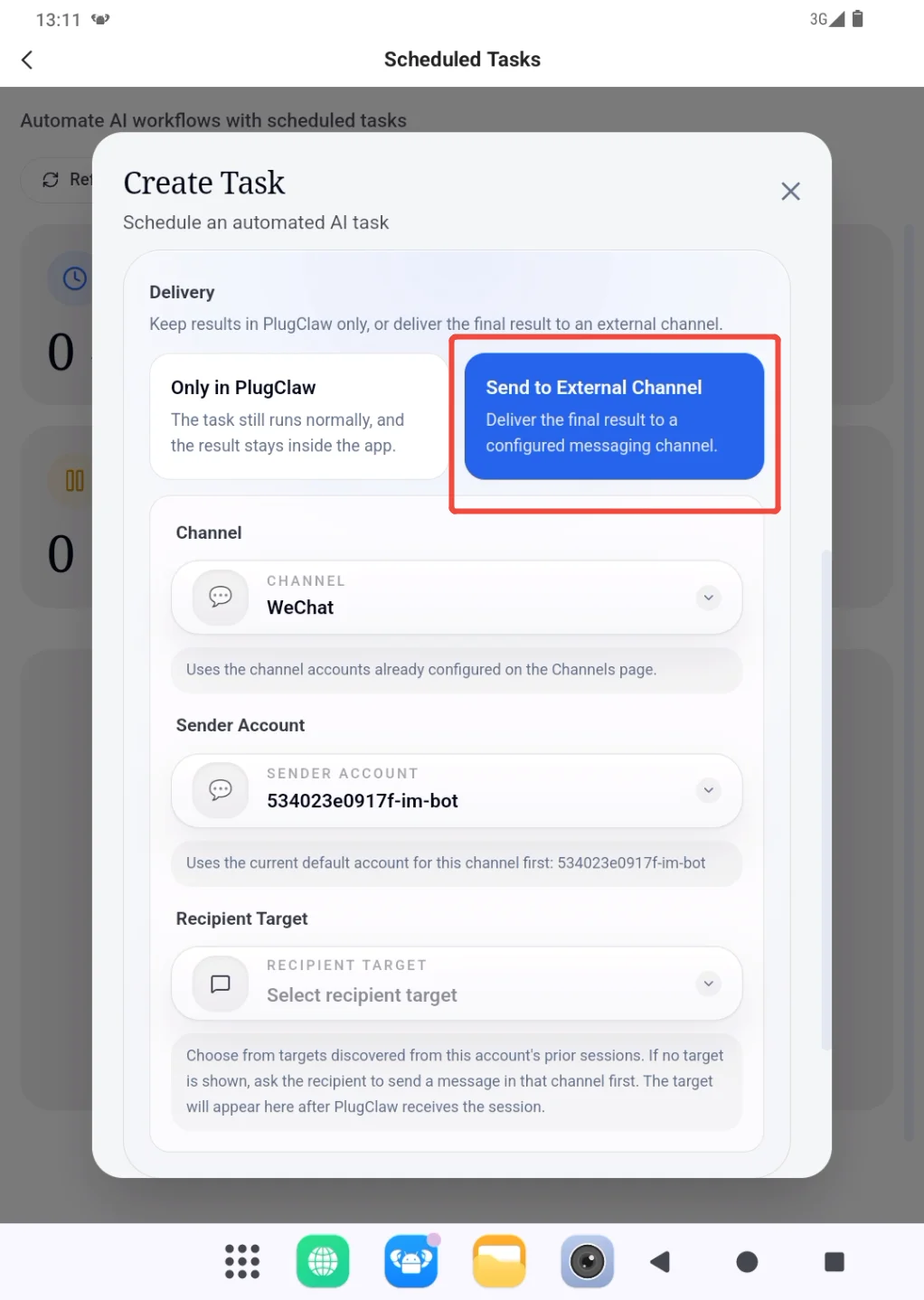
- Review the name, prompt, Agent, next-run time, and delivery target. Keep Start Immediately enabled when the task should begin following its schedule as soon as it is created; turn it off when the configuration should be saved in a paused state.
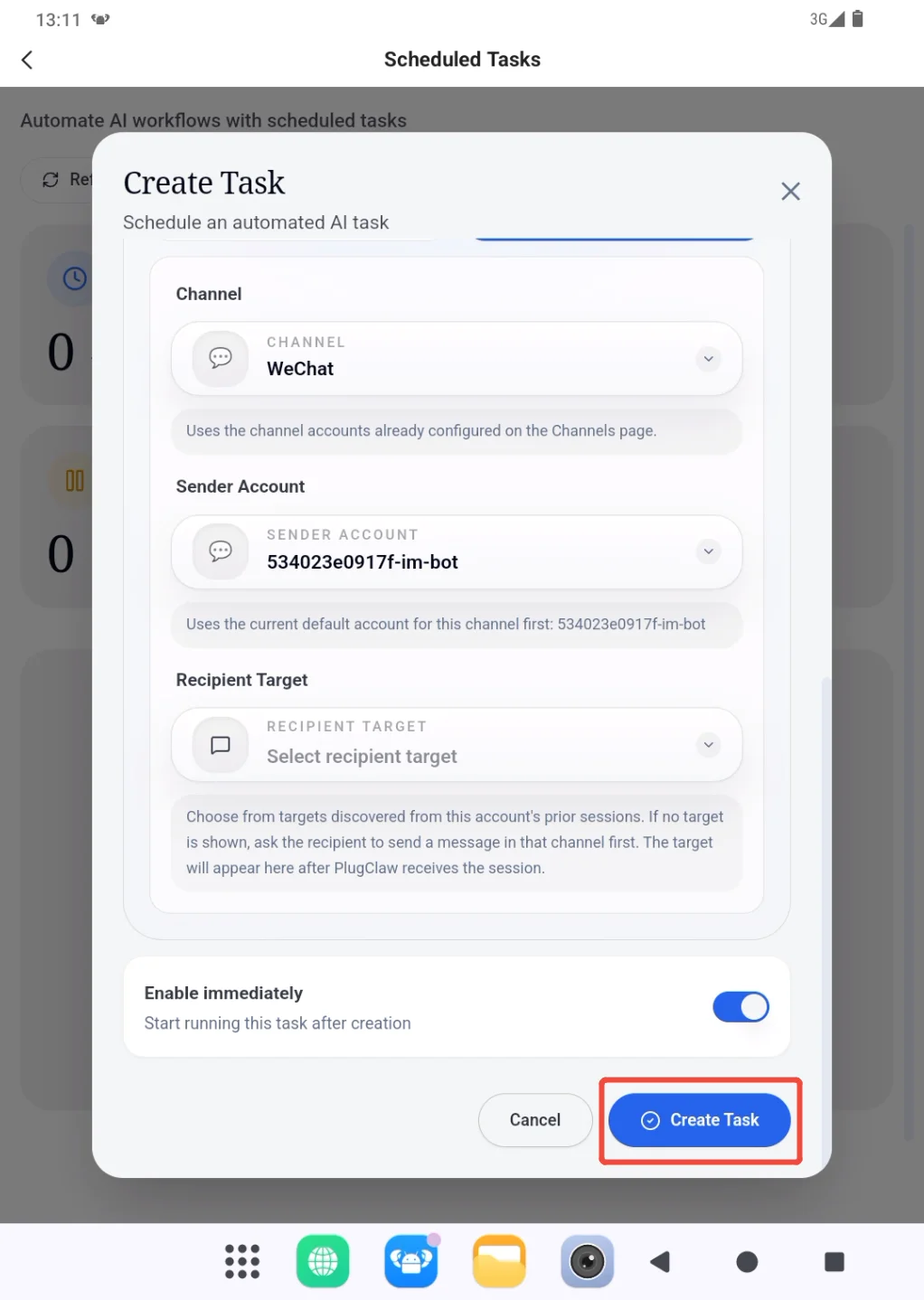
After creation, the task should appear as running or paused. Check the result and delivery location after its first execution. If it fails, review the Agent, credits, prompt, and external target before changing the schedule.
 PlugOS — Privacy isn't an option. It's the foundation
Secure, Ad-free, Tracking-free, No Telemetry
