Feature Overview
Calendar is used in PlugClaw to manage schedules, tasks, and calendar data in the Android Calendar app.
Supported Capabilities
You can create, query, update, and delete calendar events, and also create, query, update, complete, reopen, and delete tasks. Events are suitable for meetings, activities, birthdays, and other arrangements with a clear time range. Tasks are suitable for to-dos, deadlines, and items that need a completion state. You can also open the calendar home page or a specific event or task detail page, and import or export events and tasks through ICS files.
Usage Examples
Create a Calendar Event
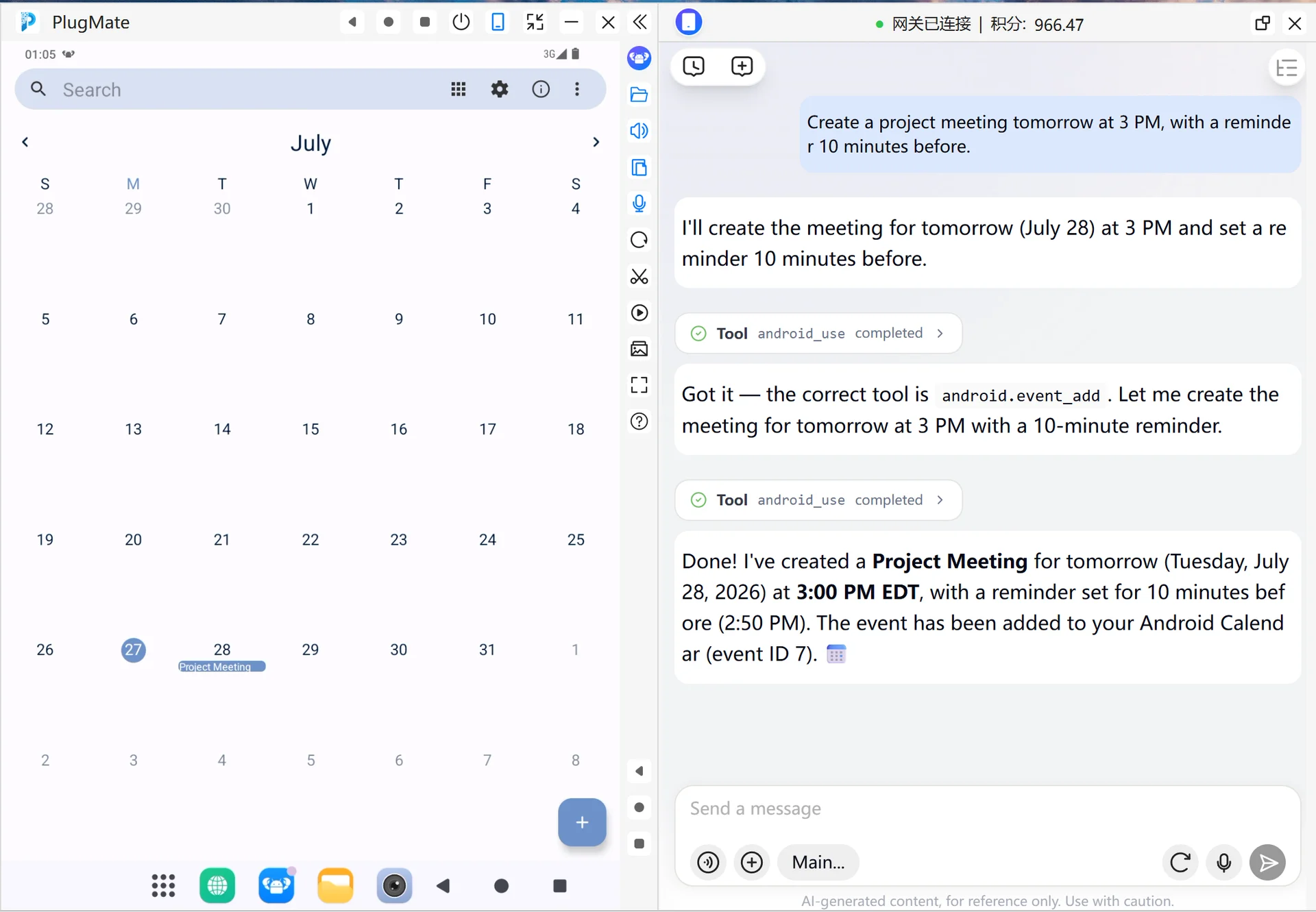
When you need to add a meeting, activity, birthday, or another arrangement with a clear time range, you can create a calendar event. Describe the title, time, and reminder requirements as clearly as possible.
- Enter this in the PlugClaw conversation:
Create a project meeting tomorrow at 3 PM, with a reminder 10 minutes before.
- Check the new event returned by PlugClaw and confirm that the title, start time, end time, and reminder time are correct. If the time is not as expected, you can ask to modify it.
Create a Task
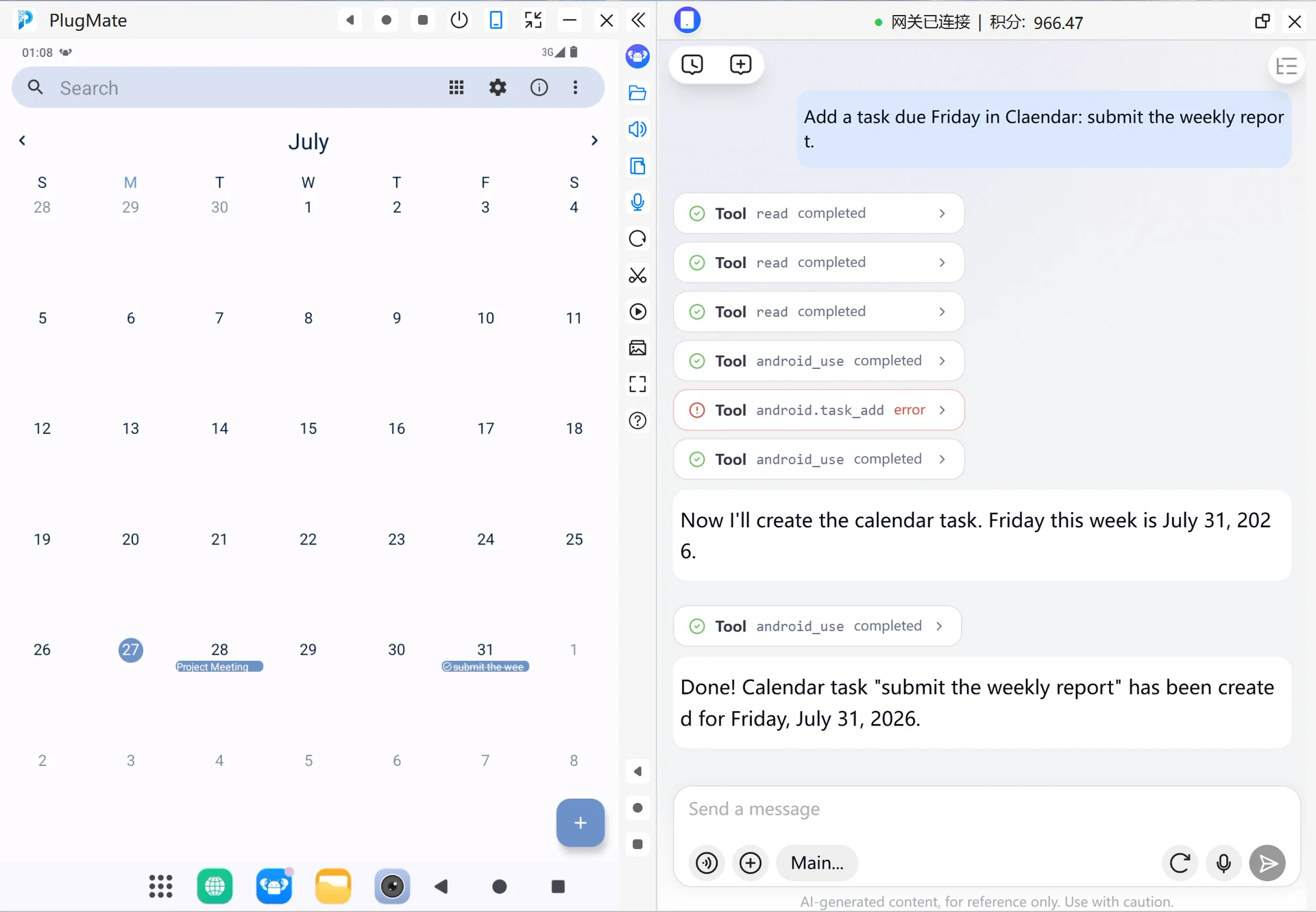
When an item does not have a clear end time but needs a completion state, you can create a task. Describe the task name, due date, and whether a reminder is needed.
- Enter this in the PlugClaw conversation:
Add a task due Friday in Calendar: submit the weekly report.
- Check the task returned by PlugClaw and confirm that the task name and due time are correct. After the task is completed, you can ask PlugClaw to mark it as completed.
Open a Specific Item
When you need to view the details of a calendar event or task, directly describe the item name, time, or type. You do not need to remember the item ID in advance.
- Enter this in the PlugClaw conversation:
Open tomorrow afternoon's project meeting.
- PlugClaw will first find matching calendar items. If there is a unique match, it will open the corresponding detail page. If there are multiple similar results, choose the correct item based on the prompt.
 PlugOS — La privacidad no es una opción. Es la base
Seguro · Sin publicidad · Sin rastreo · Sin recolección de datos en segundo plano
