Feature Overview
Desktop operations are used in PlugClaw to control the Android device screen and perform basic interactions such as tapping, swiping, and typing.
Supported Capabilities
You can wake the screen, get the screen size, take a screenshot, and read the UI structure of the current screen. When direct screen operation is needed, you can tap, long press, swipe, enter text, and use keys such as Back, Home, Power, and Volume. For simple entry points, you can also open a specified app or link.
Usage Examples
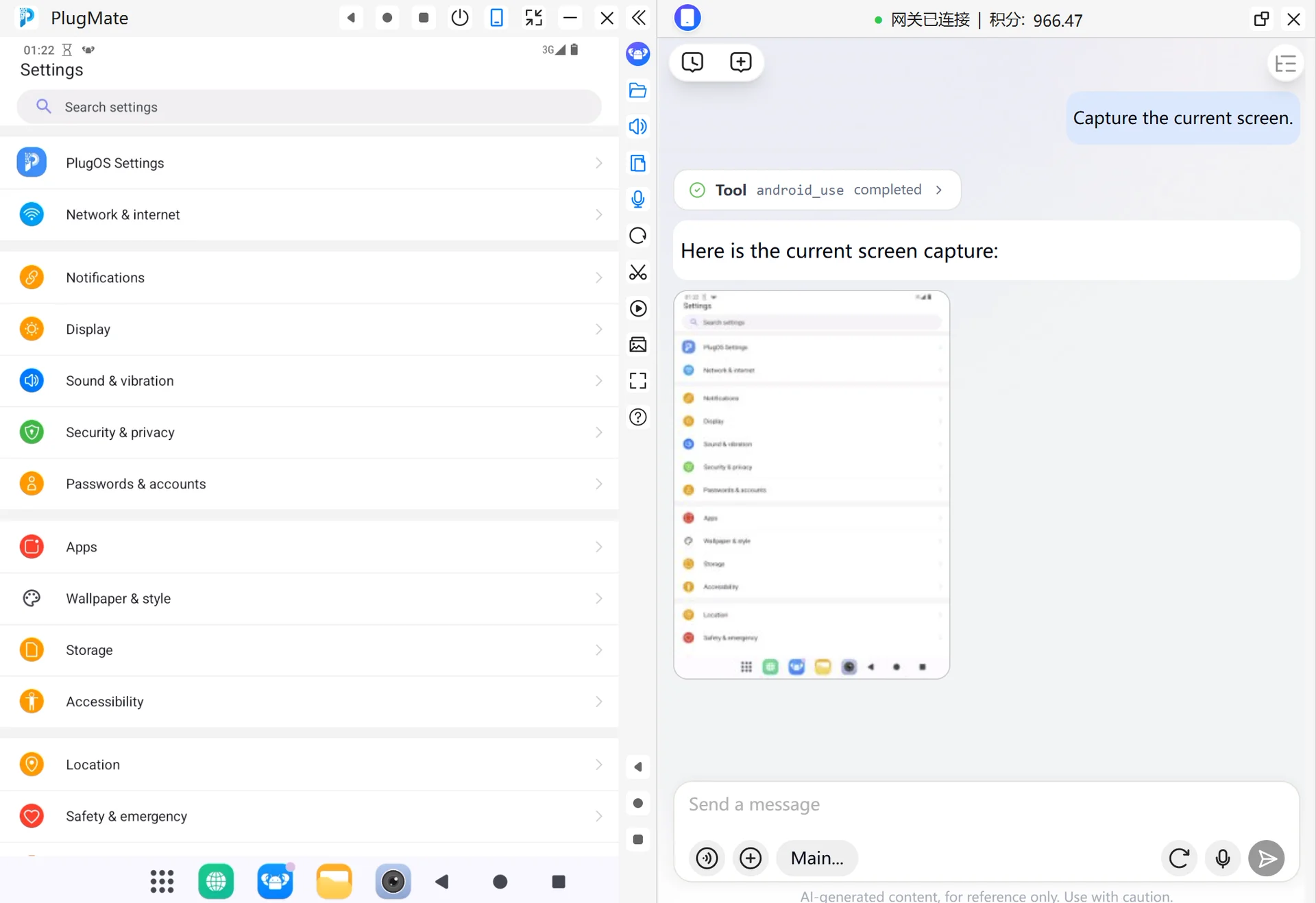
Capture the Current Screen
When you are not sure which page the device is currently on, or before tapping, swiping, or entering text, you can capture the current screen first.
- Enter this in the PlugClaw conversation:
Capture the current screen.
- Check the screenshot to confirm the current page, button positions, and input areas. If you need to tap or swipe later, describe the target based on the screenshot.
Go Back
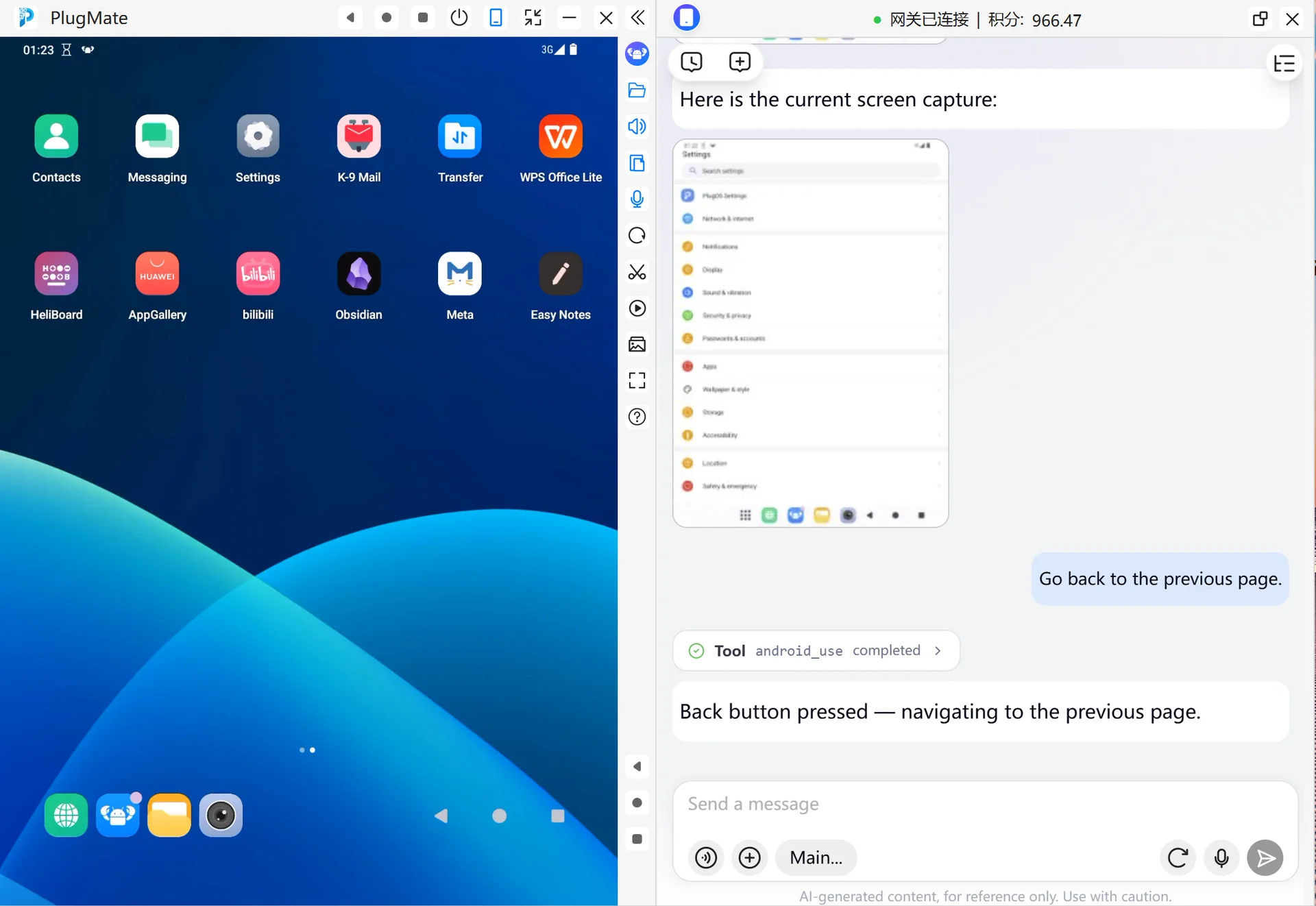
When a page has entered a lower-level menu, pop-up, or detail page and needs to return to the previous page, use the Back operation.
- Enter this in the PlugClaw conversation:
Go back to the previous page.
- The device will perform the Android Back key operation. After returning, you can take another screenshot to confirm whether the page has returned to the previous level.
Return to the Home Screen
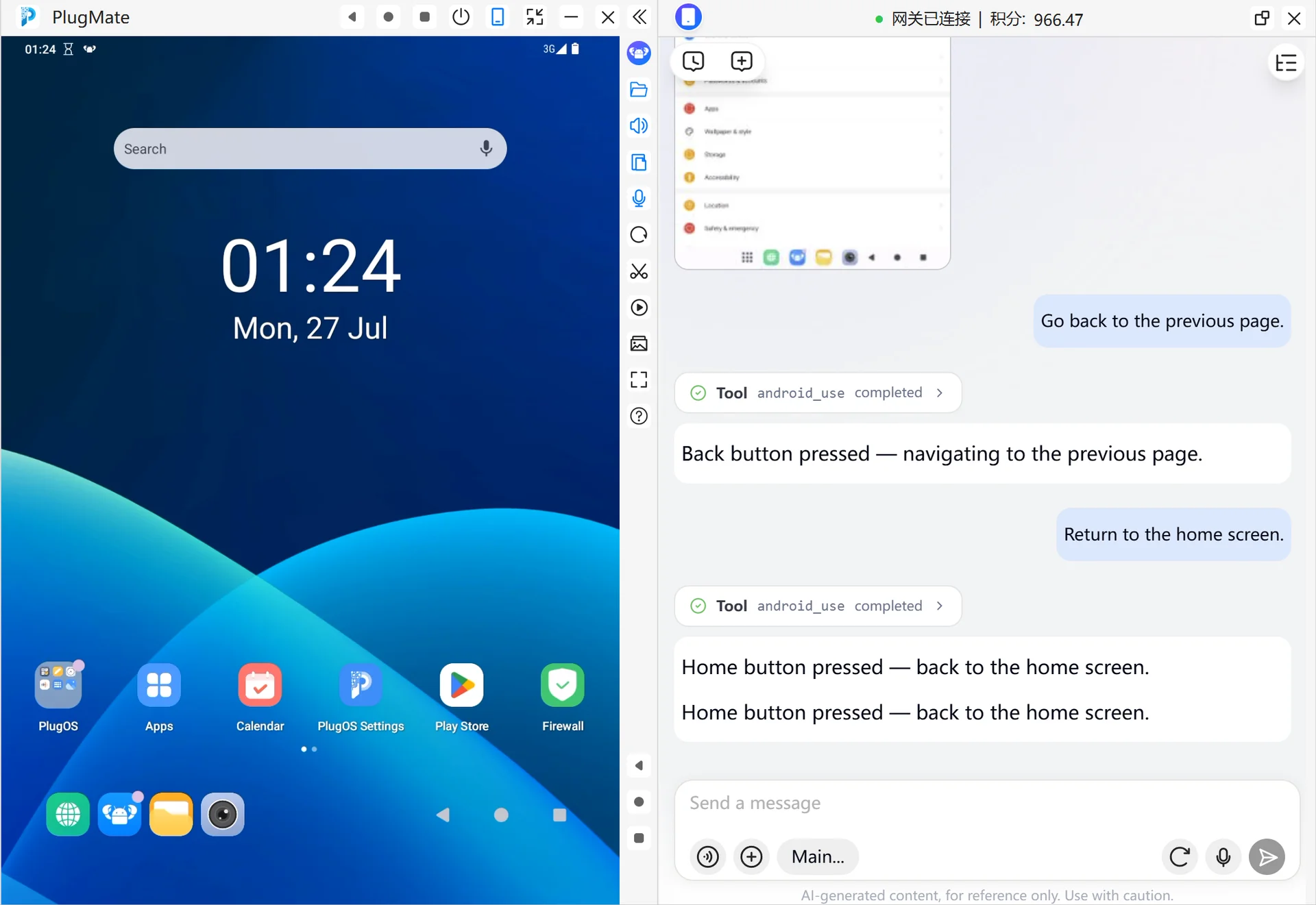
When page operations are complete, or you need to leave the current app and return to the system home screen, use the Home operation.
- Enter this in the PlugClaw conversation:
Return to the home screen.
- The device will perform the Android Home key operation and return to the home screen or launcher page. After returning, you can take another screenshot to confirm the current page.
 PlugOS — La privacidad no es una opción. Es la base
Seguro · Sin publicidad · Sin rastreo · Sin recolección de datos en segundo plano
