Overview
The terminal provides command-line access to the PlugClaw runtime environment. Use it when you need to check service status, complete MCP authorization, test a Webhook, run an advanced configuration command, or investigate a runtime issue. The command output helps determine whether an operation succeeded.
Everyday tasks such as conversations, file management, model selection, and Skill installation should still be completed through their corresponding PlugClaw pages. Open the terminal only when the relevant procedure explicitly provides a command. Terminal commands act directly on the PlugClaw environment: some only read information, while others may change configuration, install dependencies, or control services.
Before running a command, understand its purpose, expected effect, and expected output. Use commands from official documentation or another trusted procedure. Do not paste commands from unknown webpages or messages, and do not enter passwords, verification codes, API keys, or other sensitive information into a command whose purpose is unclear.
Steps
Open the Terminal
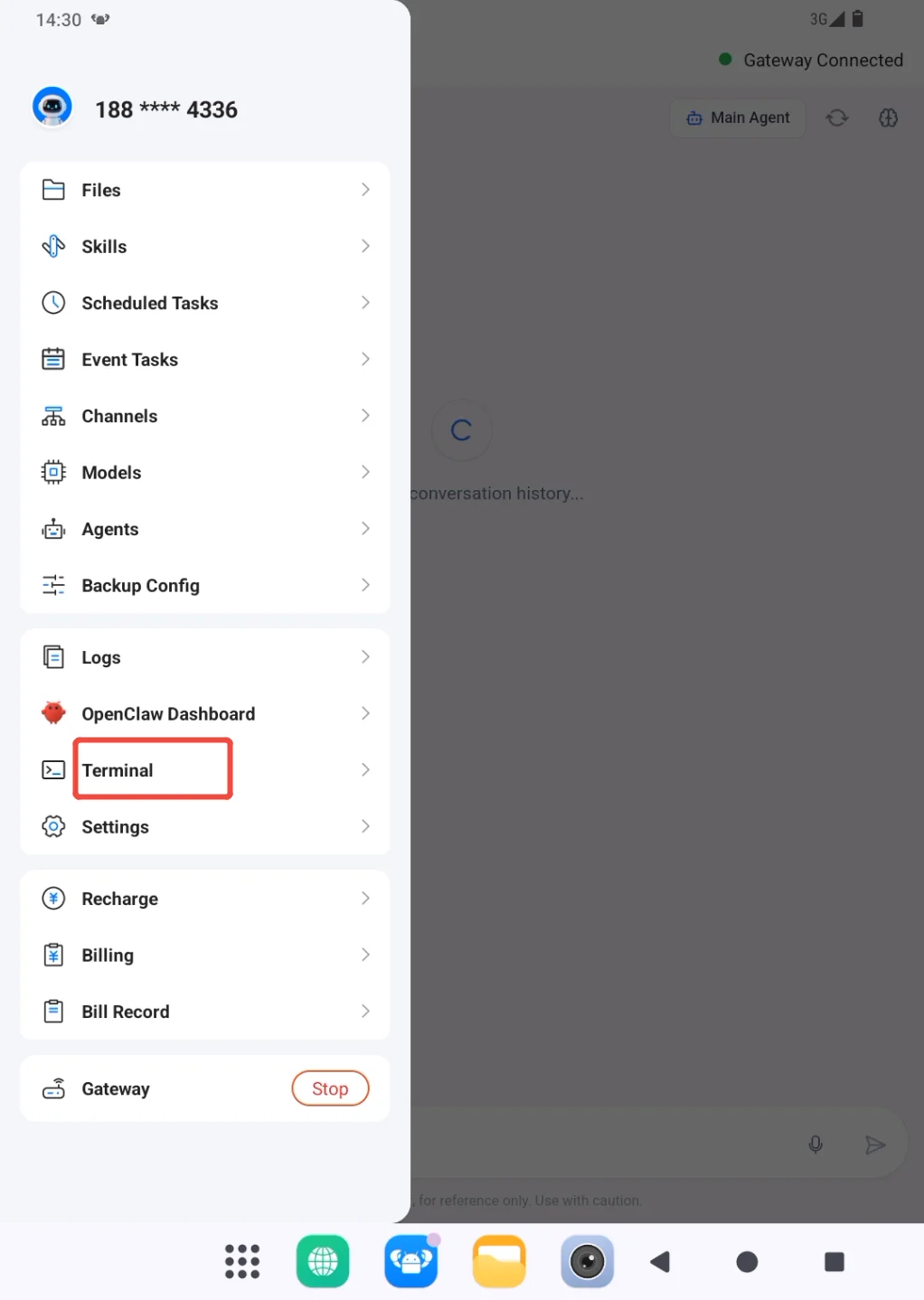
- Open the sidebar from the profile area in the upper-left corner, then go to Terminal.
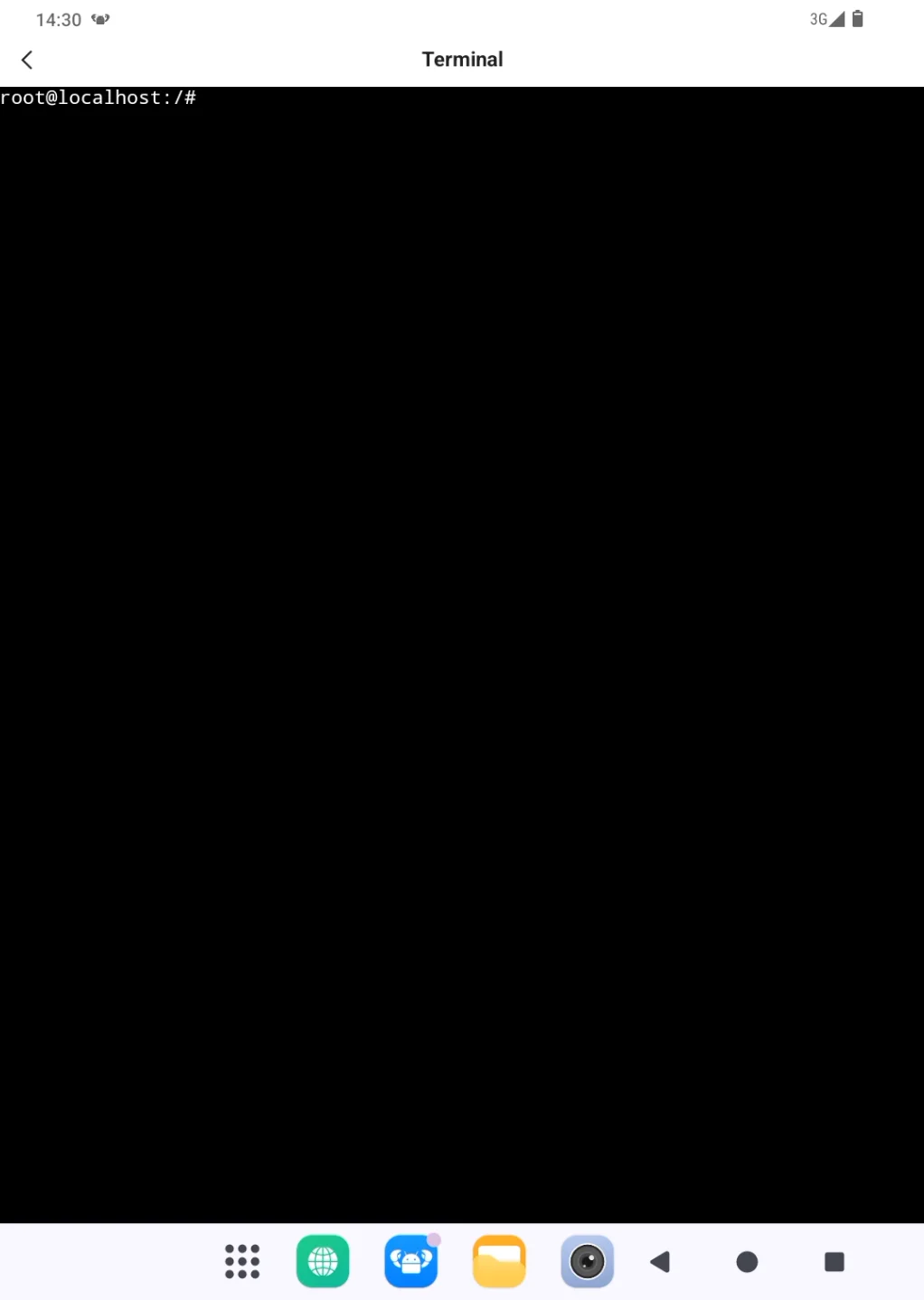
- A black command-line window with a prompt similar to
root@localhost:/#means the terminal is ready. The prompt is displayed automatically and should not be typed again.
Example: Check OpenClaw Status
The following read-only command demonstrates the basic execution flow. Enter the complete command without copying the prompt that appears before it:
openclaw status
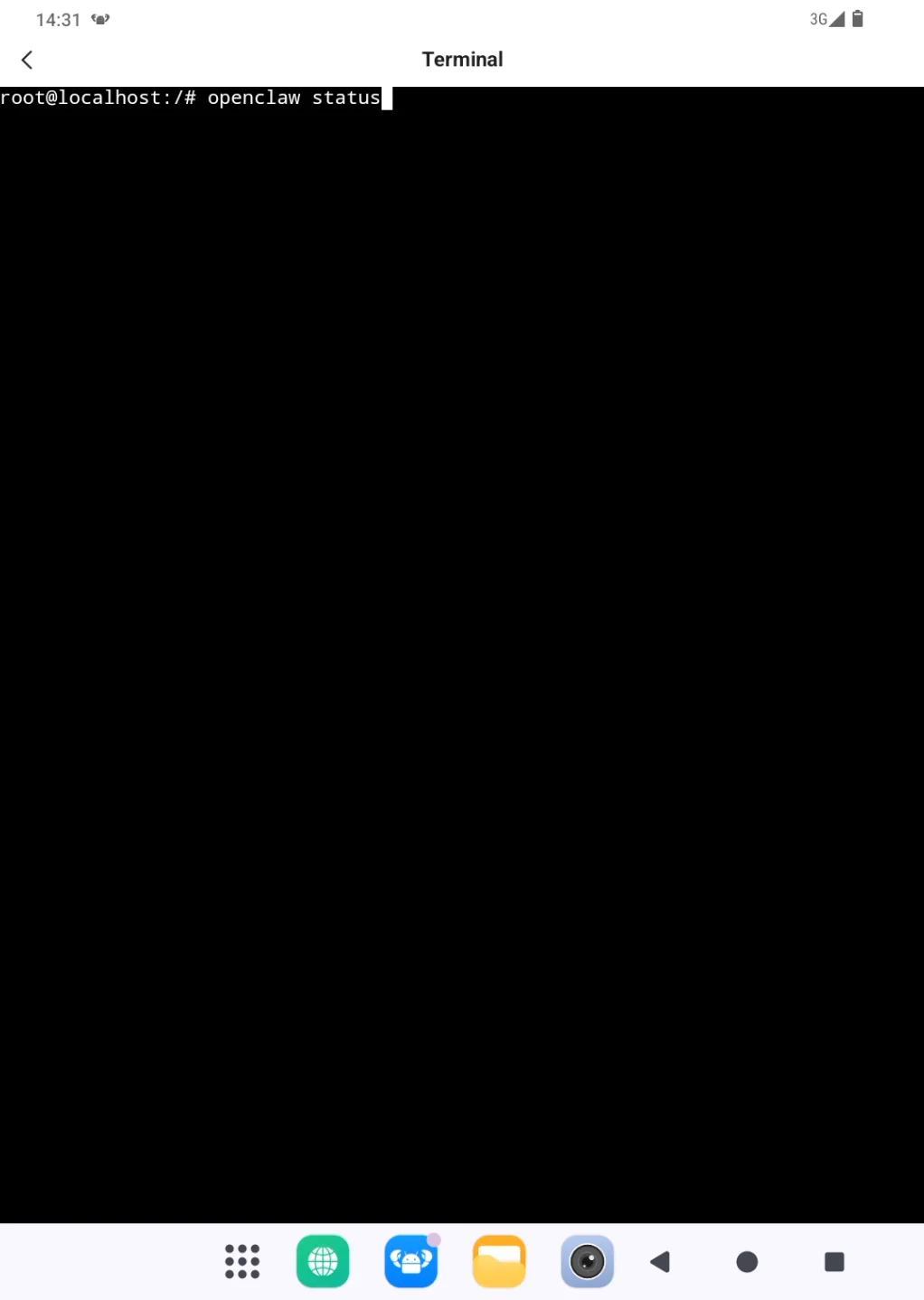
Press Enter and wait for the result. When the command finishes, the prompt usually appears again. When recording or reporting an issue, keep both the command and its complete output. Before taking a screenshot, check whether the output contains account details, file paths, or other sensitive information.
If the command is not found, reports insufficient permissions, or returns an error, stop and preserve the original message. Do not try deletion, overwrite, installation, or reset commands without understanding their purpose. Follow the instructions in Troubleshooting and Feedback when submitting the information.
 PlugOS — La privacidad no es una opción. Es la base
Seguro · Sin publicidad · Sin rastreo · Sin recolección de datos en segundo plano
