What Accounts and Models Control
Sign in to use account services such as credits and model access. PlugClaw supports phone-number and email login; use whichever method can currently receive a verification code.
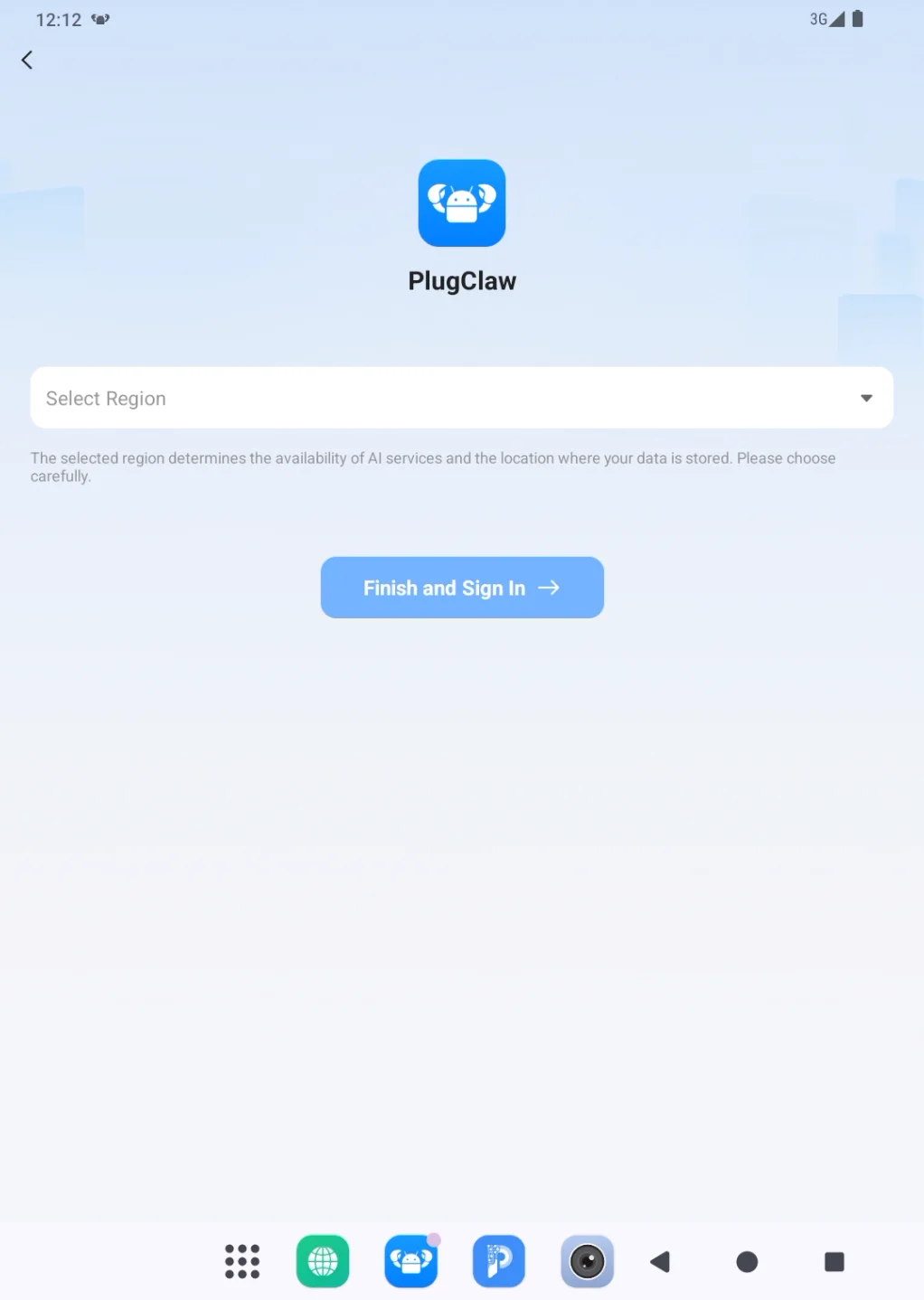
The first login also asks for a region. This choice affects available AI services and where data is stored. Select the region that matches where PlugClaw will be used and follow any requirements set by your organization.
A model is the AI capability PlugClaw uses to understand a request and complete work such as answering questions, writing, summarizing, analyzing content, interpreting images, or operating an app. Models can differ in strengths, speed, and credit cost, so the most expensive option is not automatically the best choice for every task.
The model page is organized by purpose into Base Text Model and GUI Model. Base Text Model handles everyday conversations, writing, summarization, content understanding, and analysis. GUI Model interprets operation requests and carries out actions in apps on the device. Both categories can be configured at the same time: general tasks use Base Text Model, while tasks that operate an app use GUI Model.
Each category has a Main Model and a Backup Model. The main model is tried first. If it is unavailable, the backup model takes over. A backup selection is required; it may be the same model as the main selection or a different compatible model.
Descriptions beneath model names indicate the work each model is designed for. A multiplier beside the name represents relative usage cost: a higher multiplier usually consumes more credits for a similar request, but it does not by itself guarantee a better result.
Sign In and Sign Out
Sign In
Before signing in, complete Initialization, confirm that the device is online, and make sure the selected phone number or email can receive a code.
- Continue to Login from the page shown after initialization.
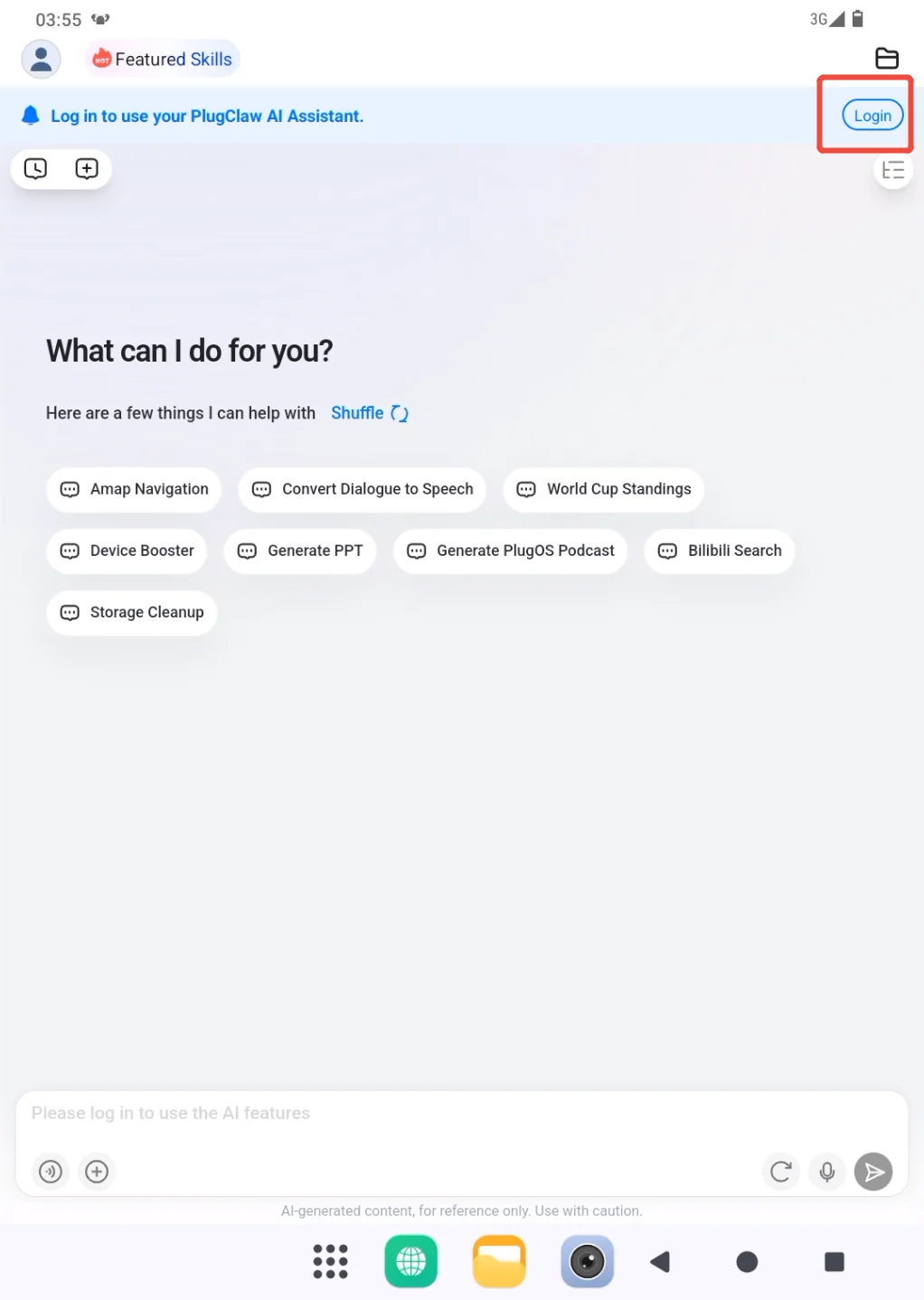
- Choose phone-number or email login and enter the requested details. For phone login, select the country or region code before entering the number. Complete the image verification if shown, request the code, and enter the code you receive. Read the User Agreement and Privacy Policy, then select the agreement option before continuing.
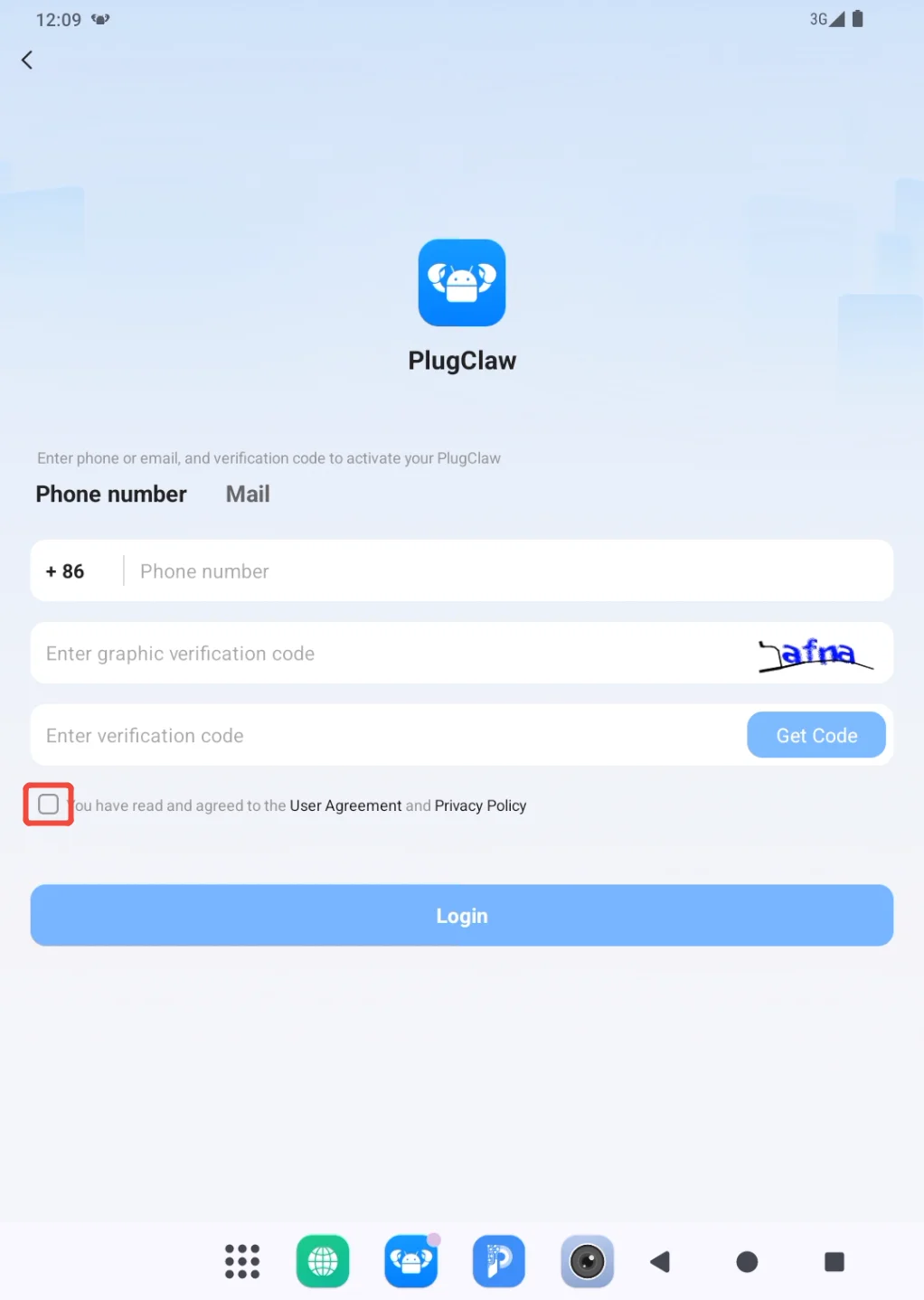
If no code arrives, check the address or number, image verification, and network connection. Delivery may be delayed briefly; avoid requesting codes repeatedly in quick succession.
- Select the region after verification. Review the AI service coverage and data-storage location, then choose Finish and Sign In.
After login, PlugClaw returns to the main page. Send a short message such as "Hello" after the models and gateway are ready. If the login page remains open, review the verification code, agreement selection, and network status.
Sign Out
Open the sidebar from the profile entry and go to Settings.
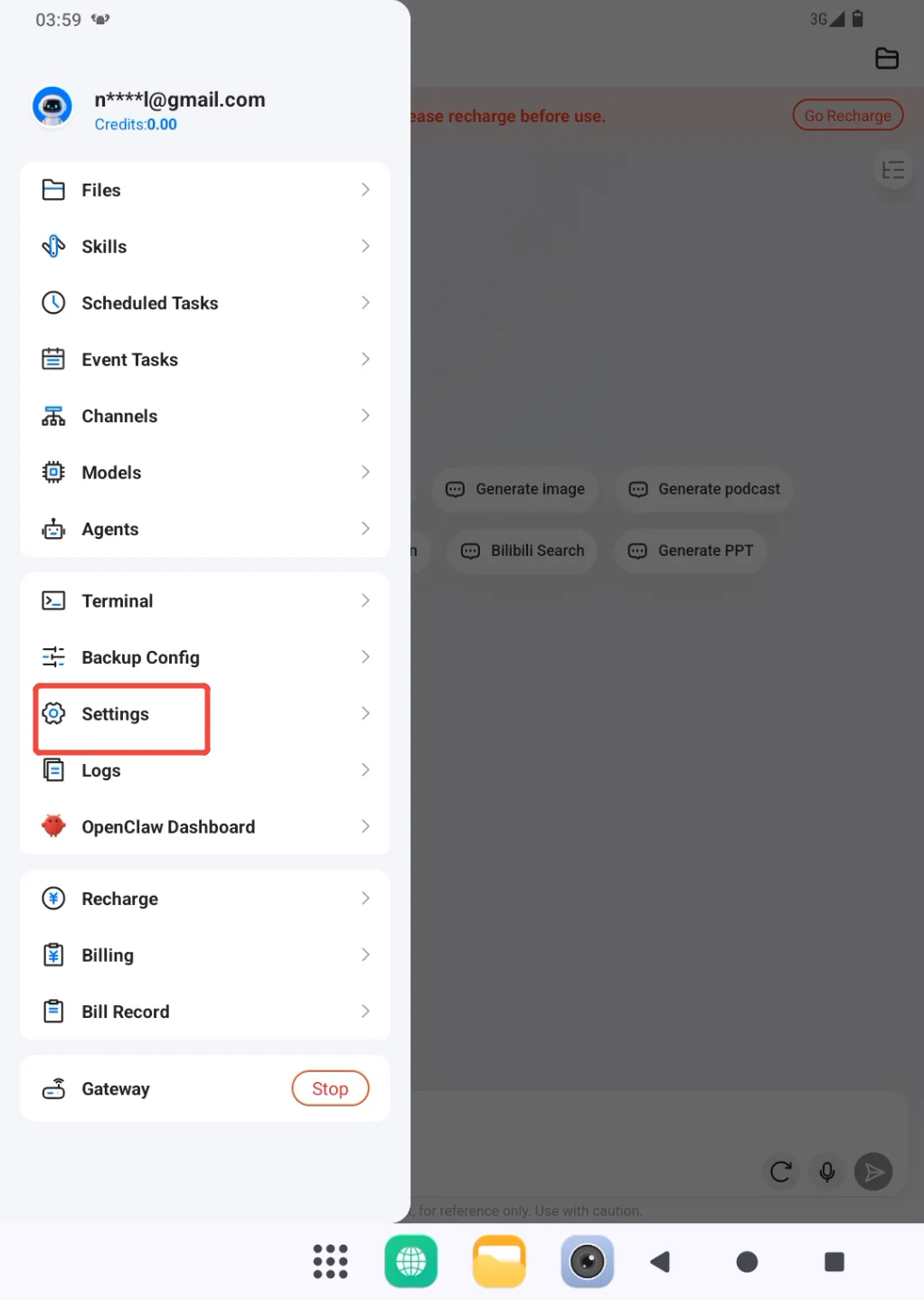
Choose Log Out. When the login entry appears again, the account has been signed out on this device.
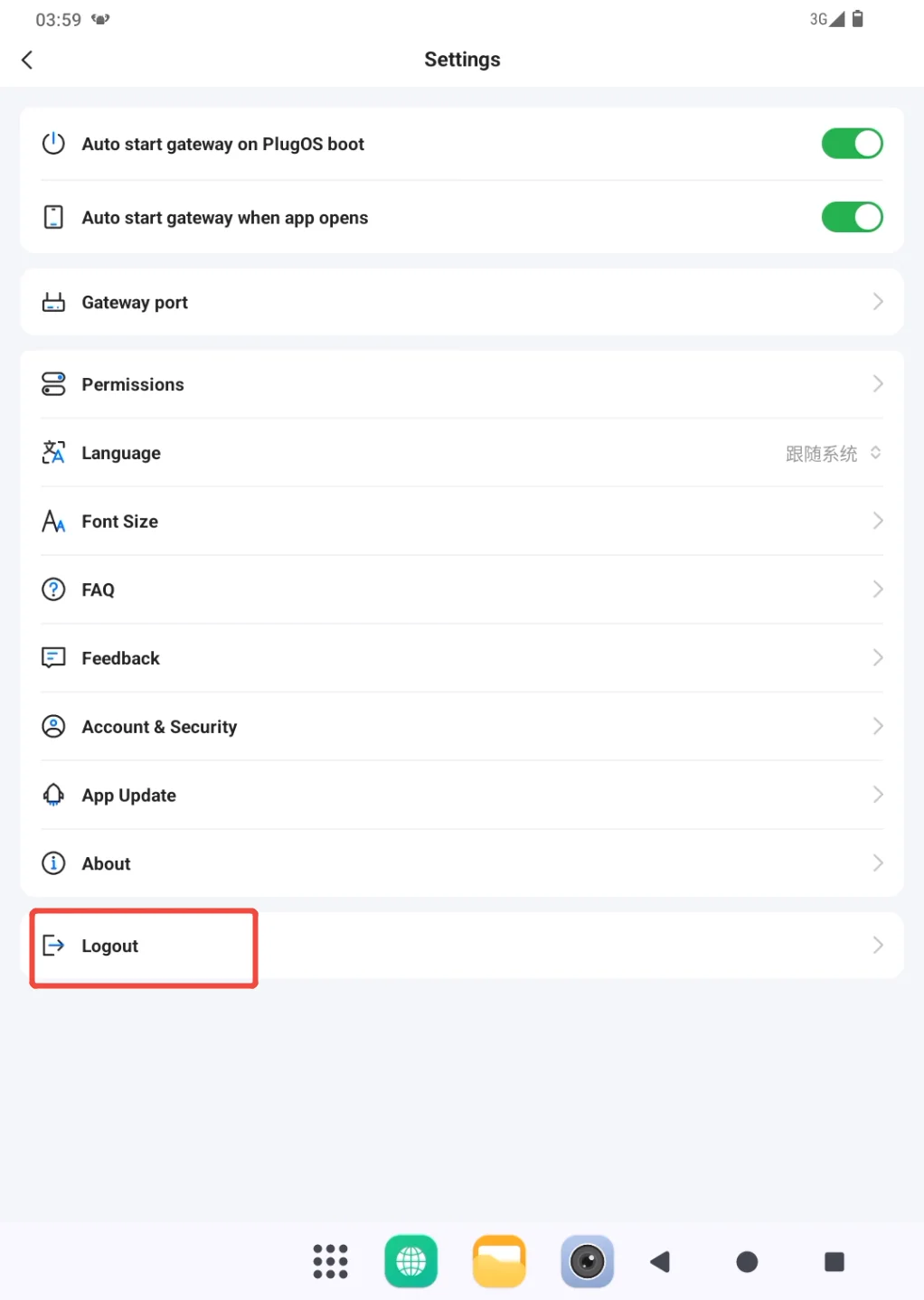
Signing out is not a configuration backup. Before reinitializing the environment, export the current settings as described in Configuration Backup and Restore.
Configure Models
Understand the Model Page
Open the sidebar from the profile entry and go to Models. The page opens on Base Text Model, and the tabs at the top switch between Base Text Model and GUI Model.
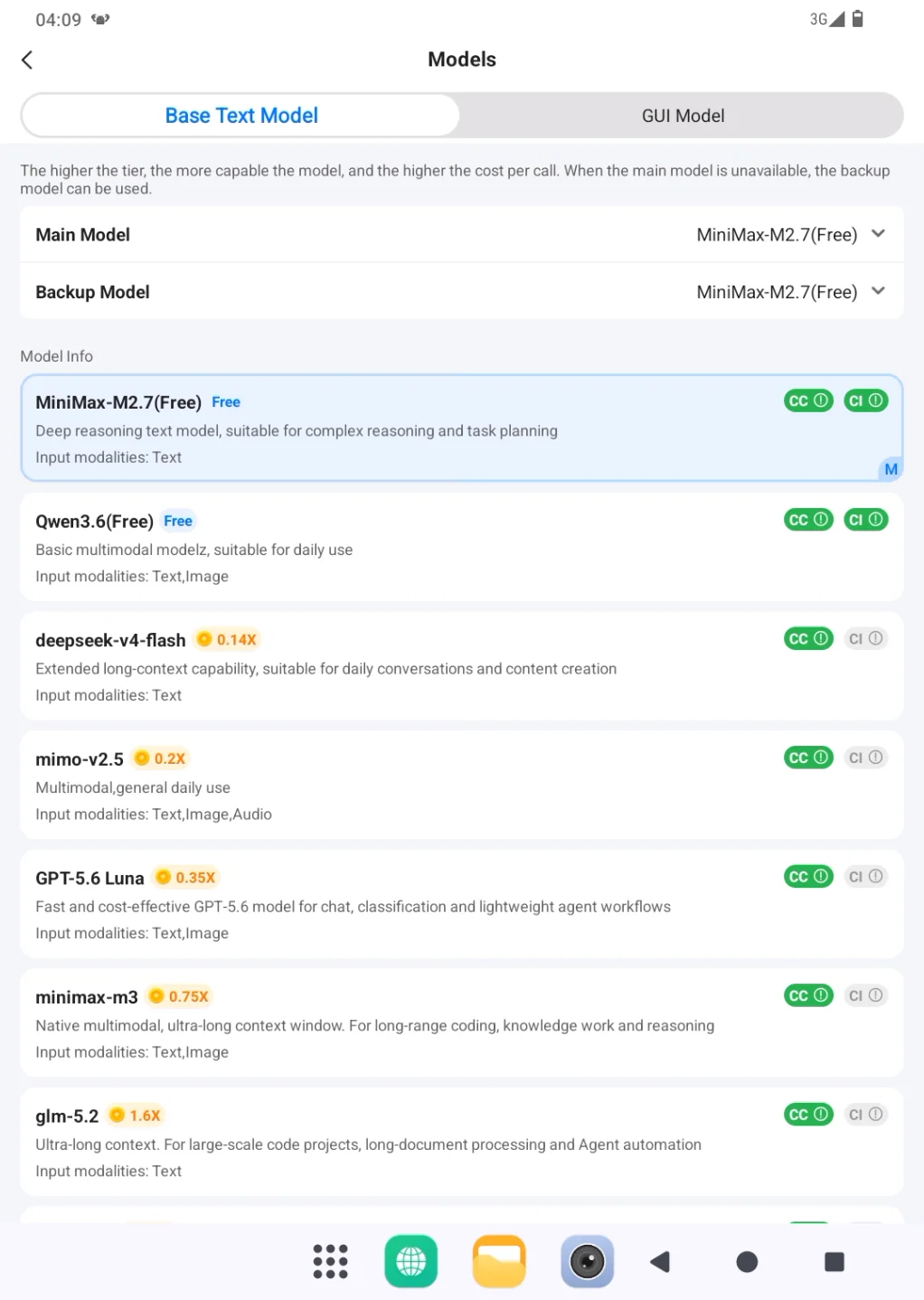
Configure the two categories separately. PlugClaw uses Base Text Model for general conversations and content work, and calls GUI Model when a task needs to operate an app on the device.
Choose a Main Model
Before choosing, review the model information shown for the current category. The description beneath each model explains the work it is suited for, while the multiplier beside its name shows its relative usage cost. These details help determine whether the model fits the task.
Open Main Model and select the model PlugClaw should try first for the current category. A Main Model selected under Base Text Model handles general work; a Main Model selected under GUI Model handles app-operation tasks.
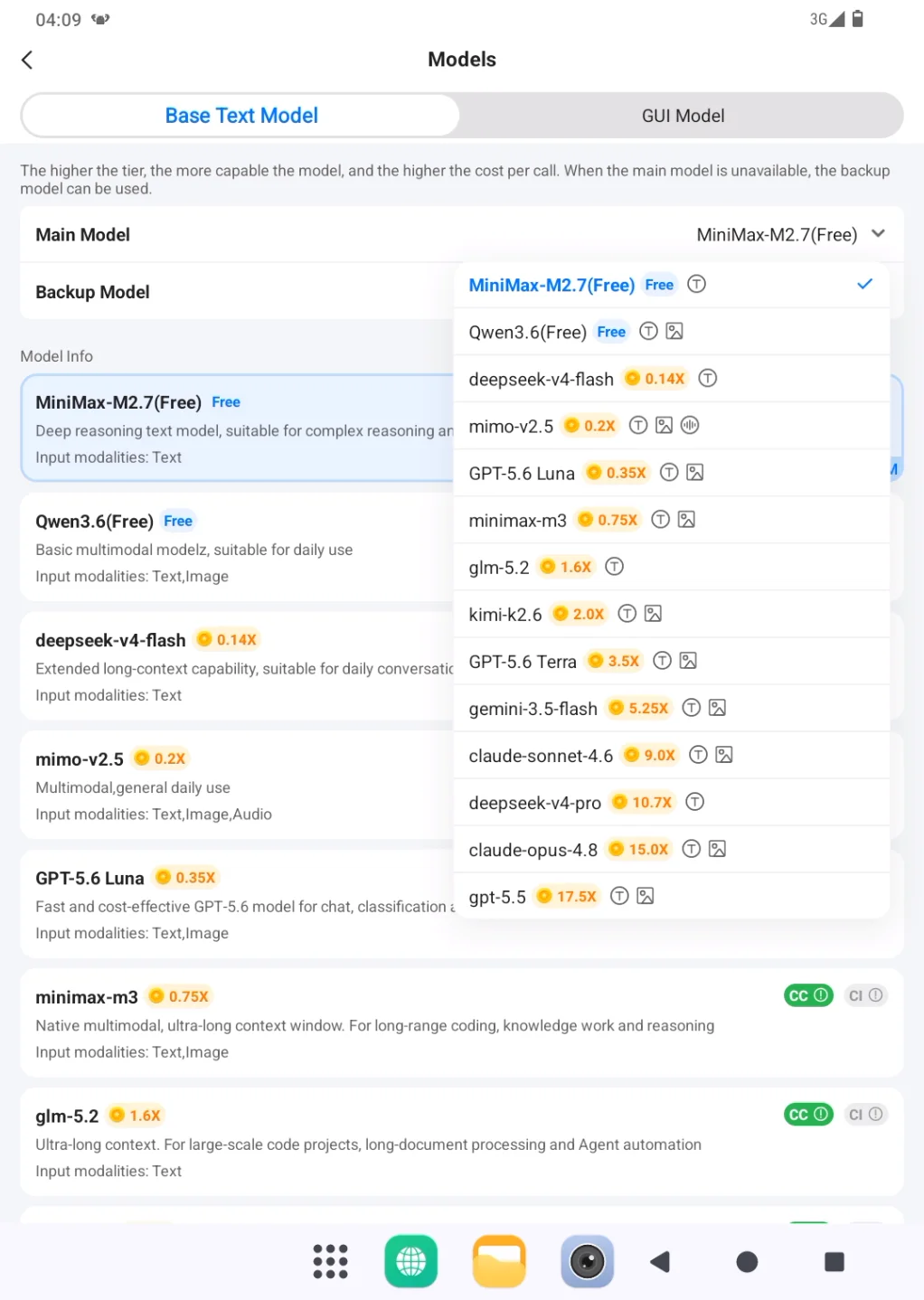
For Base Text Model, a model described for basic or everyday conversation is a reasonable starting point for questions, summaries, and simple writing. Choose a model with the relevant capability when the task involves images, complex reasoning, professional writing, or code. When there is not yet enough experience to compare models, keep the default and adjust it later based on results and credit usage.
After selection, the model name appears beside Main Model, and the corresponding model information is marked as the main choice. Switch to the other category and follow the same process to configure it.
Choose a Backup Model
Confirm the Backup Model for both Base Text Model and GUI Model. It cannot be left empty. The Backup Model may be the same as the Main Model in that category, or it may be another model capable of handling the same type of task. If the Main Model becomes unavailable, PlugClaw uses the Backup Model for that category.
Apply the New Settings
After model settings are changed, PlugClaw disconnects the gateway and temporarily interrupts active conversations or tasks. Restart the gateway so the new model settings take effect. Wait for Gateway Connected before returning to the conversation page.
Confirm the Models Work
Return to the conversation page and test each category with a simple task that matches its purpose. For Base Text Model, try: "Introduce PlugClaw in three sentences." For GUI Model, use a simple, low-risk app operation and confirm that PlugClaw can complete it.
If there is no response, check the gateway connection, available credits, and the status of the selected model, then try another available model. Avoid changing several settings in succession, because that makes it difficult to tell whether the problem comes from the gateway, credits, or the model itself.
 PlugOS — La privacidad no es una opción. Es la base
Seguro · Sin publicidad · Sin rastreo · Sin recolección de datos en segundo plano
