Where PlugClaw Files Are Stored
PlugClaw can generate PDFs, documents, images, and other files while completing a task. A newly generated file can usually be opened from the current conversation. To find it later, first check the file name and save path in the Agent's reply, then open that location.
There is no single folder for every generated file. Some results are saved in the workspace of the Agent that completed the task, while others are written directly to another folder on the Android device. Do not assume that every Agent-created file is inside a workspace.
Use the reported path to decide where to look:
| Path | Location |
|---|---|
PlugClaw/workspace | Main Agent's workspace |
PlugClaw/workspace-AgentName | The named Agent's workspace |
| Another Android device path | Open that exact path in the device file manager |
For example, PlugClaw/workspace-Research belongs to the Research Agent. If the Agent gives a path elsewhere on the Android device, go directly to that folder instead. For more about what workspaces contain, see Agent Management.
Conversation file cards are convenient for opening a recent result. The actual save path is more reliable when finding it again later. Move important files to a familiar long-term location and keep a separate backup; conversation history, workspaces, and temporary device folders should not be treated as the only copy.
Files move between the host and device through the PlugOS client's Shared Folder. It is a transfer point, not an automatic backup. Use a dedicated empty directory on the host instead of sharing an entire Desktop, Documents, or personal folder.
Find and Manage Generated Files
Open a File from the Conversation
- When requesting a file, include its type, purpose, and preferred name. For example: "Turn these meeting conclusions into a PDF named meeting-notes.pdf."
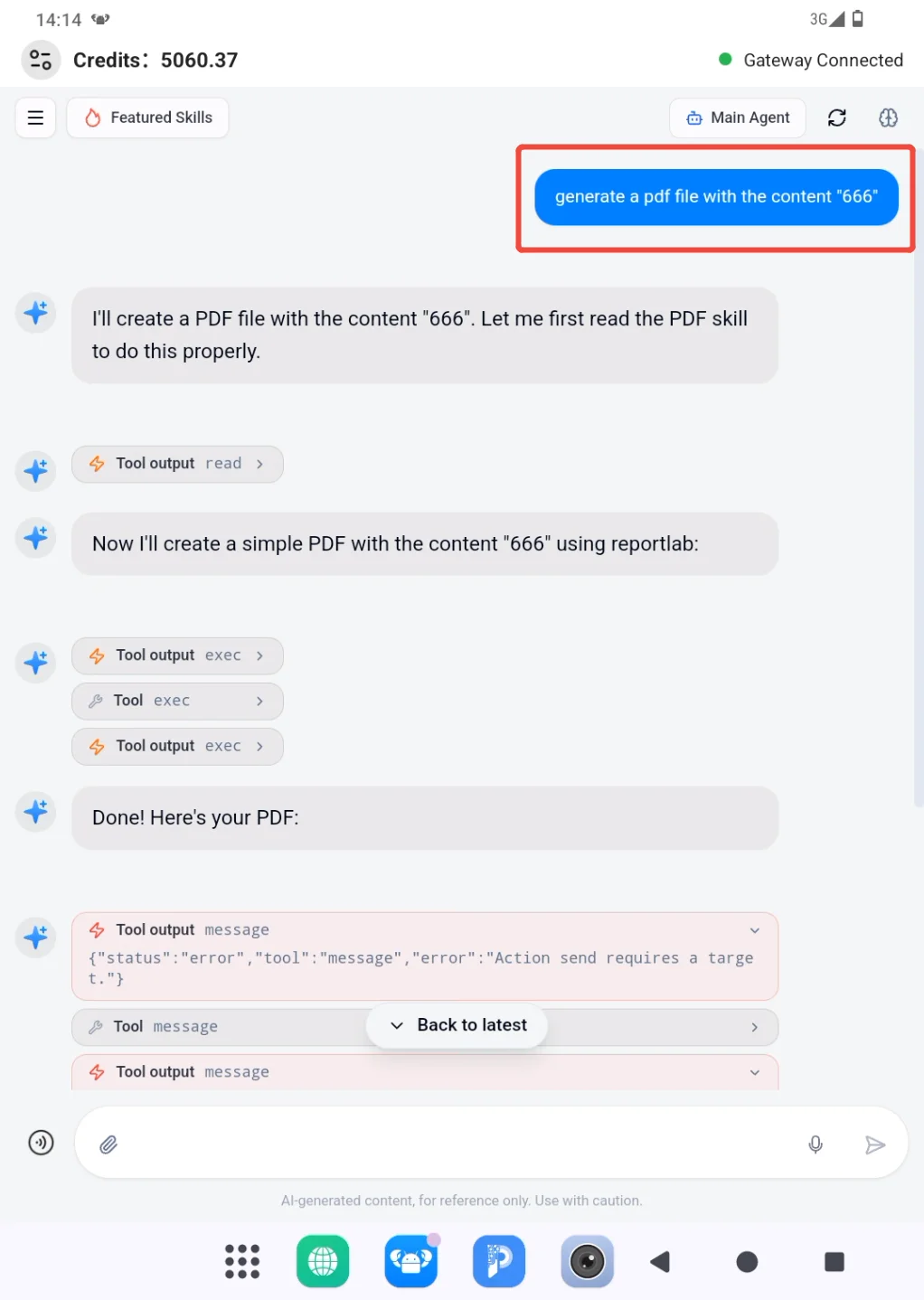
- Wait until the Agent confirms that generation is complete. When a file card appears, review the name and size, then open it and check that the content is complete.
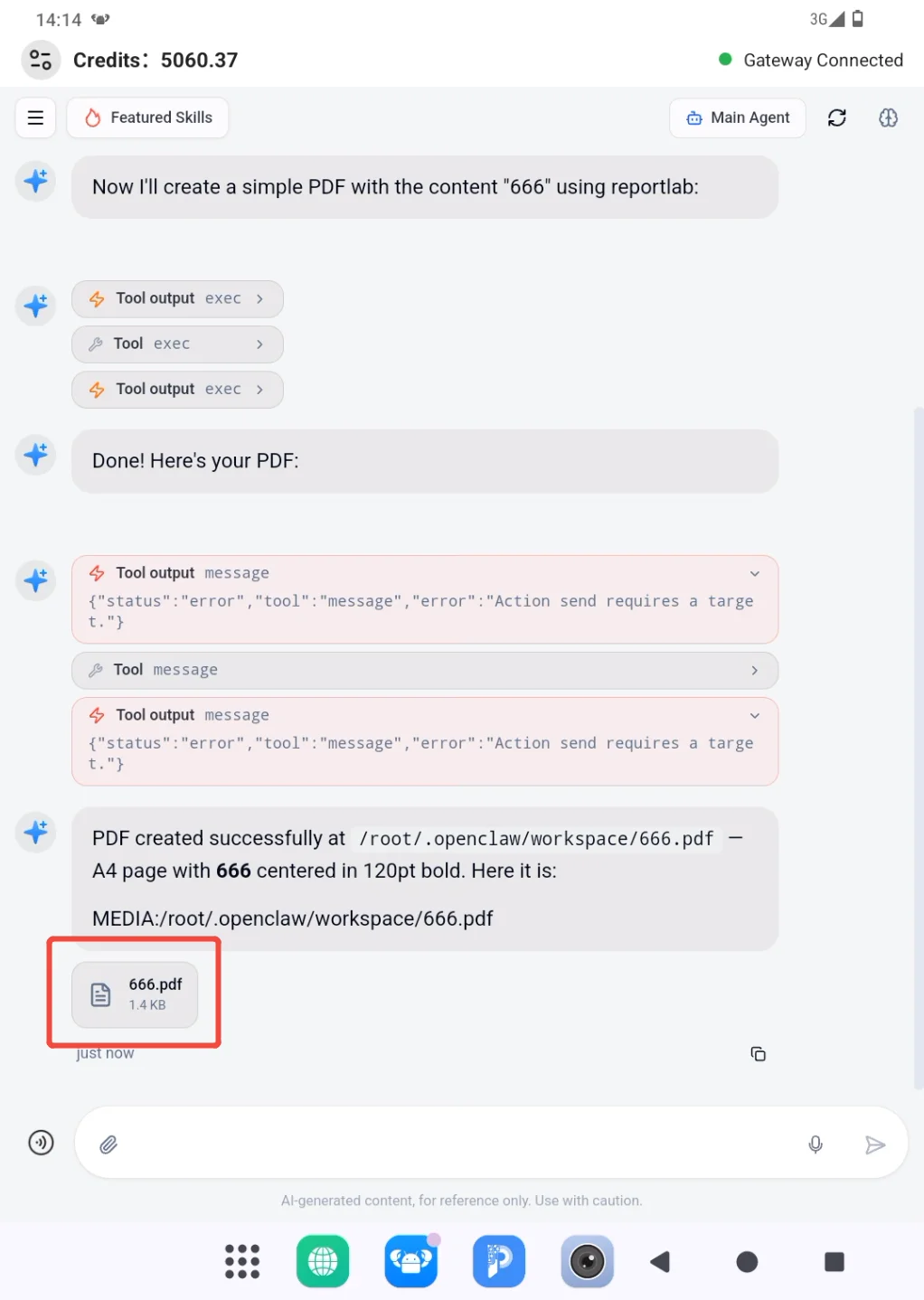
If the reply contains only a path, use the next section. If it contains a card but no path, ask the Agent where the file was saved.
Find a File from Its Path
Return to the conversation that generated the file and note the exact file name and full path.
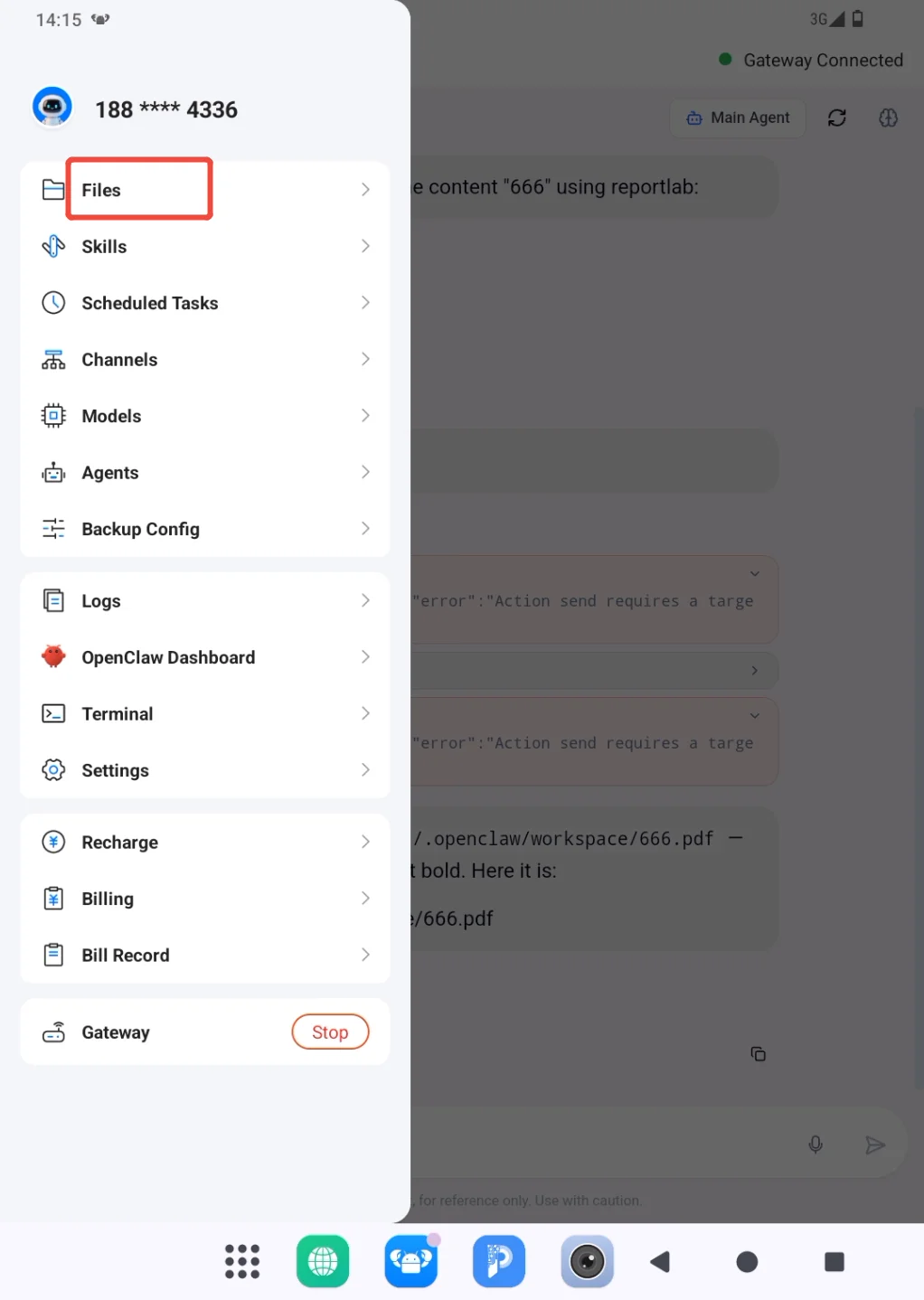
If the path begins with
PlugClaw, open the sidebar and go to Files.
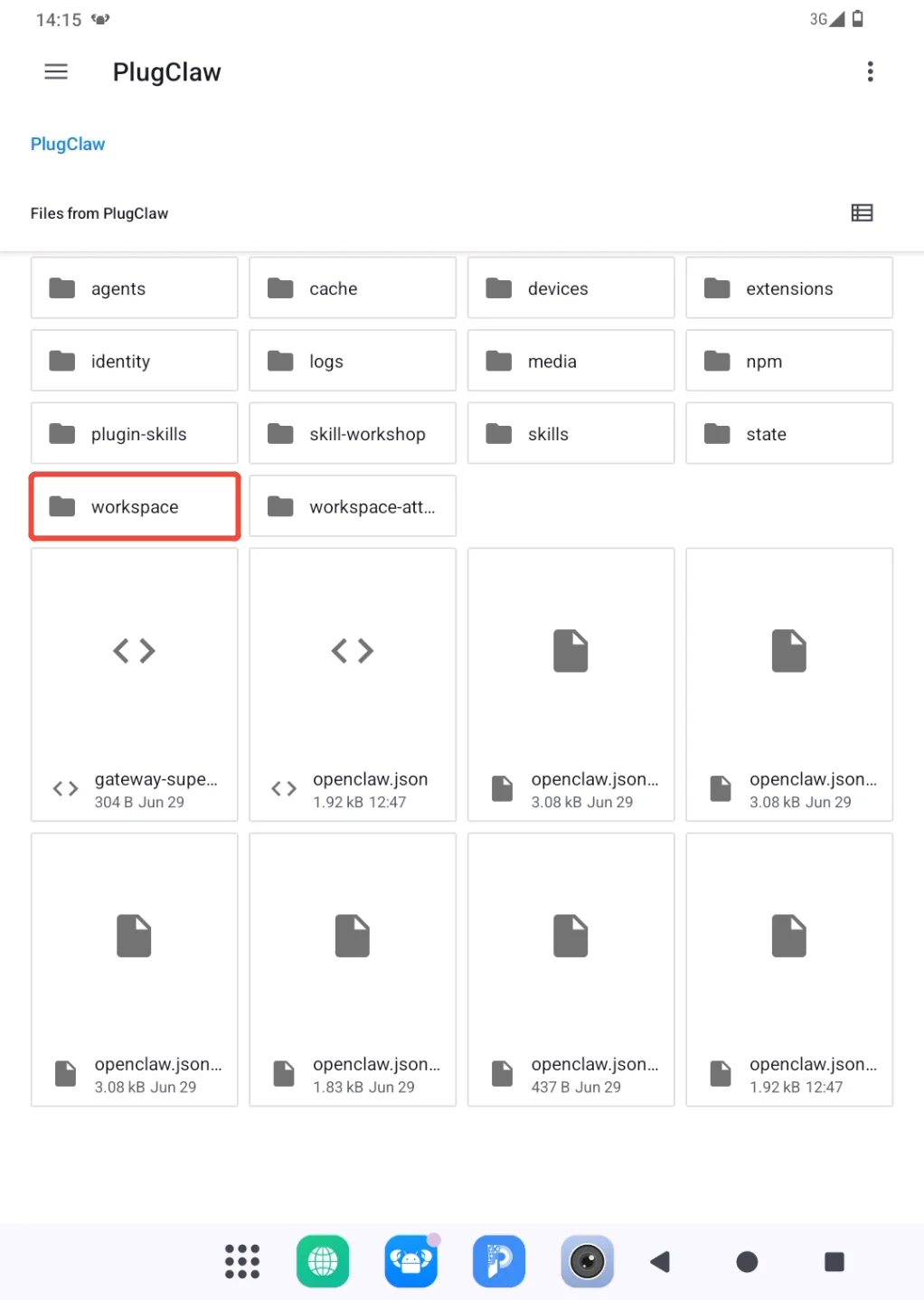
Open the folder named in the path. Use workspace for Main Agent or workspace-AgentName for another Agent. The screenshot below uses Main Agent's workspace as an example.
If the path points to a different Android folder, open the device file manager and go directly to that location. There is no need to open
workspacefirst.Find the result by name and creation time, then open it and verify the contents.
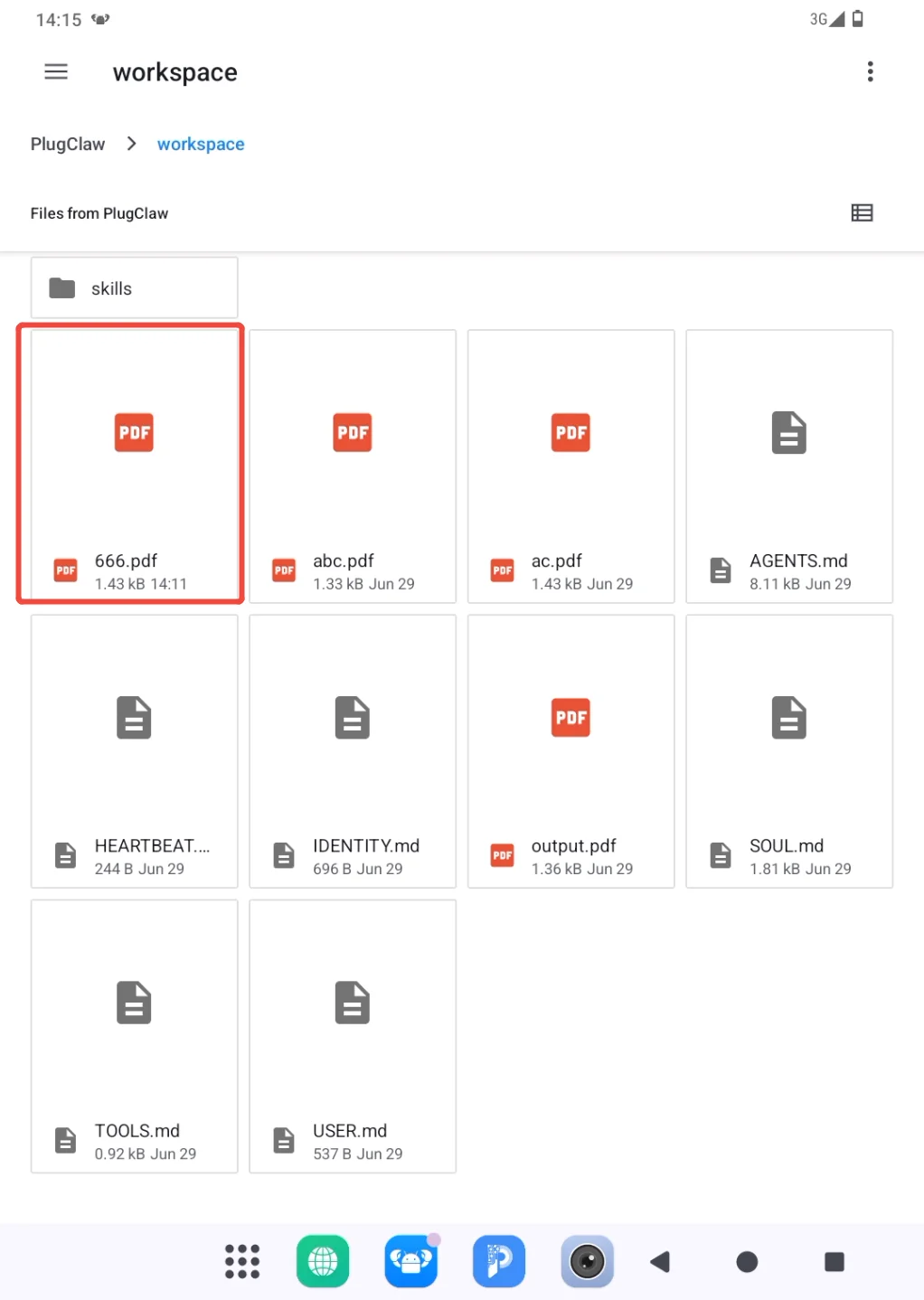
If the file is missing, check that an Android path was not mistaken for a workspace path and that the correct Agent workspace is open. Refresh the file page or ask the Agent to confirm the save location. Return to the original conversation when the result needs to be regenerated or revised.
Transfer Files Between the Host and Device
Set Up a Shared Folder
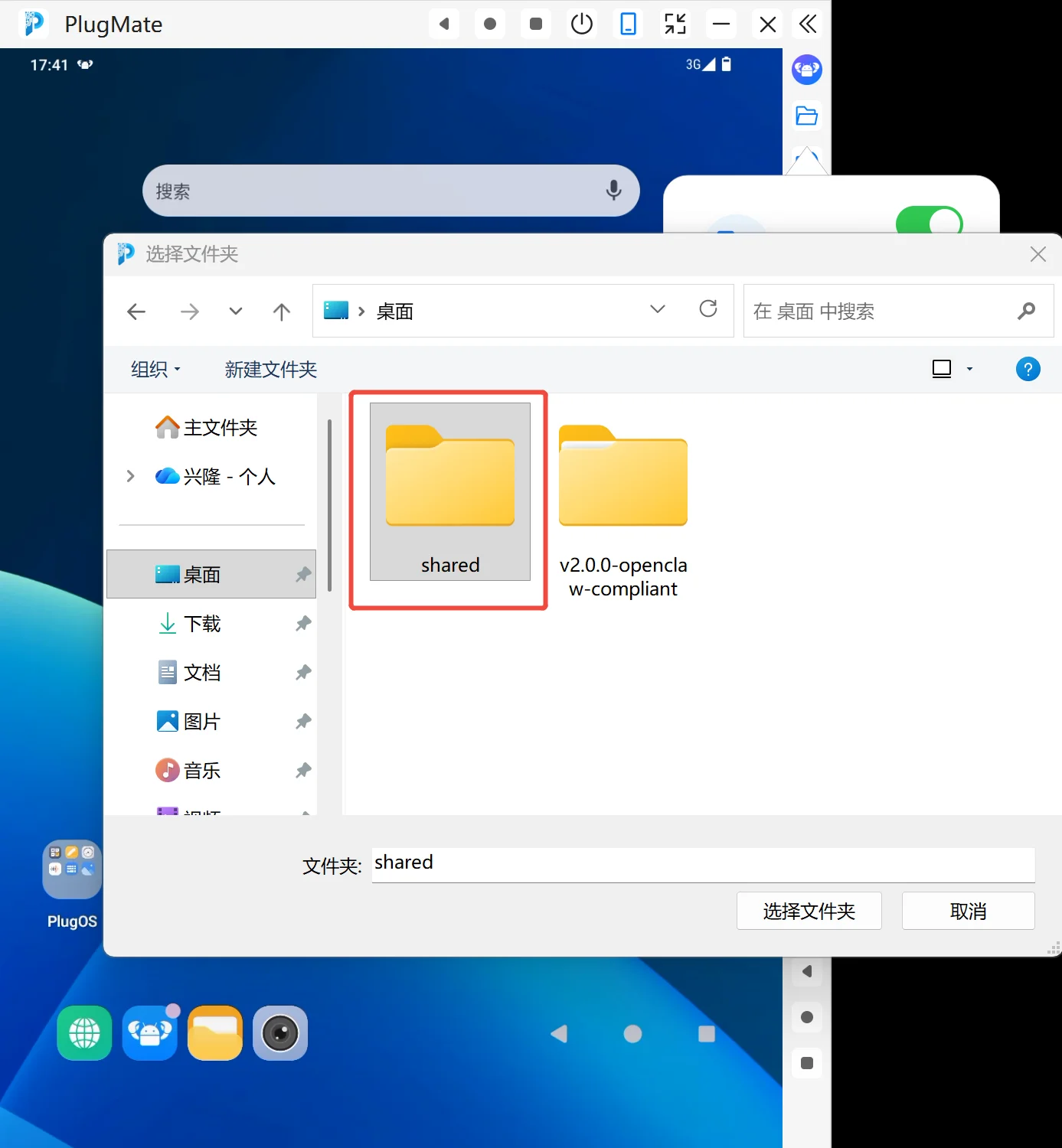
Create a dedicated host folder, such as shared, before the first transfer.
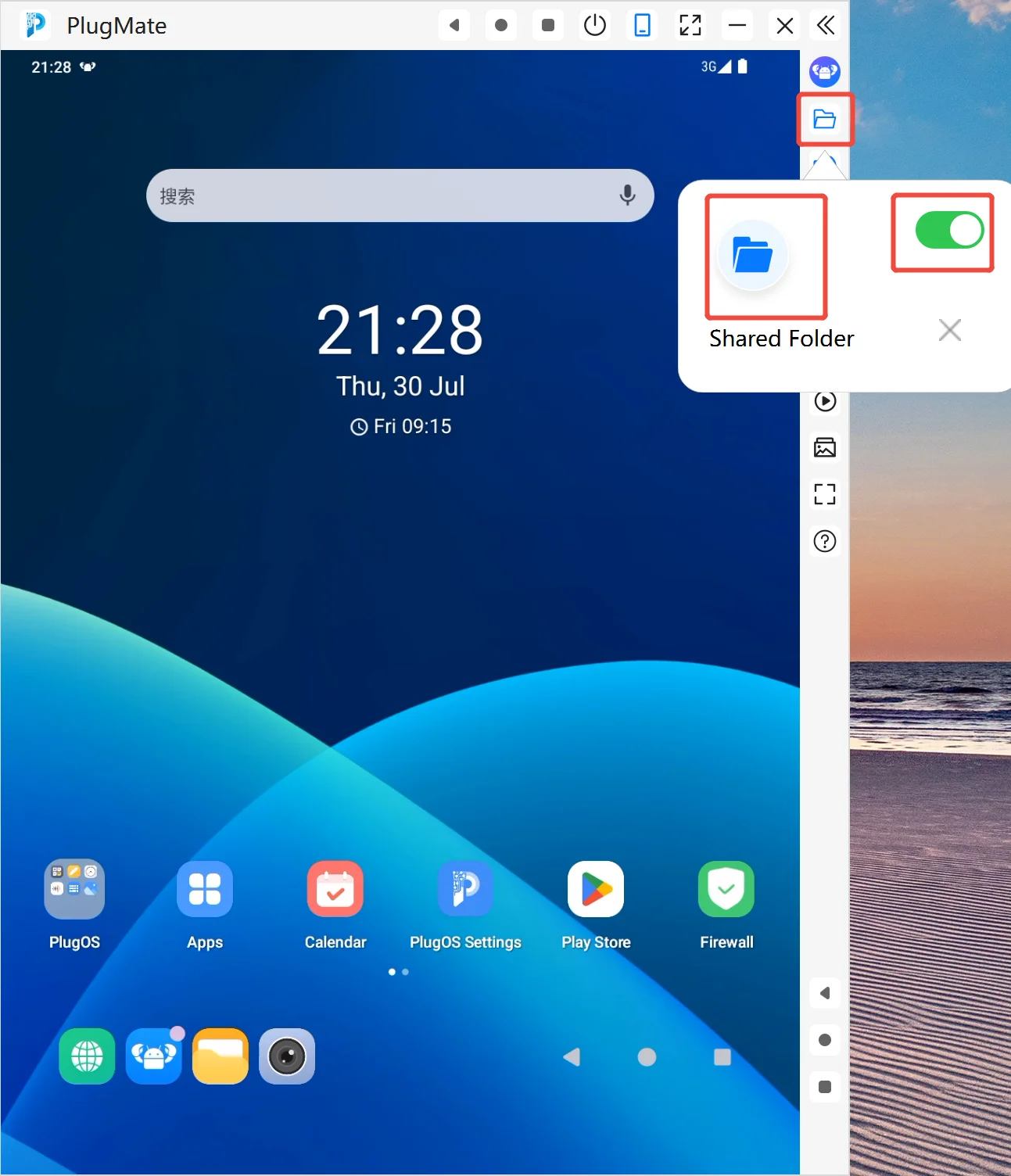
- Open Shared Folder from the PlugOS PC client toolbar. Turn on the sharing switch, then use the folder entry in the panel to choose a host directory.
- Select the dedicated folder in the host's folder picker. Do not select a parent folder containing accounts, private photos, or unrelated documents.
Both sides now access the same transfer directory. Changes or deletions made on one side may be visible on the other, so never keep the only copy of a file there.
Import a File to the Device
- On the host, copy the required file into the selected shared folder. Check for an existing file with the same name before replacing anything.
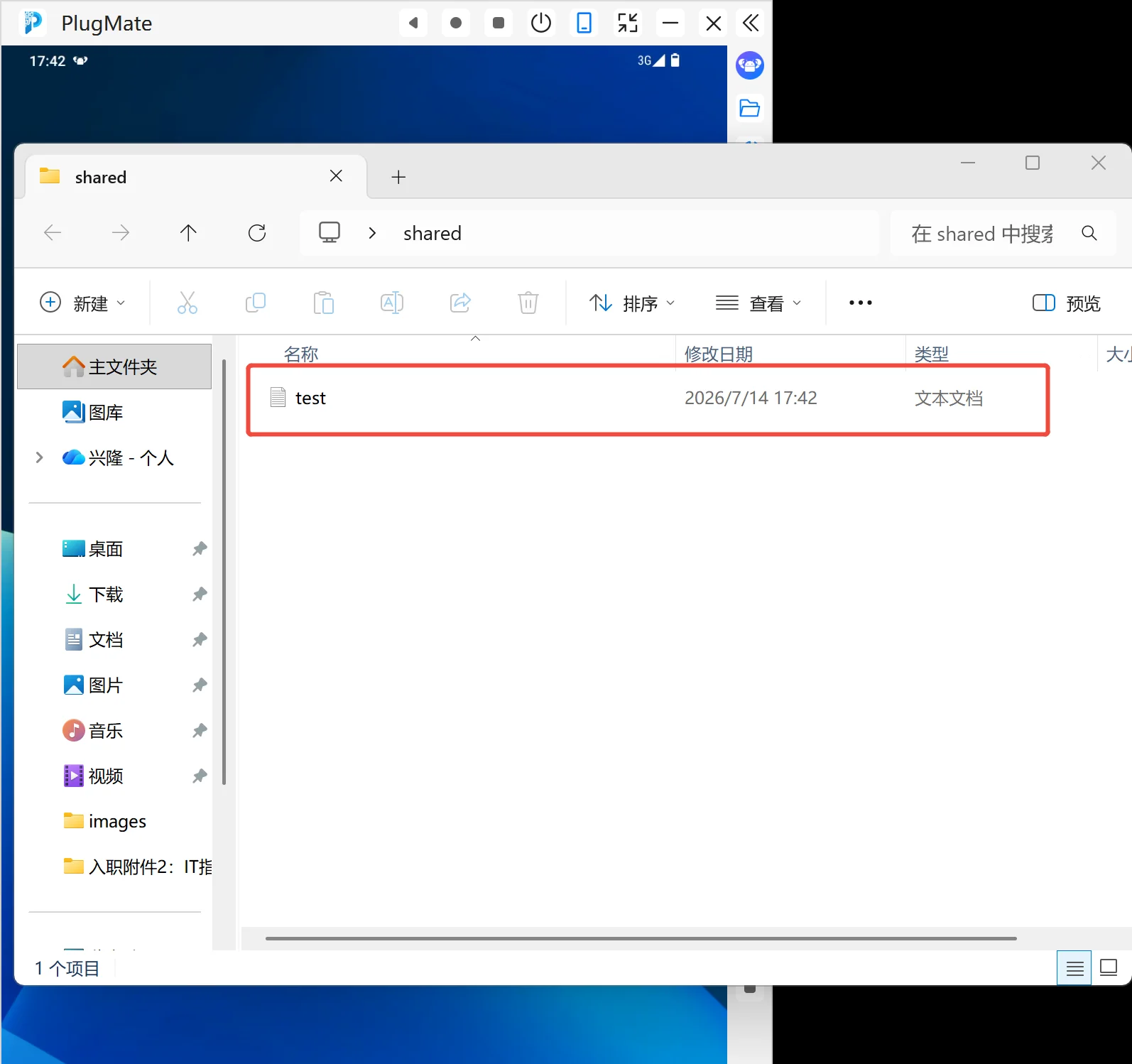
- On the device, open the file manager and enter
Share Folder. Confirm the file name, type, and size. Thetest.txtshown below is only an example.
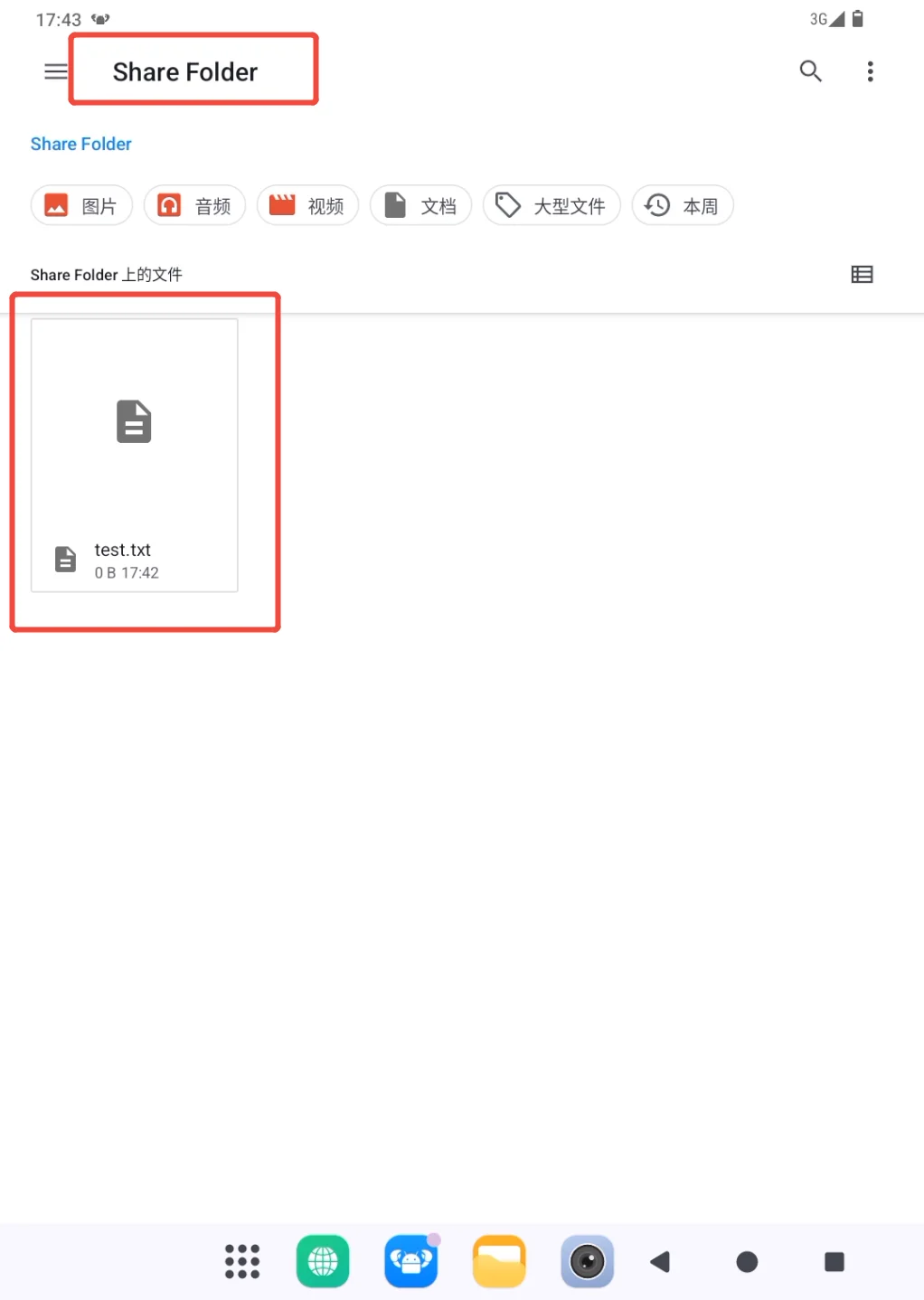
Copy the file from
Share Folderto the location where the device or target application will actually use it. Open the copy at that destination to confirm it is complete.Ask PlugClaw or the relevant application to read or process the file. Once the final copy is confirmed, the transfer copy can be removed from Shared Folder.
If the file does not appear, confirm that sharing is still enabled, the same host directory is selected, and the host copy operation has finished. Refresh the device file page before trying again.
Export a File to the Host
- Locate the result on the device, open it to check the contents, and note its name. Logs and configuration files may contain account or system information, so confirm that the destination is trusted.
- Copy the file to the device's
Share Folder. Compare names and timestamps before overwriting an existing item. - Open the selected shared folder on the host. Confirm the file name and size, then open it to verify the transfer.
- Copy it to its final host location, such as a project or backup directory. Remove the transfer copy only after the final copy opens correctly.
When transfers are finished, turn off sharing in the PlugOS PC client if the folder will not be needed again soon.
 PlugOS — La privacidad no es una opción. Es la base
Seguro · Sin publicidad · Sin rastreo · Sin recolección de datos en segundo plano
