Find an Answer or Report a Problem
When something does not work as expected, search FAQ first. If no relevant answer is available, or the suggested steps do not solve the issue, use Feedback to send the information needed for support.
Avoid descriptions such as "It doesn't work." Include what you were trying to do, what happened instead, when it occurred, and whether it can be reproduced. Up to four screenshots can be added. Upload Logs attaches PlugClaw runtime records that may help diagnose a technical problem.
Before submitting, review the description and images for unrelated account details, contacts, or other sensitive information.
Search FAQ
- Open Settings from the sidebar, then choose FAQ.
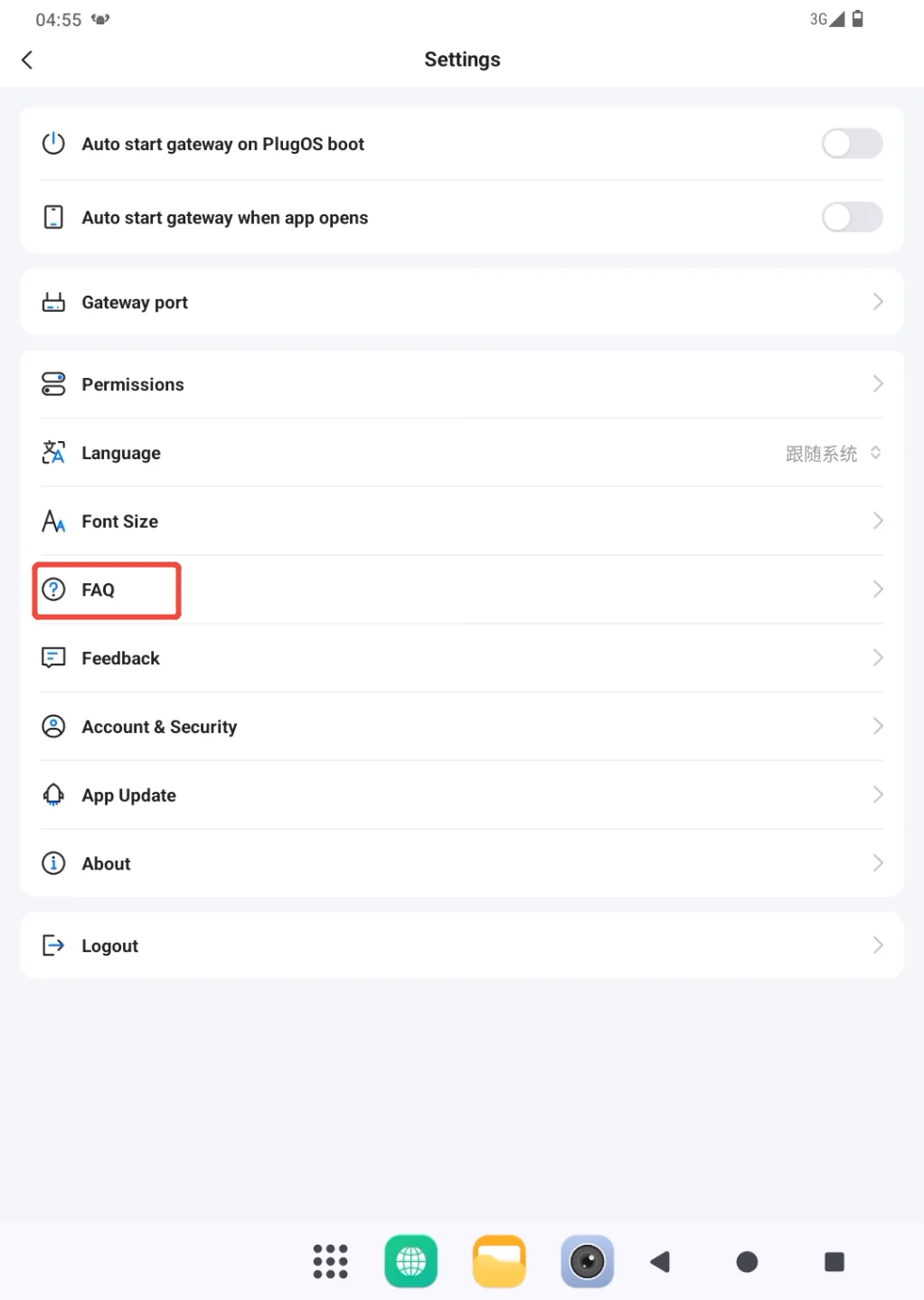
- Search with words that describe the symptom, such as
login,initialization failed, ormodel not responding. A question in the list can also be opened directly.
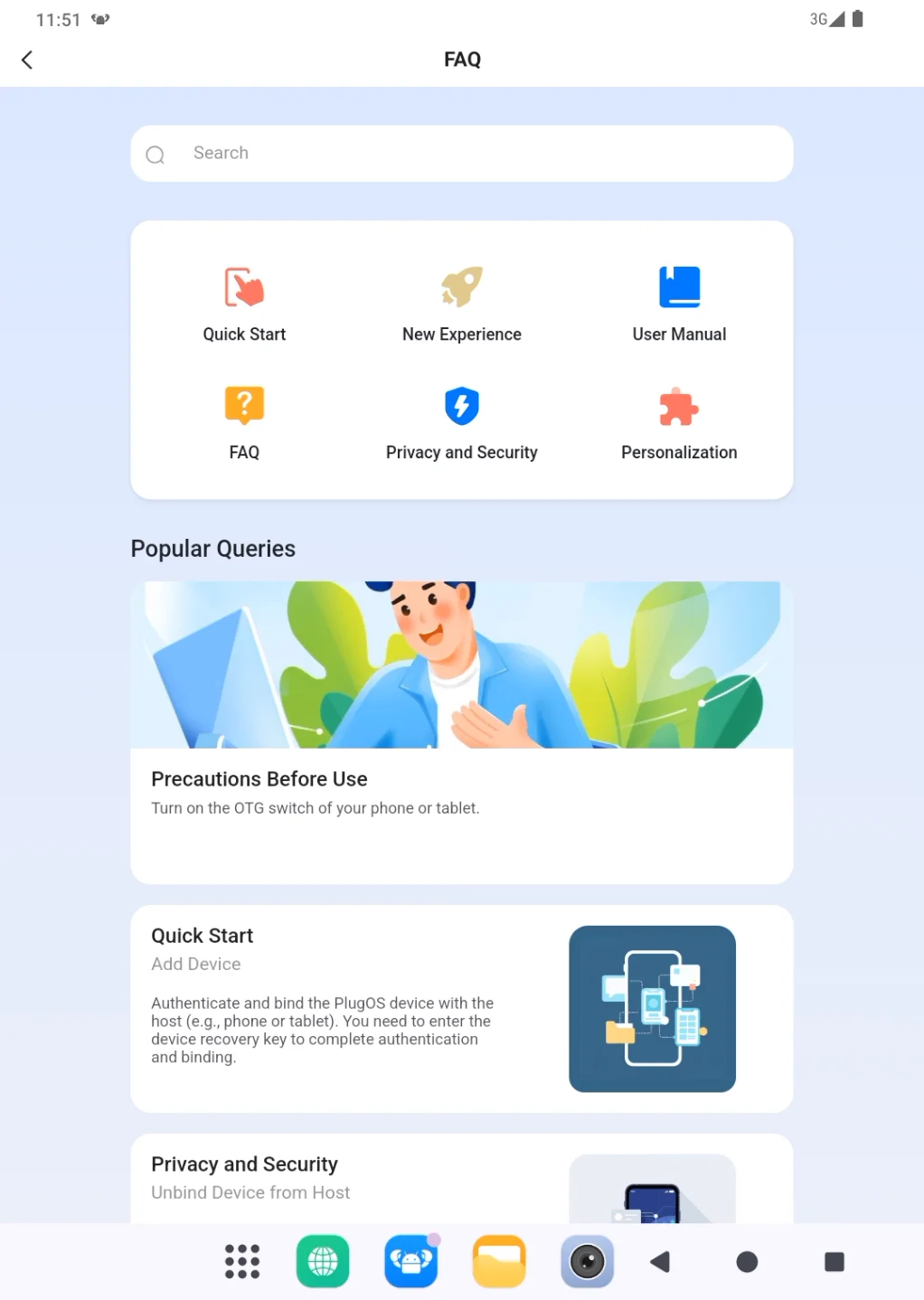
Follow the relevant answer, then repeat the original operation to confirm whether the issue is resolved. Submit feedback when the search has no useful result or the problem continues.
Submit Feedback
- Return to Settings and open Feedback.
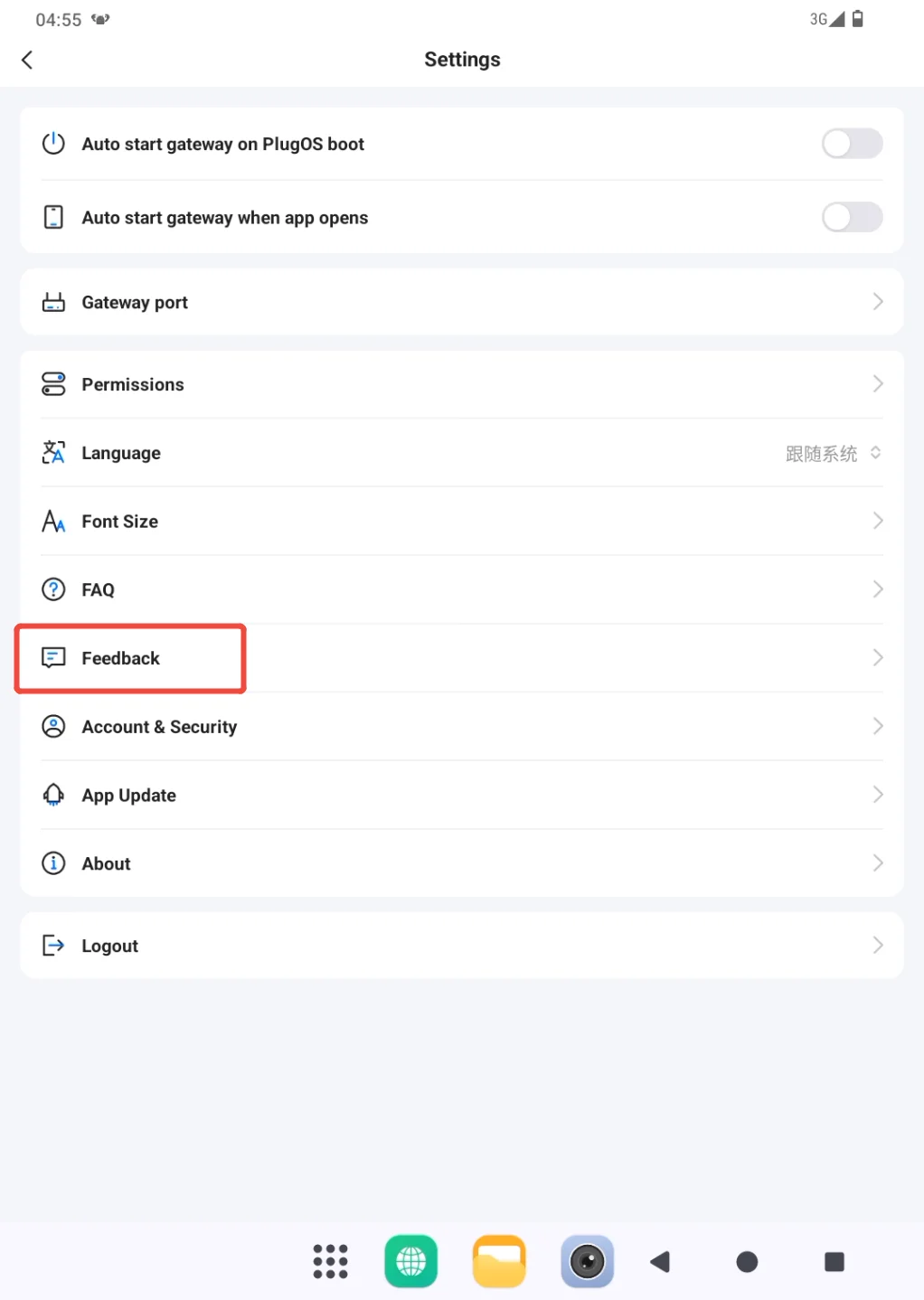
Choose the closest feedback type and describe the issue. A useful order is: intended action, time of occurrence, actual result, complete page error, and whether it happens again. Contact information is optional unless a reply is needed.
Turn on Upload Logs for a runtime problem. Add relevant screenshots when there is a visible error or unexpected page, up to four images.
Review all required fields and choose Submit Feedback.
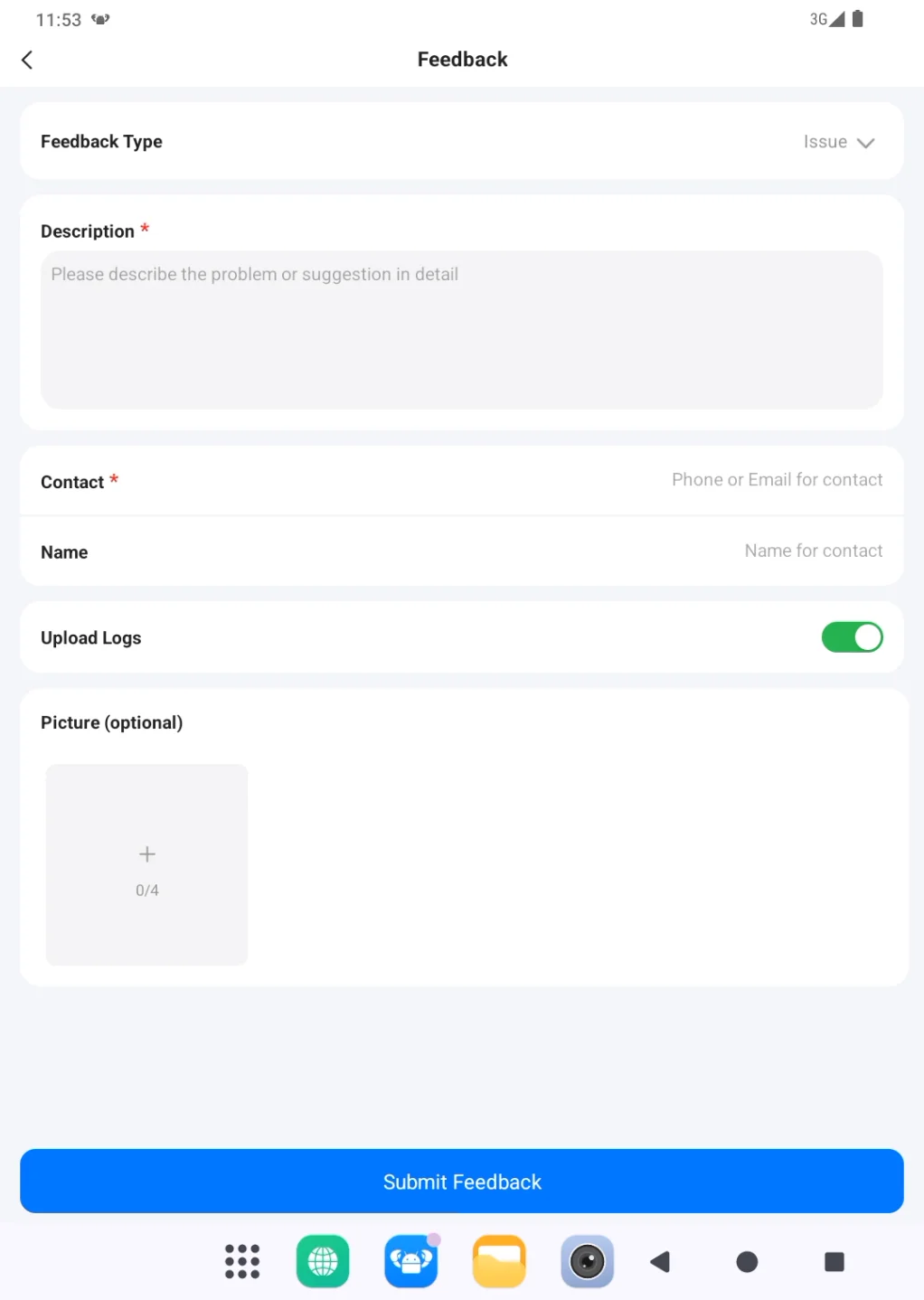
The report has been sent only after a success message appears. Keep the occurrence time and screenshots for reference. If submission fails, check the required fields and network connection, then try once more.
 PlugOS — La privacidad no es una opción. Es la base
Seguro · Sin publicidad · Sin rastreo · Sin recolección de datos en segundo plano
