What Upgrading Does
Upgrading provides new PlugClaw features, fixes, and experience improvements. PlugClaw can check manually, notify when a version is available, or detect and install an update automatically.
Auto-check for new versions reports that an update is available and leaves the timing to you. Auto detect & upgrade continues into the upgrade automatically after a new version is found. Use notification-only mode when upgrades need to stay outside working hours.
An upgrade can temporarily interrupt conversations and tasks. Finish important work first, keep the network stable, and connect the device to power. Do not close PlugClaw or restart the device while an upgrade is running.
Check and Upgrade
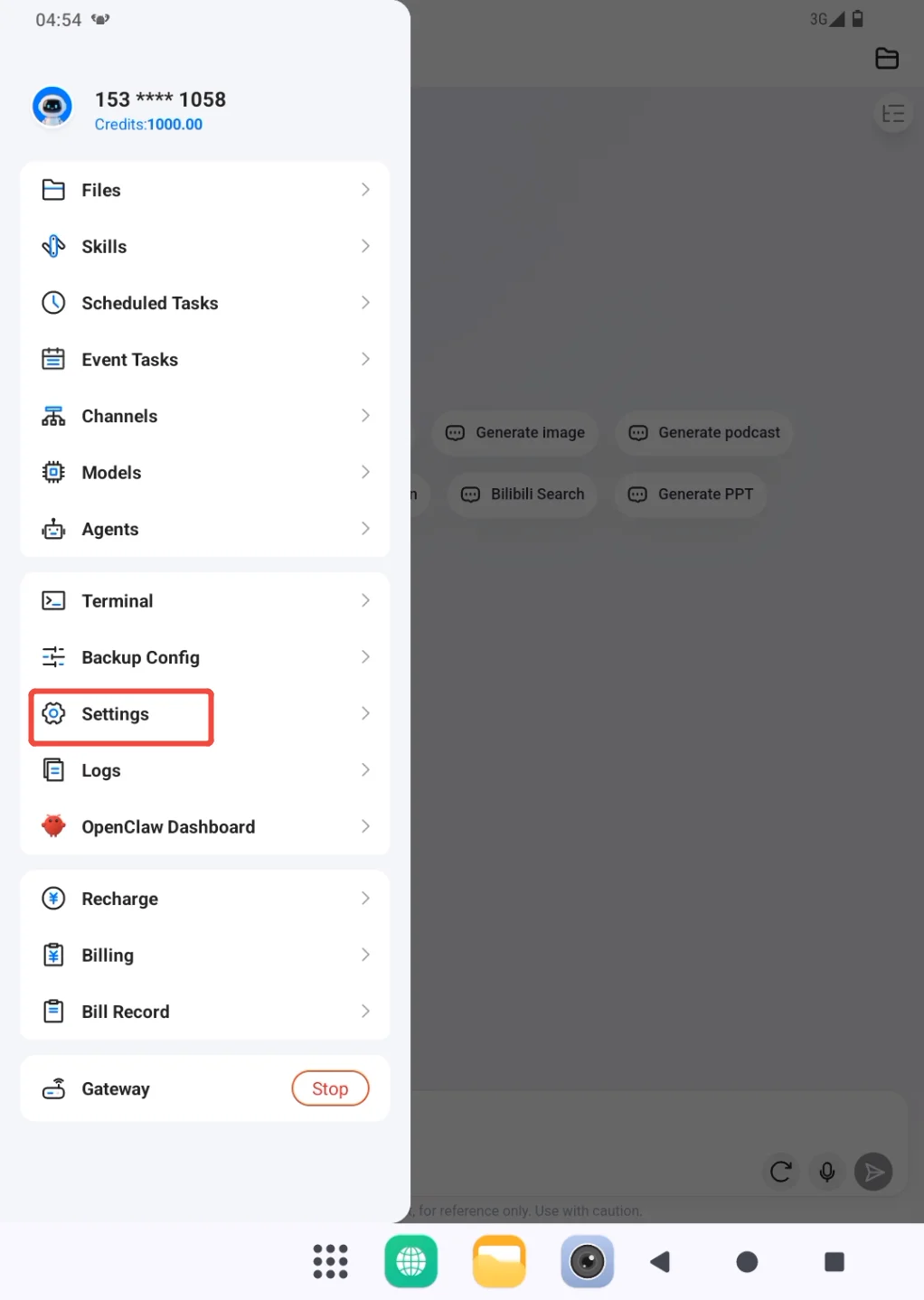
- Open the sidebar and go to Settings.
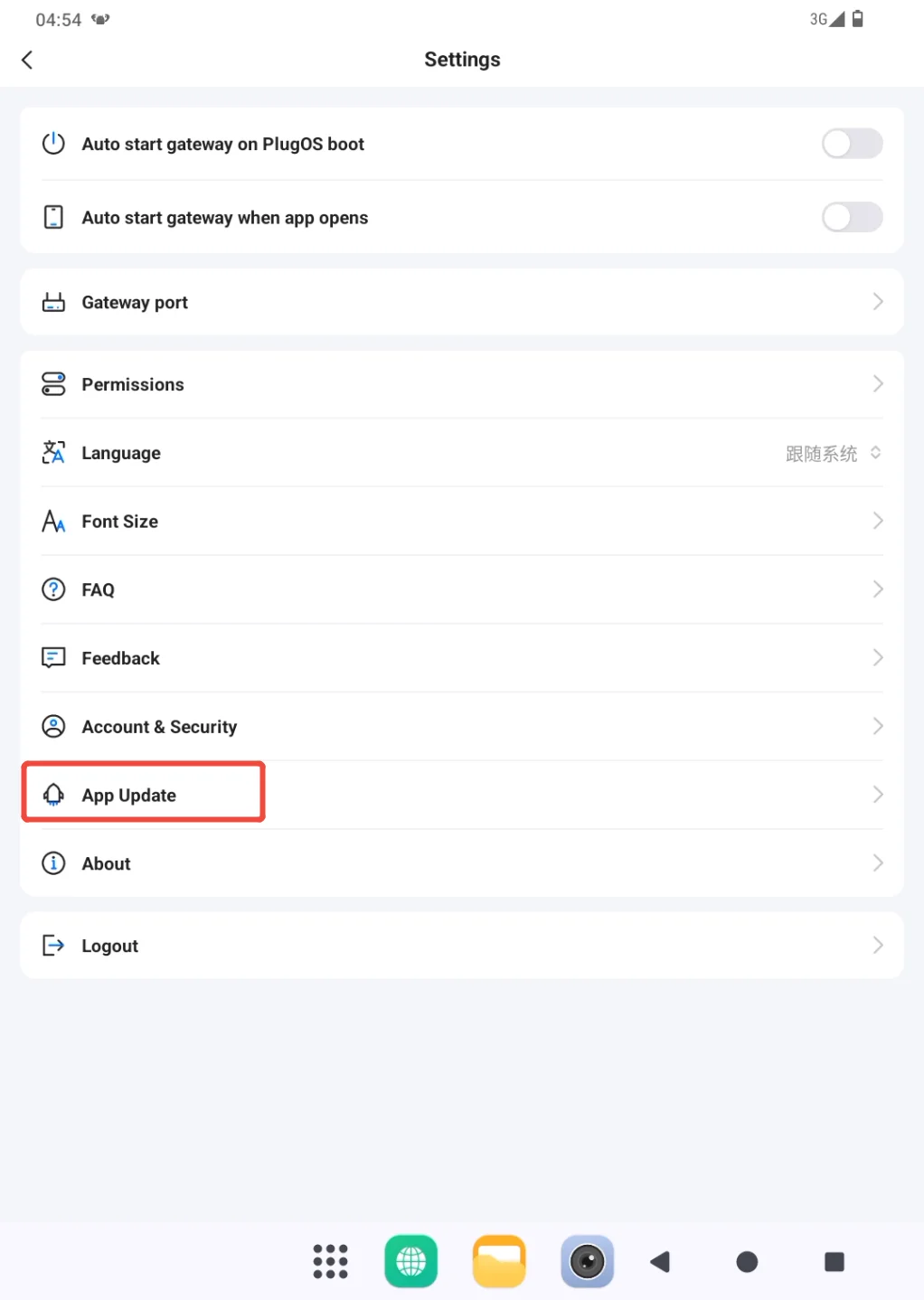
- Open App Update.
- Review the current version, then choose the update behavior that fits the situation:
- Turn on Auto-check for new versions to receive update notices.
- Turn on Auto detect & upgrade to continue automatically when an update is found.
- Use Check for updates to check immediately.
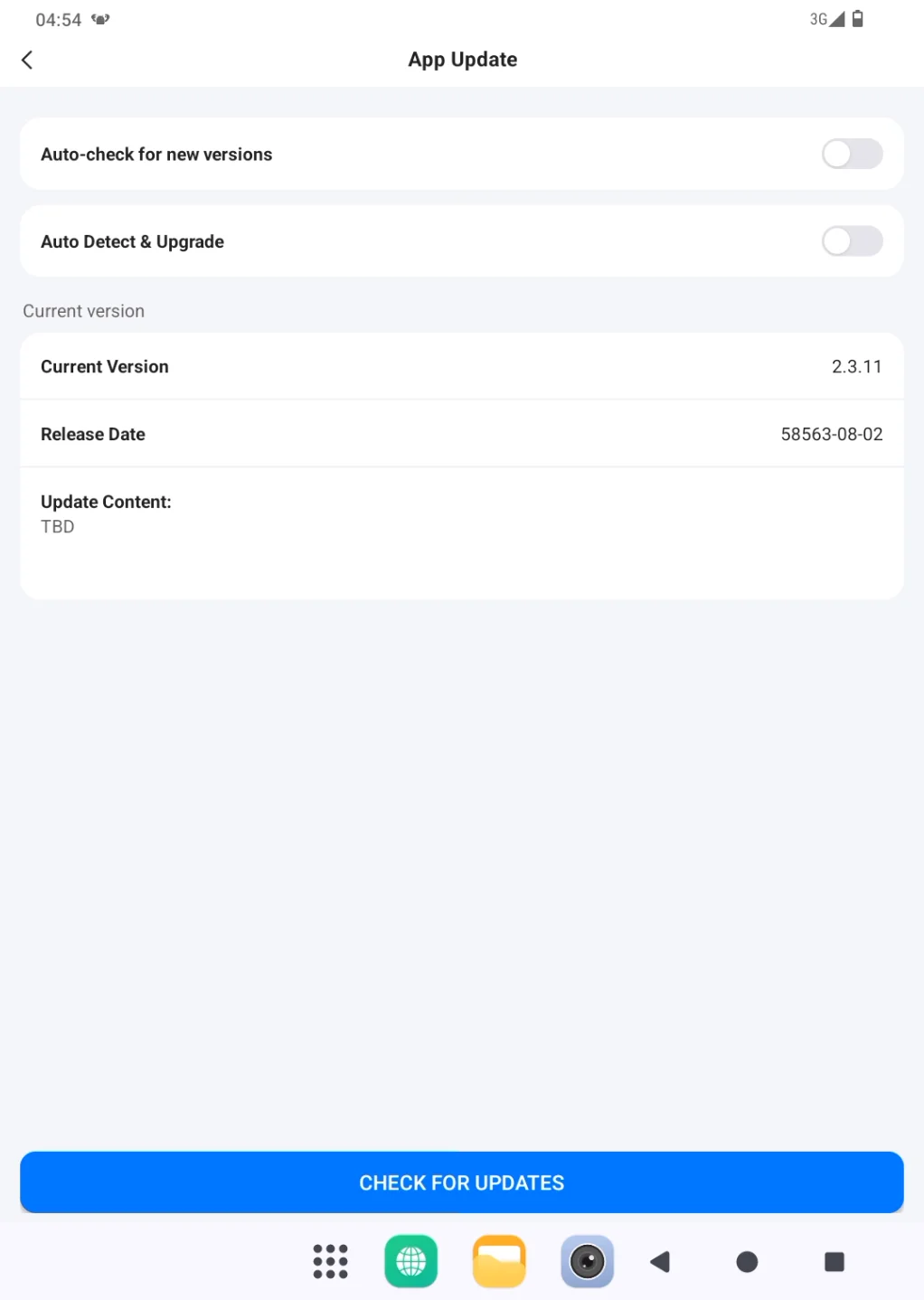
Follow the page instructions when a new version is available and wait for the upgrade to finish. Reopen App Update afterward and confirm that the version number changed. Then return to the conversation page and send a short message to verify normal operation.
If the check fails, confirm the network and try once more. If progress stops for a long time, do not repeatedly start the upgrade or disconnect power. Record the current version, page message, and a screenshot, then use Settings > Feedback.
 PlugOS — La privacidad no es una opción. Es la base
Seguro · Sin publicidad · Sin rastreo · Sin recolección de datos en segundo plano
