1. Overview
Web content is often spread across articles, images, videos, audio, attachments, and interactive pages. With PlugClaw, users can provide a web link, describe what they want to keep, and let the system identify, process, and save the result.
This case uses a NASA Astronomy Picture of the Day (APOD) page as an example to show how a high-resolution image and its metadata can be saved to the phone. NASA APOD is only the source used in this example; the same workflow also applies to article export, web information extraction, and content archiving.
2. Send the Request
To process web content, provide the link and describe the expected result.
Example prompt:
Open this page:
https://apod.nasa.gov/apod/ap240101.html. Find the featured astronomy image and save the highest-resolution version available to the phone'sDownloads/APOD/folder. Then save the page title, date, image credit, and explanation asmetadata.mdin the same folder. Verify that both files were saved successfully and report their filenames.
This prompt specifies the target page, the content to extract, the destination folder, and the required verification. PlugClaw will determine the appropriate handling method based on the page content.
3. Processing
After receiving the request, PlugClaw opens the page, identifies the featured astronomy image, retrieves the highest-resolution version available, extracts the requested metadata, and prepares both files for saving.
In this case, the page features an image of NGC 1232. After processing, the system obtains the high-resolution image and creates a Markdown file containing the page title, date, image credit, and explanation, then confirms that both files have been generated before saving them.
For other web tasks, the final result may be an exported Markdown article, extracted page text, image assets, audio files, or subtitle files.
4. Saved Result
The files are saved to the phone's Downloads directory. In this case, the destination is:
Phone -> Downloads ->
APOD/
Saved files include:
- High-resolution image:
ngc1232_highres.jpg - Metadata file:
metadata.md
Final result:
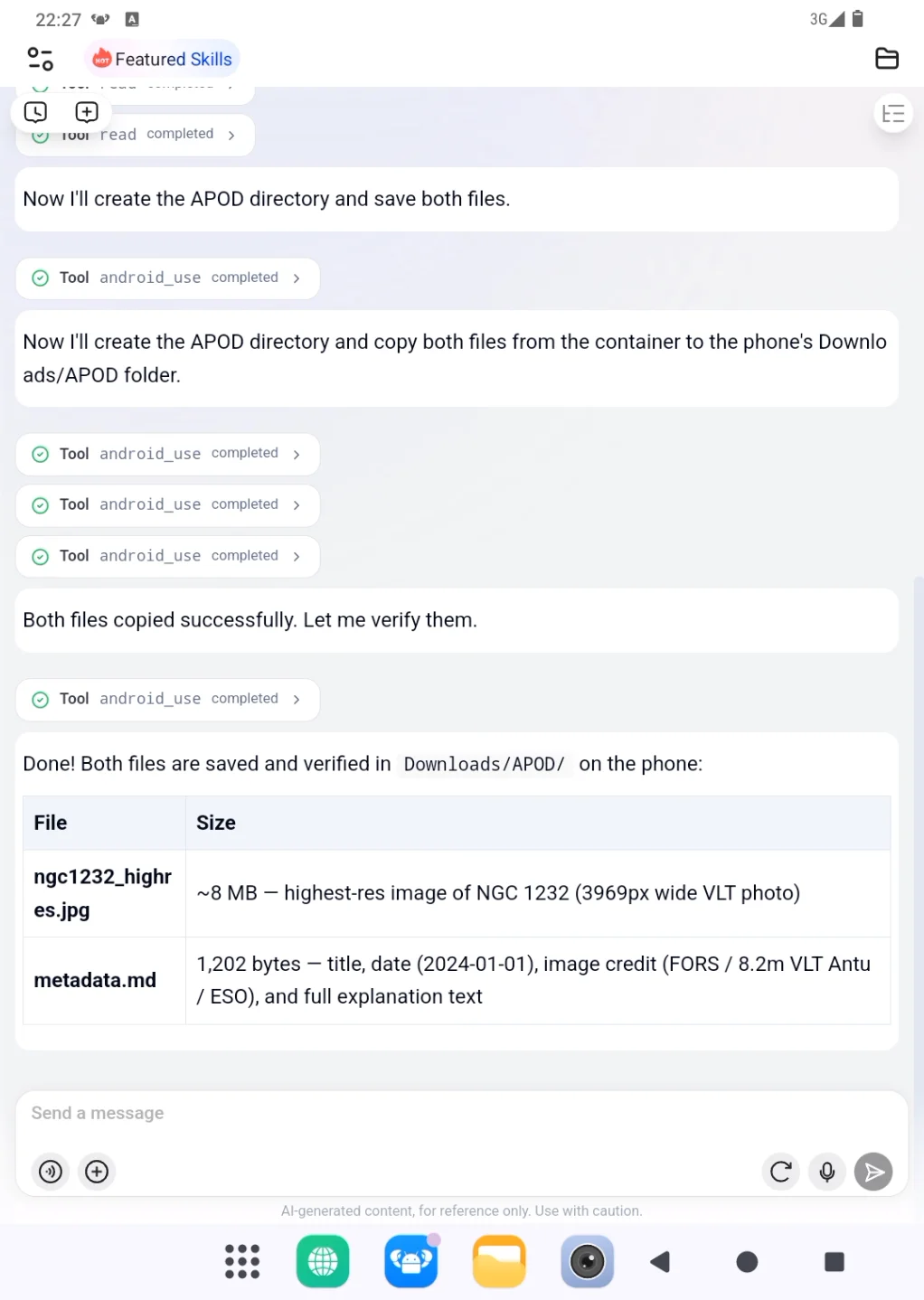
Open the corresponding folder in the phone file manager to view the saved image and metadata file.
5. Suitable Use Cases
This example shows how to save a high-resolution image and structured page metadata. Similar tasks can also be used to:
- Extract article text, titles, or key information from a webpage.
- Export articles from platforms such as Zhihu or WeChat Official Accounts.
- Save images, audio, subtitles, or video assets from webpages.
- Work with forms, filters, or page information in an open website.
- Turn web results into files that can be viewed, shared, or archived.
6. Tips
- Keep the full link: Copy shared links, redirect links, or parameterized URLs as completely as possible.
- State the goal clearly: For example, “save the video,” “export the article,” or “extract page information.”
- Check page access first: Some links require login before they can be opened or fully viewed. Make sure the target page is accessible in the browser before processing.
- Verify saved files: Open the destination folder and confirm the files can be viewed before organizing or sharing them.
- Continue refining the result: After saving, you can ask to rename files, move them to another folder, or generate a summary.
 PlugOS — La privacidad no es una opción. Es la base
Seguro · Sin publicidad · Sin rastreo · Sin recolección de datos en segundo plano
