Каталог
Feature Overview
Notes is used in PlugClaw to record, view, and maintain content in the Android Notes app.
Supported Capabilities
You can create regular text notes, as well as checklist, to-do, or task-list notes. Existing notes can be searched, opened, updated, or deleted, and the full notes list can also be queried.
Usage Examples
Create a Regular Note
When you need to save regular text content, you can create a normal note. Describe the title and body as clearly as possible.
- Enter this in the PlugClaw conversation:
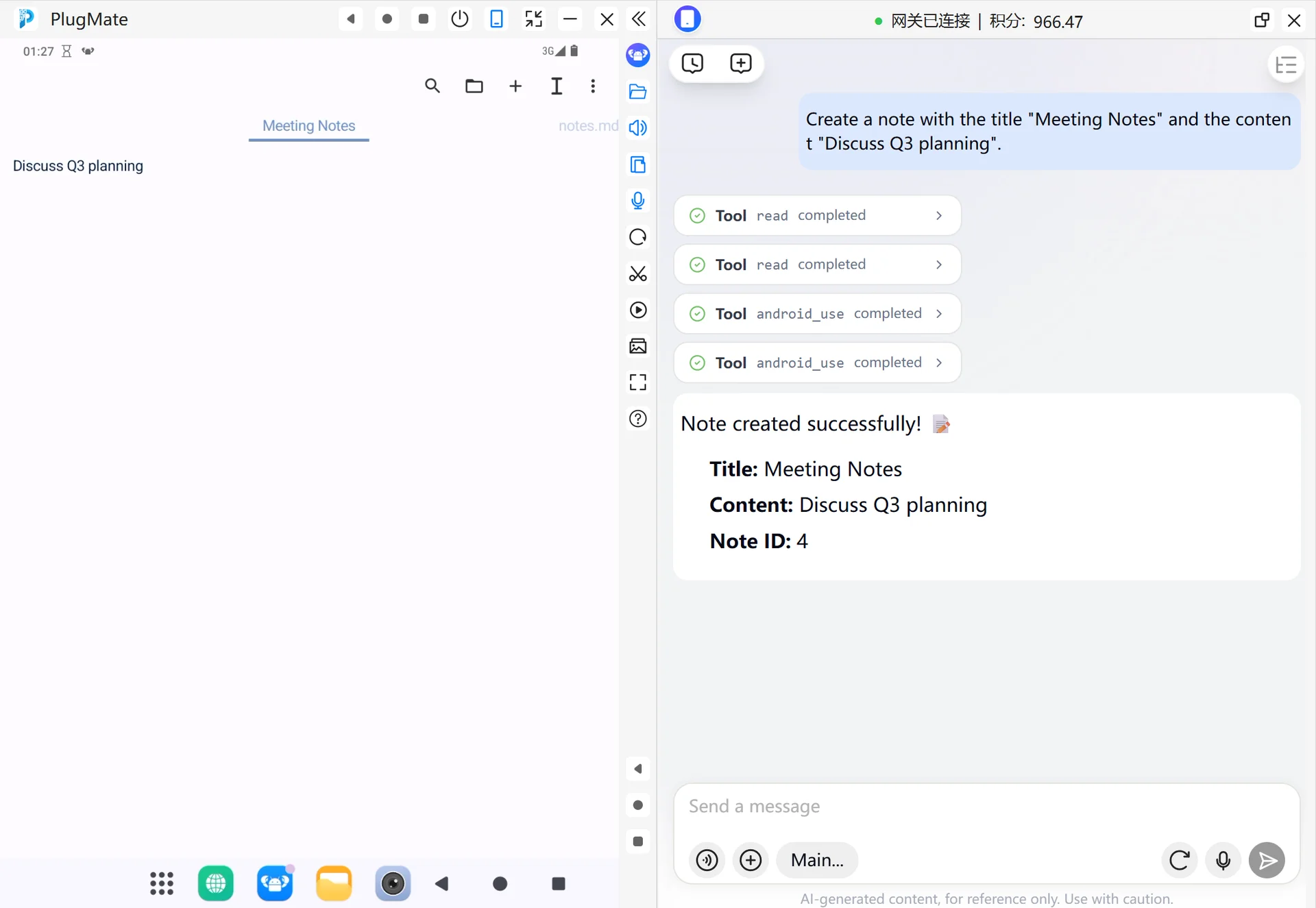
Create a note with the title "Meeting Notes" and the content "Discuss Q3 planning".
- Check the creation result returned by PlugClaw and confirm that the title and content are correct. After creation, you can continue to search for or open the note.
Create a Checklist Note
When the content is a shopping list, to-do list, or task list, you can create a checklist note. Describe each item clearly so the list can be generated in a structured way.
- Enter this in the PlugClaw conversation:
Create a shopping list with milk, eggs, and bread.
- Check the creation result and confirm that the checklist items are complete. If an item is missing, you can ask to update the note.
Open a Note
When you already know the note name and want to view it on the device, you can directly specify the note name.
- Enter this in the PlugClaw conversation:
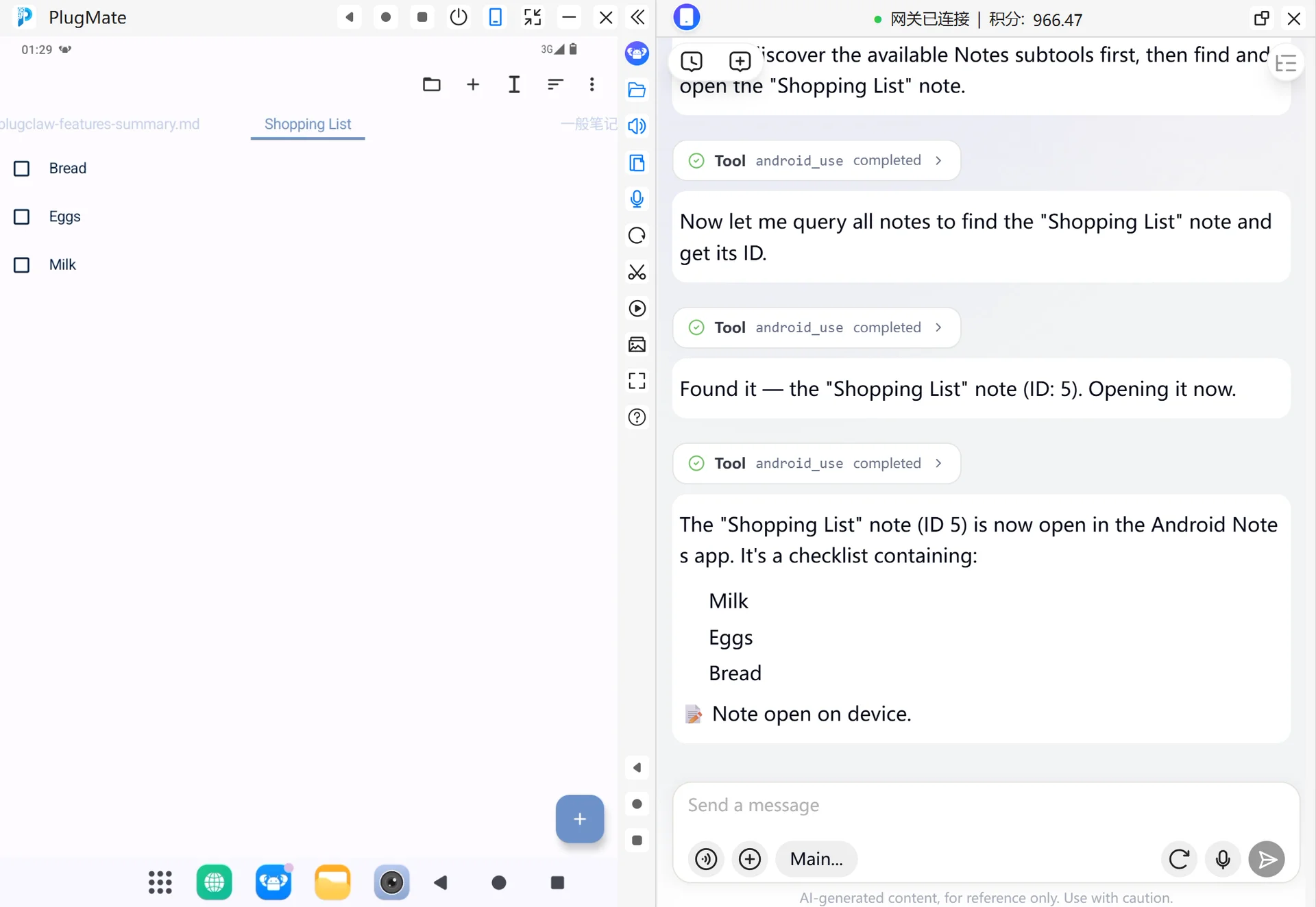
Open the note named Shopping List.
- If a matching note is found, the device will open the note page. If there are multiple notes with the same or similar names, choose the correct one based on PlugClaw's prompt.
Подпишитесь на рассылку, чтобы первыми получать аналитику по безопасности и эксклюзивные обновления
 PlugOS — компактное умное устройство, ваша конфиденциальность под контролем
Безопасно · Без рекламы · Без отслеживания · Без сбора фоновых данных
Copyright © 2024-2026 TrustKernel
Политика конфиденциальности | Пользовательское соглашение