What Gateway Management Does
The gateway is the service connection PlugClaw uses for conversations, Agents, Skills, Scheduled Tasks, and external channels.PlugClaw can send messages and run these features only after the gateway is connected.
Gateway Management covers three tasks: viewing and controlling the gateway, choosing when it starts automatically, and changing its port. The default gateway port is 45650. Keep this value in normal use and change it only when it conflicts with a port already used by another service on the device.
Starting, stopping, restarting, or changing the port can interrupt work currently being handled through the gateway. Wait for important conversations and tasks to finish before making a change, then confirm that the gateway reconnects afterward.
View and Control the Gateway
Open the sidebar from the profile entry in the upper-left corner of the PlugClaw conversation page. The gateway and its control button appear at the bottom.
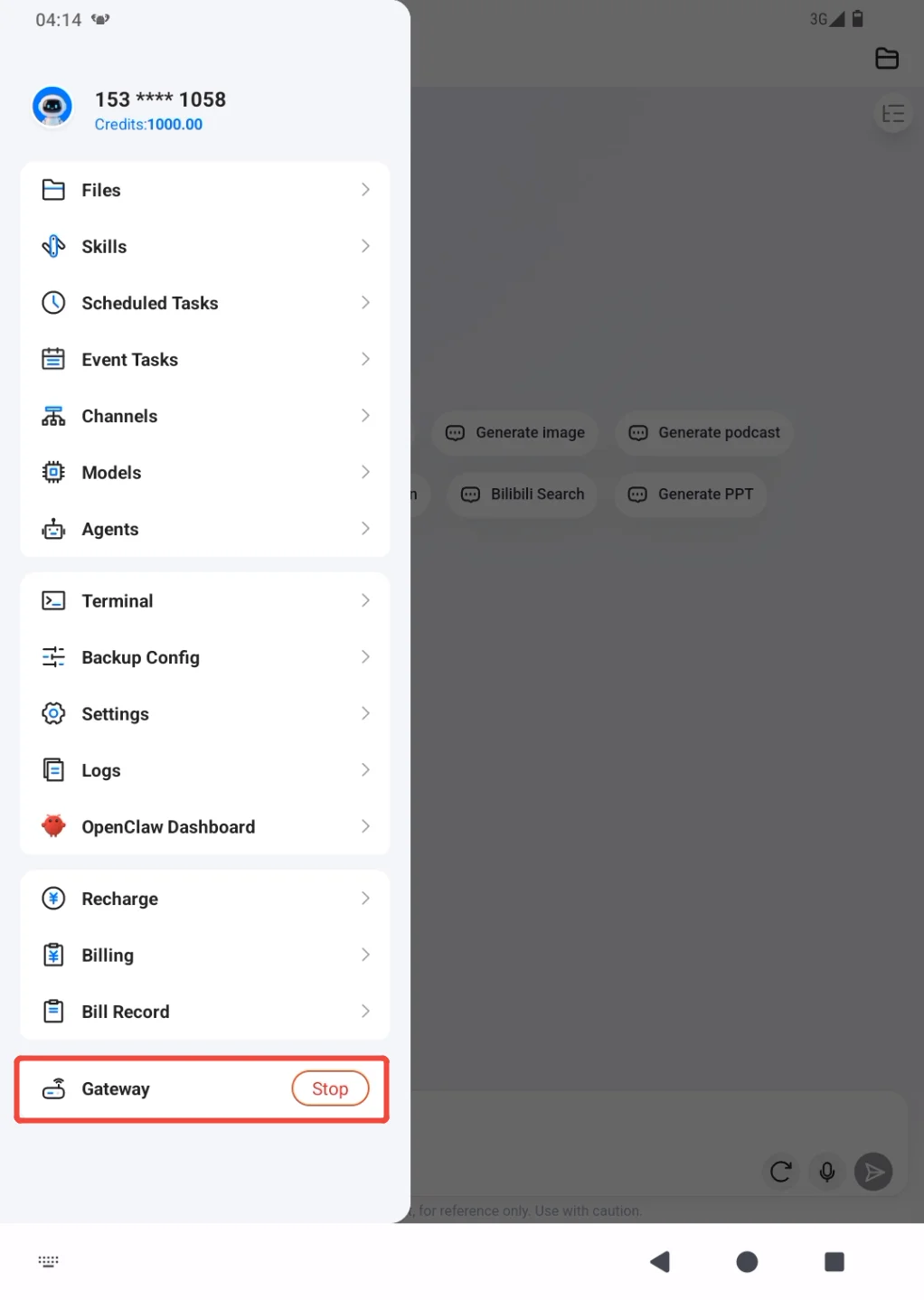
The button shows the action currently available:
- Stop means the gateway is already running. Leave it running unless there is a reason to stop it.
- Start means the gateway is not running and can be started from here.
When the gateway is not running, the conversation page also displays a start prompt. The gateway can be opened directly from that page.
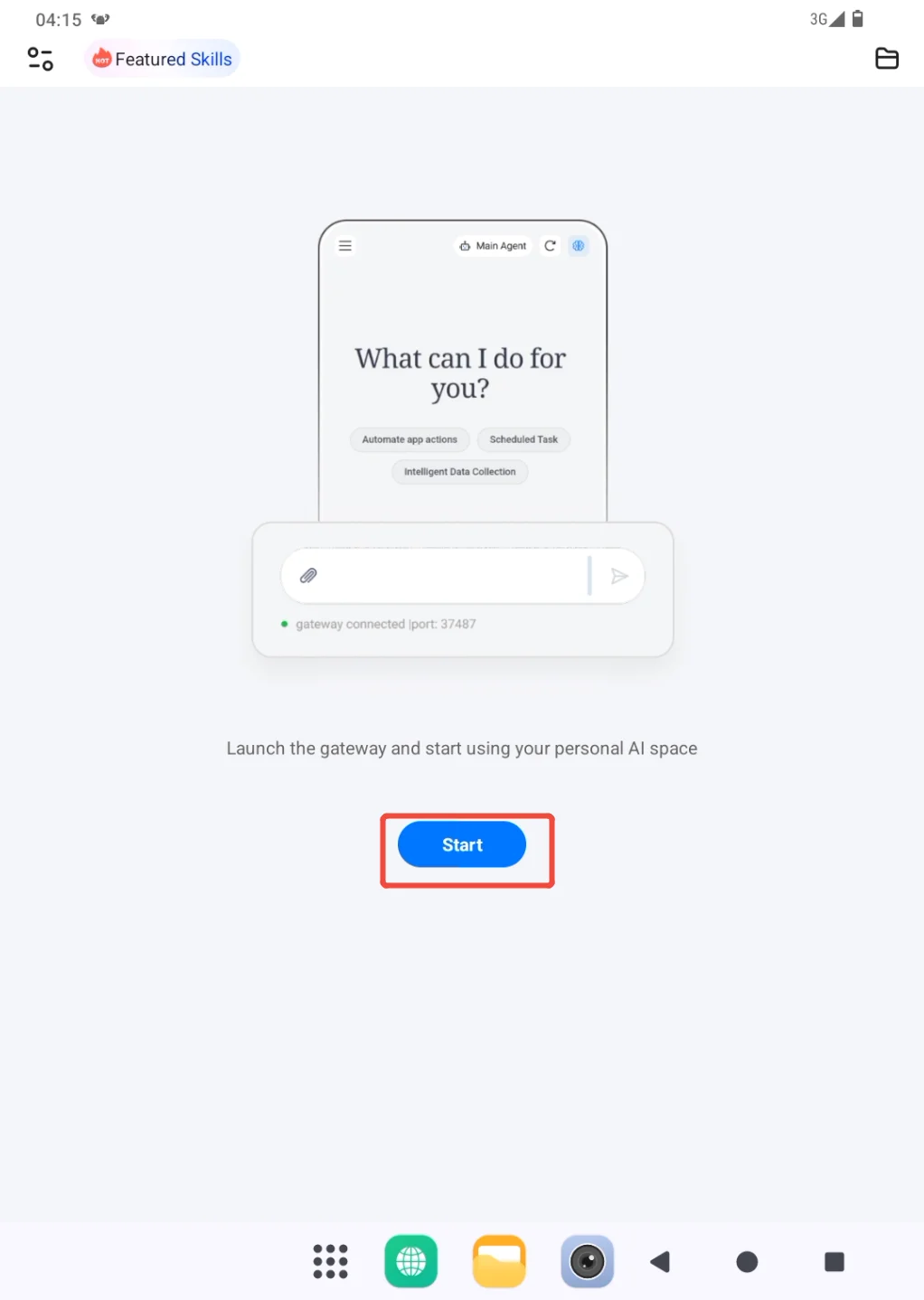
After starting the gateway, return to the conversation page and send a short test message. A normal reply confirms that the gateway, account, and current model can work together.
Stopping the gateway temporarily prevents conversations, Agent tasks, Scheduled Tasks, and channel messages from being processed through it. The gateway may be closed when these features are not needed, but do not close it while a task is still running.
Configure Automatic Gateway Startup
Open Settings from the sidebar. Two gateway startup options appear at the top of the page. They work independently and may also be enabled together.
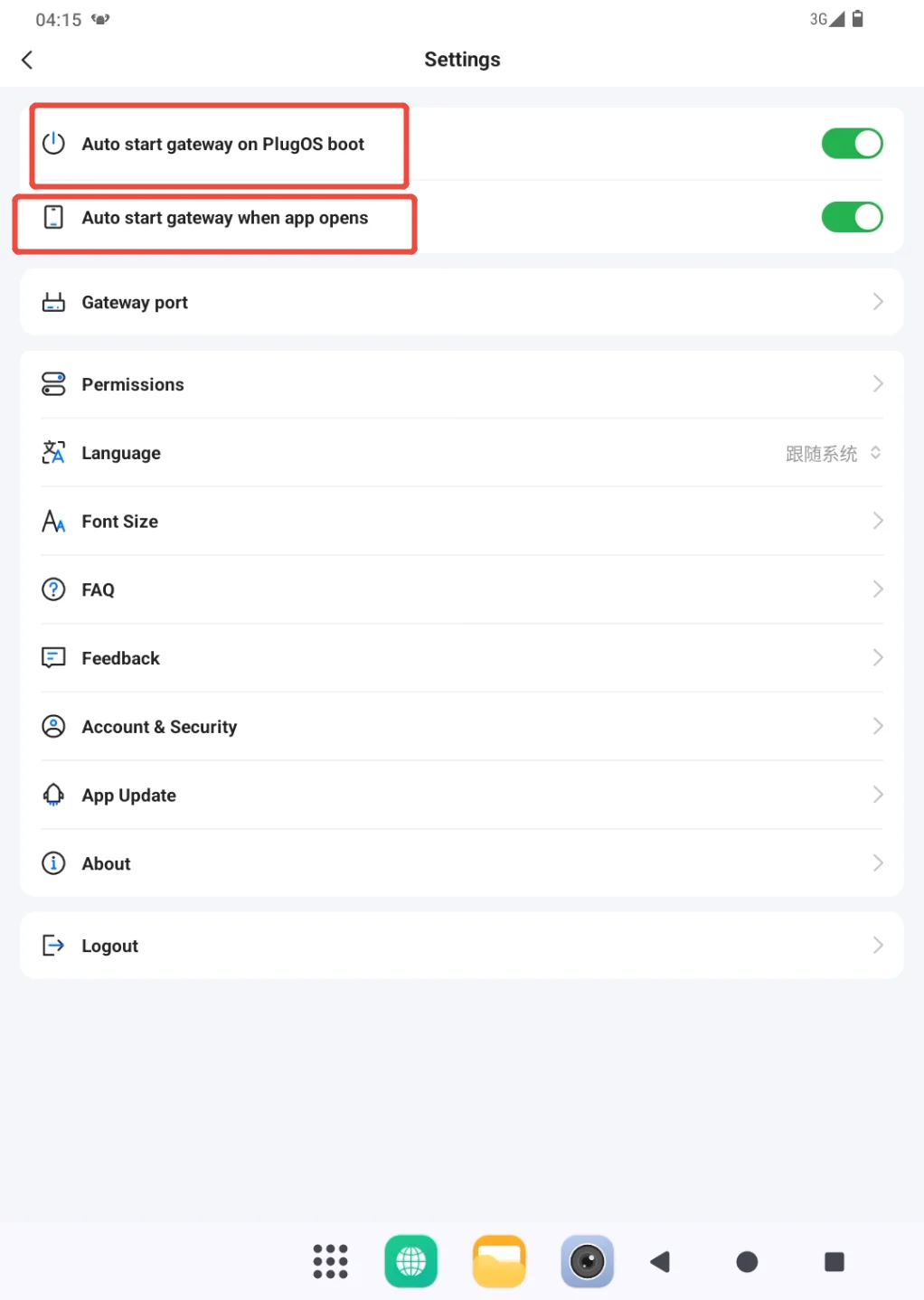
| Setting | What it does | When it is useful |
|---|---|---|
| Auto start gateway on PlugOS boot | Starts the gateway after the PlugOS device boots, without requiring the PlugClaw app to be opened first | Scheduled Tasks or external channels should return as soon as possible after the device restarts |
| Auto start gateway when app opens | Attempts to start the gateway when the PlugClaw app opens if it is not already running | PlugClaw is mainly used from the conversation page and should require fewer manual startup steps |
A green switch means that option is enabled. When PlugClaw is used frequently, both options can remain on: the gateway starts after the device boots, and opening the app provides another startup attempt if it did not start successfully at boot.
To avoid keeping the gateway running immediately after every device boot, leave only Start gateway when opening the app enabled. When both options are off, the gateway must be started manually before using conversations, Agents, Scheduled Tasks, or channels.
Automatic startup means PlugClaw will attempt to open the gateway. After changing these settings, reopen PlugClaw and check whether the gateway has started automatically.
Restart the Gateway
Restarting the gateway means closing it and opening it again so PlugClaw can reload saved settings. It does not mean restarting the PlugOS device, and the entire device does not need to be shut down.
Restart the gateway in these situations:
- After changing model settings, so the newly selected Base Model or APP Automation Model takes effect.
- After adding a channel or changing its account, credentials, connection details, or enabled state.
- After importing a PlugClaw configuration, so the restored gateway, Skills, channels, and related settings are loaded.
- After saving a new gateway port, so the gateway starts on that port.
- After changing a Webhook or another advanced setting whose instructions explicitly require the gateway or PlugClaw service to restart.
- When the gateway is running but the conversation page still cannot connect for an extended period, after confirming that the network is working.
Before restarting, wait for important conversations and tasks to finish. Close the gateway from the bottom of the sidebar, wait until the button changes to Open, and then open it again. Do not repeat the controls while the status is still changing.
Edit the Gateway Port
PlugClaw uses port 45650 by default. If the gateway starts normally and conversations receive replies, there is no need to change it. A different port is needed only when the current gateway port conflicts with a port already used by another service on the device and prevents the gateway from starting.
When the default port works, continue using it instead of trying other numbers. If a change is necessary, first wait for active tasks to finish and note the current port so it can be restored if the new one does not work.
Open Settings from the sidebar, then open Gateway Port. The input field displays the port currently in use.
Replace it with the new port. The value must be a whole number from
1024to65535.
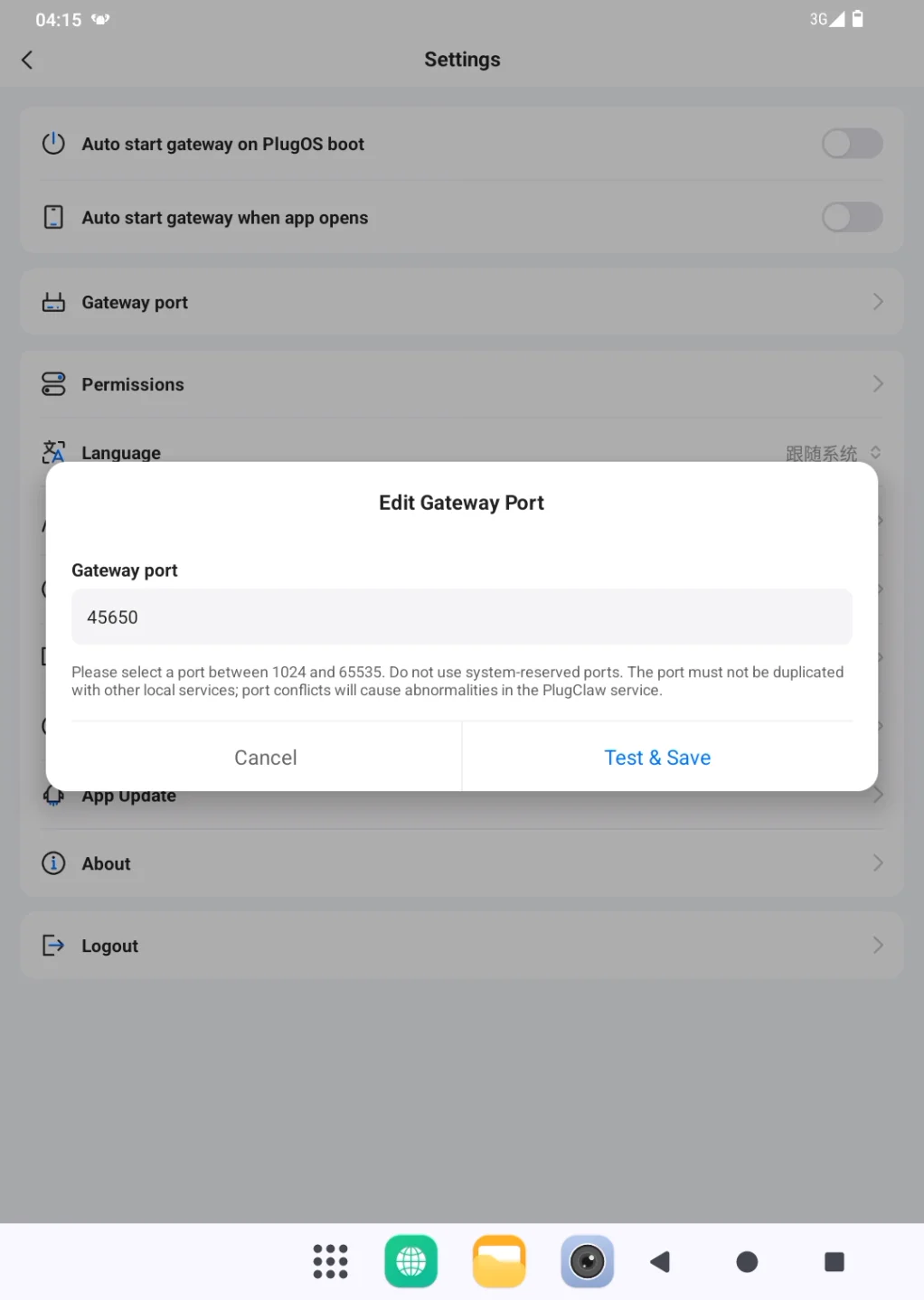
Review the number and choose Test and Save. PlugClaw checks whether the port can be used before saving it. If the page reports that the port is occupied or unavailable, cancel the edit and keep the previous port.
After the new port is saved, close and reopen the gateway as described under Restart the Gateway. Return to the conversation page and send a short message. A normal reply confirms that the new port is working.
If PlugClaw cannot reconnect after the change, return to Gateway Port, enter the previous number, then use Test and Save and restart the gateway again. If the connection still cannot be restored, record the old and new port numbers and the complete page message, then submit the information through Troubleshooting and Feedback.
Changing the port only changes the connection used to reach the gateway on the device. It does not change the account, models, Agents, or workspaces, and it cannot fix a disconnected device, a signed-out account, or an unavailable model.
 PlugOS — компактное умное устройство, ваша конфиденциальность под контролем
Безопасно · Без рекламы · Без отслеживания · Без сбора фоновых данных
