1. Overview
Meetings, reminders, recurring tasks, and fixed work routines can all be managed through the calendar. With PlugClaw, users only need to describe the event title, time, location, reminder, or recurrence rule to create the corresponding schedule.
This case includes two common calendar scenarios: a one-time meeting event and a recurring event based on a fixed rule.
2. Add a One-Time Event
One-time events are suitable for meetings, interviews, activities, deadlines, and other arrangements that occur only once.
Example prompt:
Please create a calendar event titled “Project Weekly Meeting” from
10:00 to 11:00 on August 3, 2026, atConference Room 3, and remind me15minutes in advance.
This prompt includes the title, time, location, and reminder setting, which is enough to create a complete event.
3. Confirm Event Details
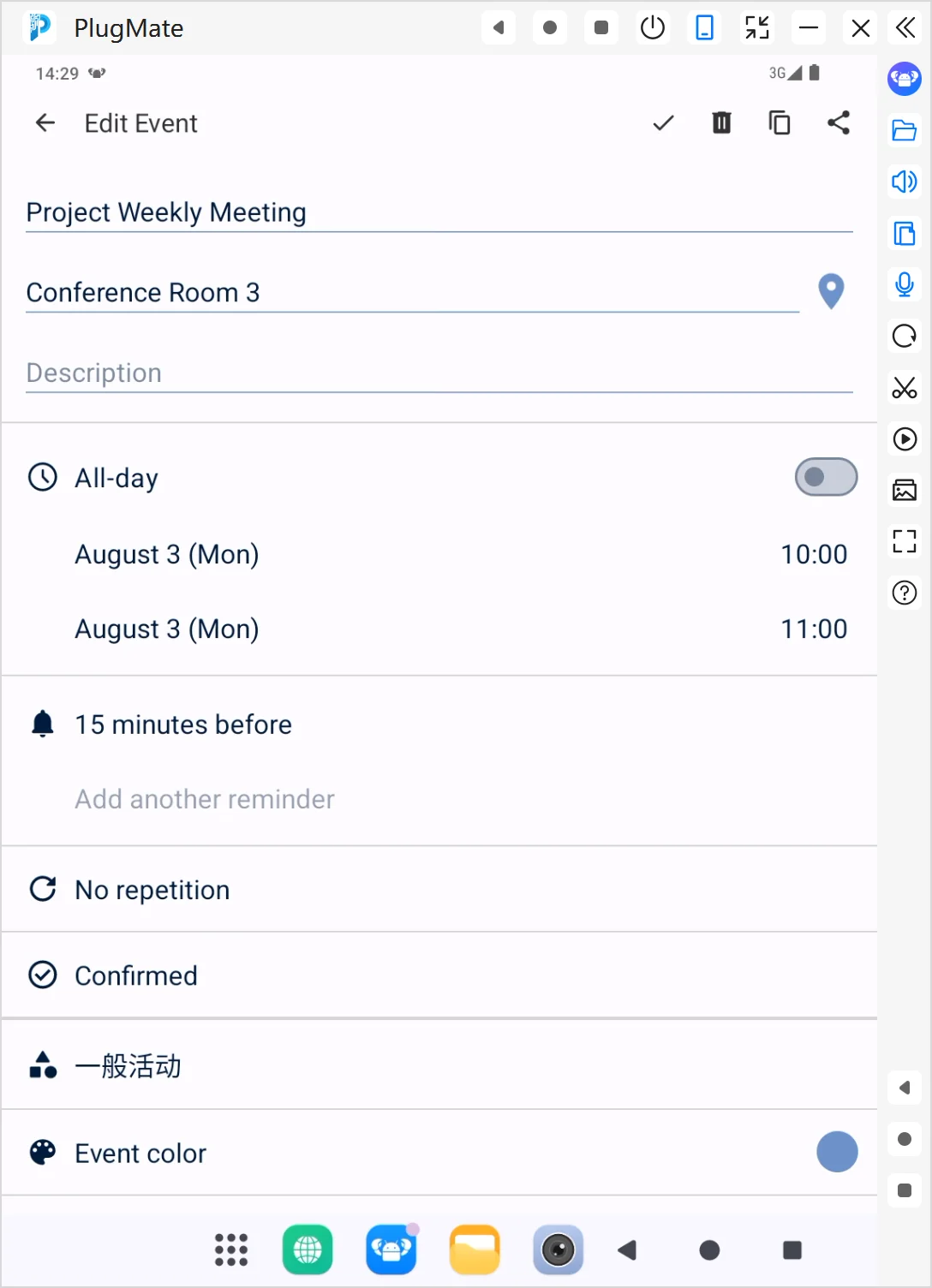
After the event is created, users can open the calendar app to review the result. In this example, the event details are:
- Title: “Project Weekly Meeting”.
- Location: “Conference Room 3”.
- Time:
August 3, 10:00 to 11:00. - Reminder:
15minutes in advance. - Recurrence: “Does not repeat”.
Result preview:
To make changes, continue with a follow-up request, for example:
Please move this meeting to
14:00and change the location toConference Room 5.
4. Create a Recurring Event
Recurring events are suitable for fixed meetings, habit check-ins, courses, routine inspections, and other repeated schedules.
Example prompt:
Please create a recurring calendar event titled “Morning Meeting”, starting from
July 20, 2026, every Monday and Wednesday at9:00 AM, lasting30minutes each time, for8occurrences.
This prompt clearly defines the start date, recurrence frequency, weekdays, start time, duration, and number of occurrences.
5. View the Recurring Event
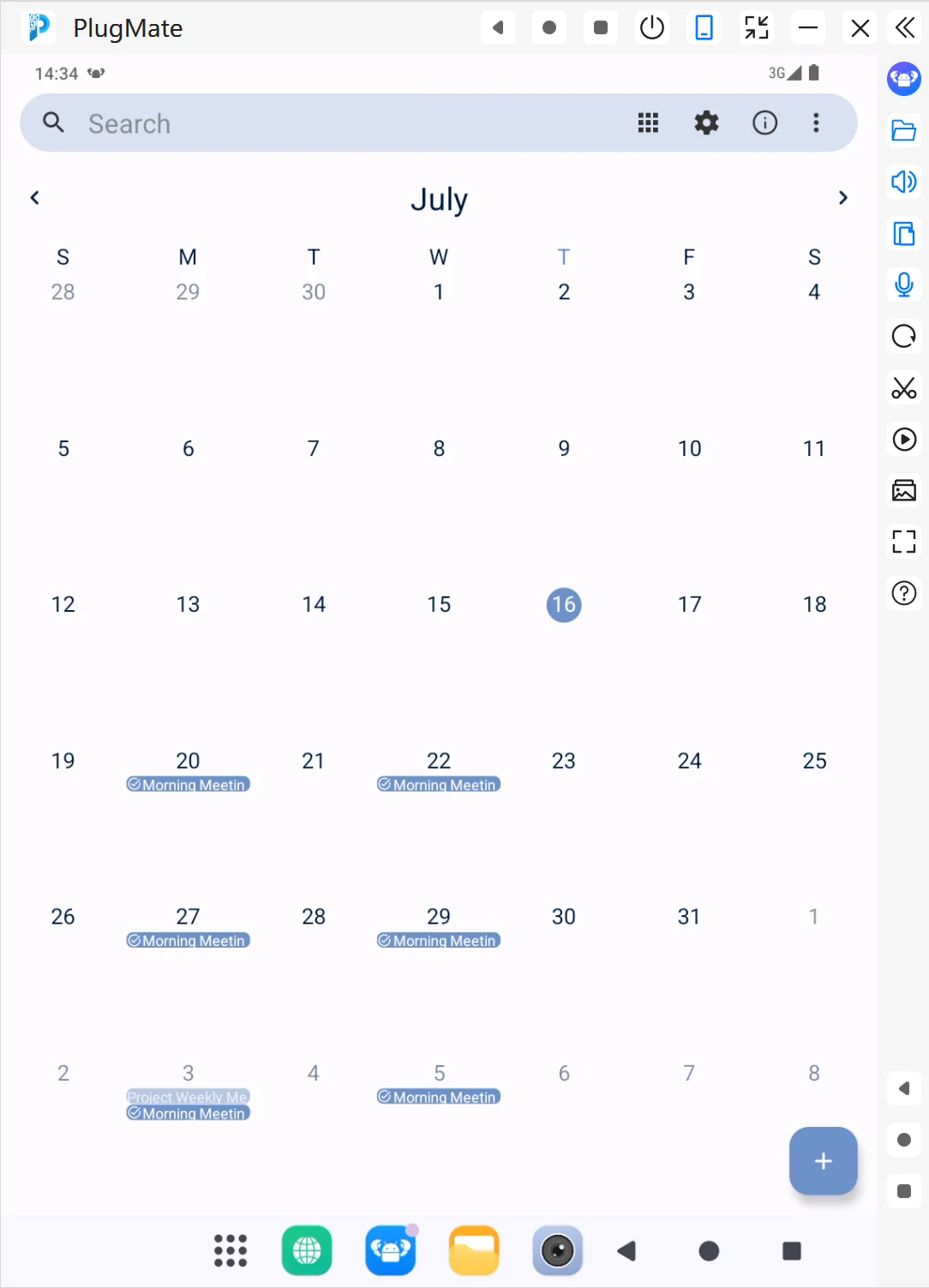
After creation, users can switch to the calendar month view to check the event distribution. In this example, “Morning Meeting” appears on multiple dates, confirming that the recurring schedule has been created.
Result preview:
If the rule needs to be adjusted later, use follow-up requests such as:
- Please change the morning meeting to every Tuesday and Thursday.
- Please change the recurrence count to
12. - Please change each meeting duration to
45minutes. - Please cancel all future “Morning Meeting” events.
6. Tips
- Write complete times: Include the date, start time, and end time to reduce ambiguity.
- Define recurrence clearly: Specify weekdays, daily or monthly rules, and an end condition.
- Mention reminder time: For example,
10minutes,15minutes, or1hour in advance. - Use clear titles and locations: This makes events easier to identify and helps with attendance or navigation.
- Review after creation: Pay special attention to cross-month, recurring, all-day, and multi-time-zone events.
 PlugOS — компактное умное устройство, ваша конфиденциальность под контролем
Безопасно · Без рекламы · Без отслеживания · Без сбора фоновых данных
