What This Guide Covers
This guide explains how to use a connected PlugOS device from the PlugOS client and how to keep that connection stable while PlugClaw is running longer tasks. It covers the shortcuts for opening PlugClaw, moving files, sharing clipboard content, using audio, taking screenshots, and recording the screen. It also explains which host settings may prevent an ongoing task from being interrupted.
PlugClaw runs on the PlugOS device. The phone or computer running the PlugOS client displays and controls that device. In this guide, host means the phone or computer running the client, while device means the connected PlugOS environment where PlugClaw runs.
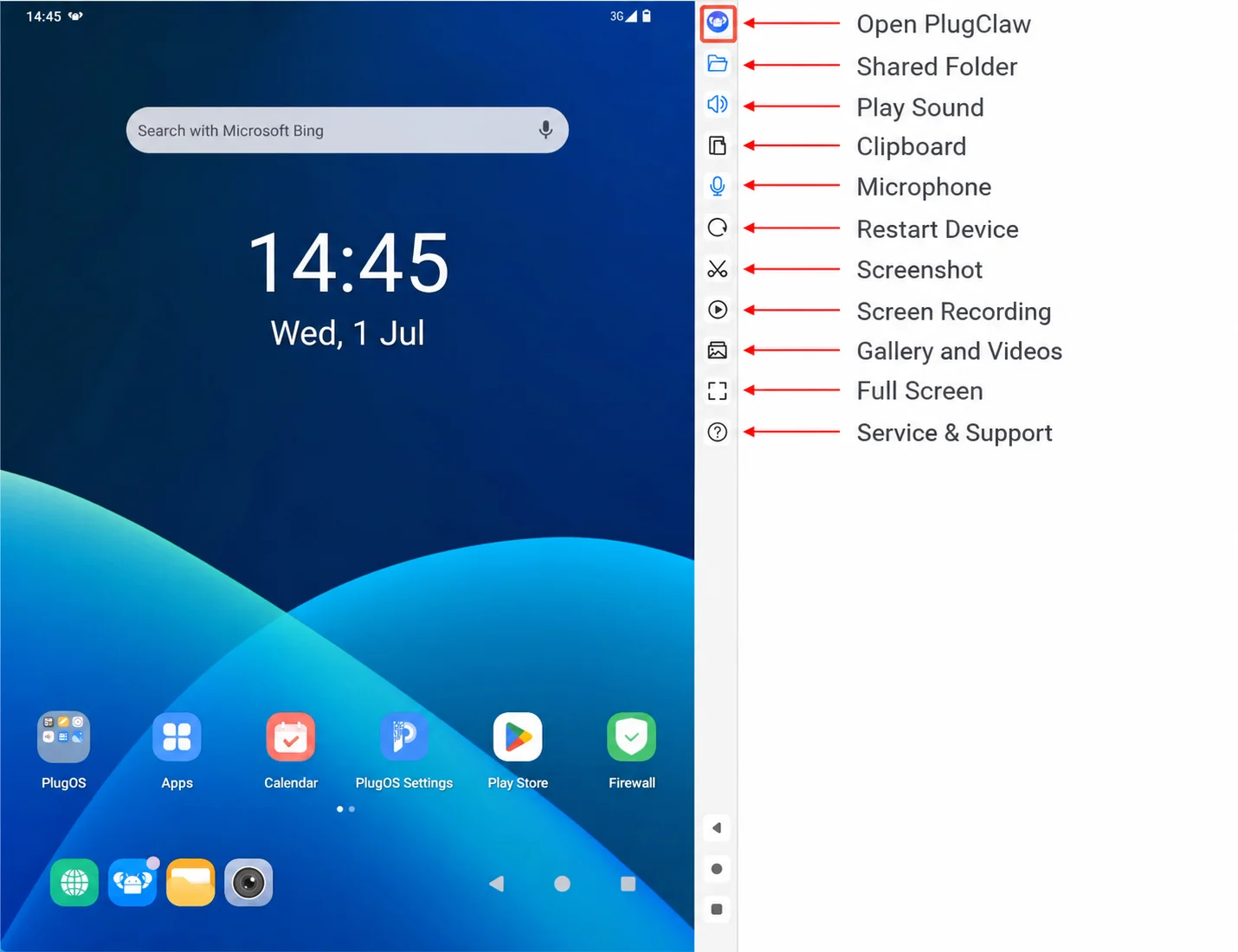
The PlugOS PC client places a set of commonly used tools beside the device screen. From there, you can open PlugClaw or use features such as Shared Folder, Clipboard, Play Sound, Microphone, Screenshot, and Screen Recording.
The PlugOS client can still appear to be running even when its connection to the device is no longer stable. Power-saving restrictions after the phone locks, changes to background network access, or a computer entering sleep can interrupt that connection. Because PlugClaw runs on the device, an active task may stop or behave unexpectedly when the connection drops. For long-running work, review background activity, network access, and battery restrictions on a phone host, and prevent a computer host from going to sleep.
Use the PlugOS PC Client
The PC client's commonly used controls are located in the toolbar beside the device screen. The following image identifies each entry; the sections below explain them by use case.
Open PlugClaw and the Shared Folder
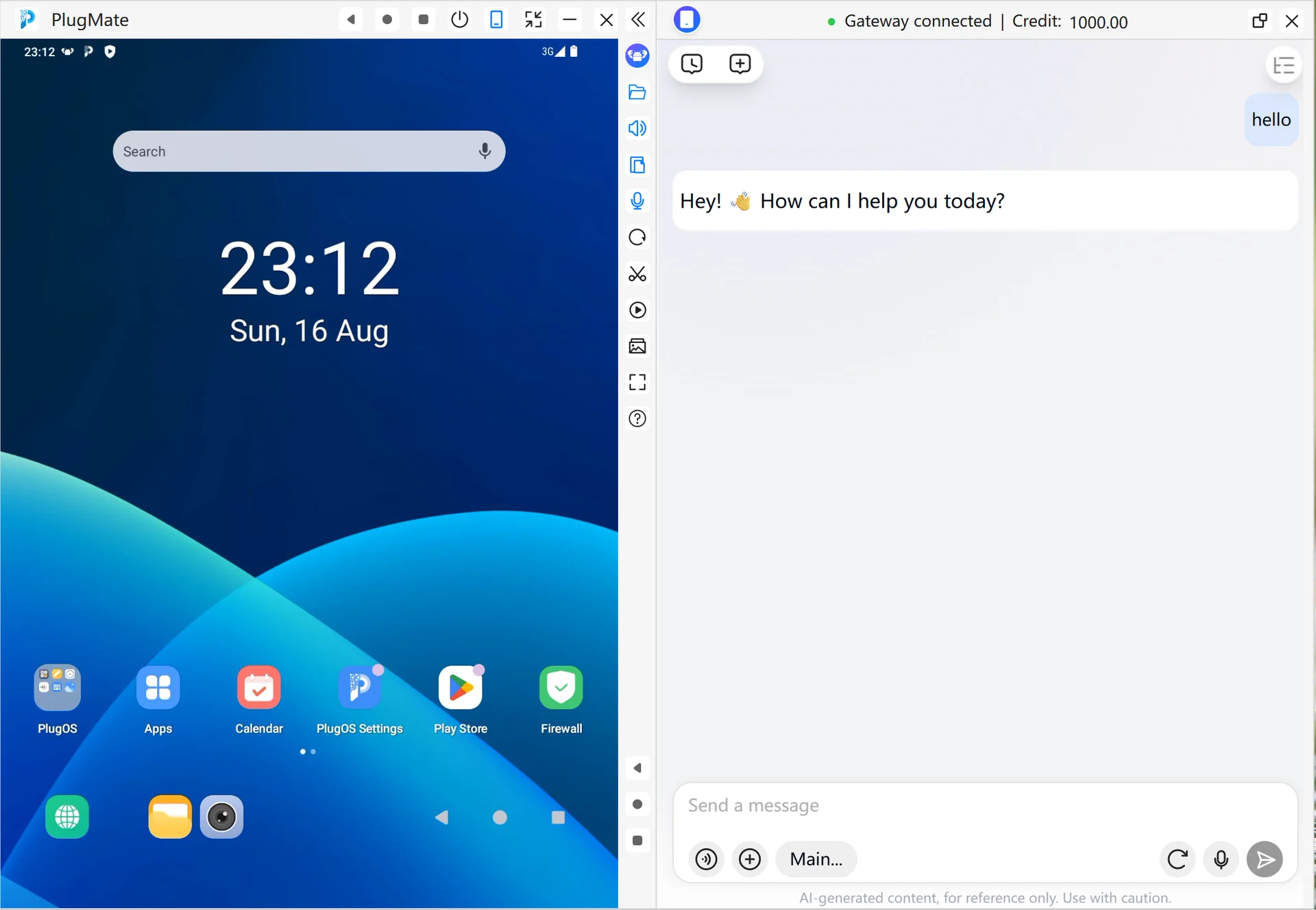
Open PlugClaw from the toolbar beside the device screen to go directly to the conversation page.
When the PlugClaw home page shows Gateway Connected, conversations are ready to use. If the gateway is disconnected, start it before sending a message. See Gateway Management for gateway status and restart instructions.
Use Shared Folder when files need to move between the host and the device.
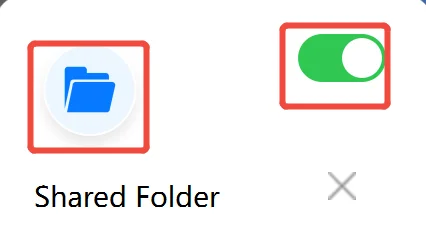
In the Shared Folder panel, turn sharing on and select a dedicated folder on the host. This folder is a transfer point that both sides can access. It does not automatically copy files to their final destination and is not a backup.
To import a file, place it in the host's shared directory, find it in Share Folder on the device, and copy it to the location where it will be used. To export a file, move it in the opposite direction. The complete transfer procedure is in File Management.
Use Audio and Input Tools
The audio and input controls are located in the toolbar beside the device screen.
Turn on Play Sound when audio from the device needs to be heard through the client. If there is no sound, first confirm that Play Sound is enabled, then check the device volume and mute state.
Open Clipboard to copy and paste text in both directions. Content copied on the host can be pasted on the device, and content copied on the device can be pasted back on the host. Check the pasted text before using it, especially when it contains codes, addresses, or account information.
Turn on Microphone before using voice features inside the device. PlugOS does not open this setting automatically. Return to the same control to turn the microphone off when it is no longer needed.
Manage the Device Screen
Restart Device restarts the connected device. It interrupts active conversations, recordings, and tasks, so save important work first and wait for the device to reconnect afterward.
Screenshot captures the current device screen. Screenshots are saved to the host's Pictures folder by default. Open that folder afterward to confirm that the image was created and review it for sensitive information before sharing.
Screen Recording records the device screen and the actions performed on it. End the recording from the same control. Recordings are saved to the host's Videos folder by default. Confirm that the video opens correctly, and avoid recording private information without permission.
Gallery opens the host's Pictures folder, where screenshots and other images can be viewed. The video entry opens the host's Videos folder, where screen recordings are stored. These shortcuts open the corresponding host folders directly.
Full Screen expands the device display for easier viewing and continuous operation. Use the same control, or the host system's full-screen shortcut, to exit.
When you need help, open FAQ to enter the official PlugOS Service & Support center. It brings together documentation for both PlugOS and PlugClaw, organized by product and topic, so you can look up guidance on connections, features, configuration, and unfamiliar or unexpected behavior.
Keep the Client and Device Connected
Phone Host Settings
Phone operating systems may restrict background activity or network access after an app moves to the background, the screen locks, or the battery becomes low. The PlugOS client may still appear to be running even though its connection to the device may already have dropped. A PlugClaw task running on the device may then stop or behave unexpectedly. For long-running work, the goal is not to keep the screen on, but to prevent power-saving and background network restrictions from interrupting the connection.
Find the PlugOS client in the phone's system settings and review these items:
| Setting | Recommended choice | Why it matters |
|---|---|---|
| Background operation | Allow background activity | Helps maintain the device connection after switching apps. |
| Battery optimization | Choose Unrestricted or disable optimization for PlugOS | Prevents power-saving rules from restricting background activity or network access. |
| Auto start | Enable when the client should return after a phone restart | Starts the client automatically after a restart; confirm afterward that the device connection has recovered. |
| Lock-screen cleanup | Do not clear PlugOS after the screen locks | Reduces the chance of the device connection being interrupted after the screen locks. |
Names vary by phone brand. Look under App management, Battery, Permissions, Background management, or Auto-start management. Apply these settings to the PlugOS client, not to an unrelated app.
After changing the settings, connect the device and ask PlugClaw to run a simple task that takes a few minutes. Move the client to the background and lock the phone for longer than the connection would normally take to drop. When you return, first confirm that the device still shows as connected, then check whether the test task completed normally. A client that still appears to be running does not prove that the connection stayed active. Both the device status and the task result need to be normal. Use a nonessential task for the first test so that an unstable connection does not affect important work.
Relaxing battery restrictions can increase power and network use. Keep the phone connected to power during long sessions, and pause to check the device if the phone becomes unusually warm or behaves unexpectedly.
Computer Host Settings
The main requirement on a computer host is to prevent automatic sleep. Even if you do not manually exit the PlugOS PC client, the connection to the device may be interrupted when the computer sleeps. PlugClaw tasks, Shared Folder transfers, screenshots, and screen recordings may then stop or behave unexpectedly.
Open the computer's power or sleep settings and set sleep to Never while a long-running task is active. The display may still turn off as needed; as long as the computer itself stays awake, the client-to-device connection can remain active. On a laptop, avoid closing the lid unless the system is explicitly configured to stay awake. Keep the computer connected to power and confirm that the device still shows as connected in the PlugOS PC client.
To verify the setting, connect the device and ask PlugClaw to run a simple test task, then leave the computer idle for longer than its previous sleep interval. When you return, confirm that the device still shows as connected, the device screen opens normally, and the test task has completed. All three checks need to pass before the computer can be considered stable during idle periods.
If the Connection Still Drops
On a phone host, check whether background activity or network access is restricted, whether power-saving settings have taken effect again, and whether the phone's network is stable. Do not judge the connection only by whether the client still appears to be running.
On a computer host, check whether the computer slept, its network disconnected, or the device no longer shows as connected in the PlugOS PC client.
Record the time of the disconnection and the host state at that moment before changing more settings. This makes it easier to identify the actual cause.
 PlugOS — La privacidad no es una opción. Es la base
Seguro · Sin publicidad · Sin rastreo · Sin recolección de datos en segundo plano
