1. Overview
Messages in instant messaging apps often arrive in small, scattered moments. Users may not always have time to open the app, read the conversation, and compose a reply. For lightweight scenarios such as confirming a time, responding to a reminder, or handling simple daily communication, PlugClaw can understand the message from a short user request and generate a natural reply that fits the context.
This case uses Telegram message replies as an example to show how PlugClaw can complete automatic replies based on the chat context. The user only needs to specify the target app and the preferred tone; message understanding, wording, and reply sending can then be handled by the system.
2. Case Scenario
The user wants PlugClaw to help reply to messages in Telegram, using a tone that sounds close to their usual way of speaking rather than stiff or template-like.
Example prompt:
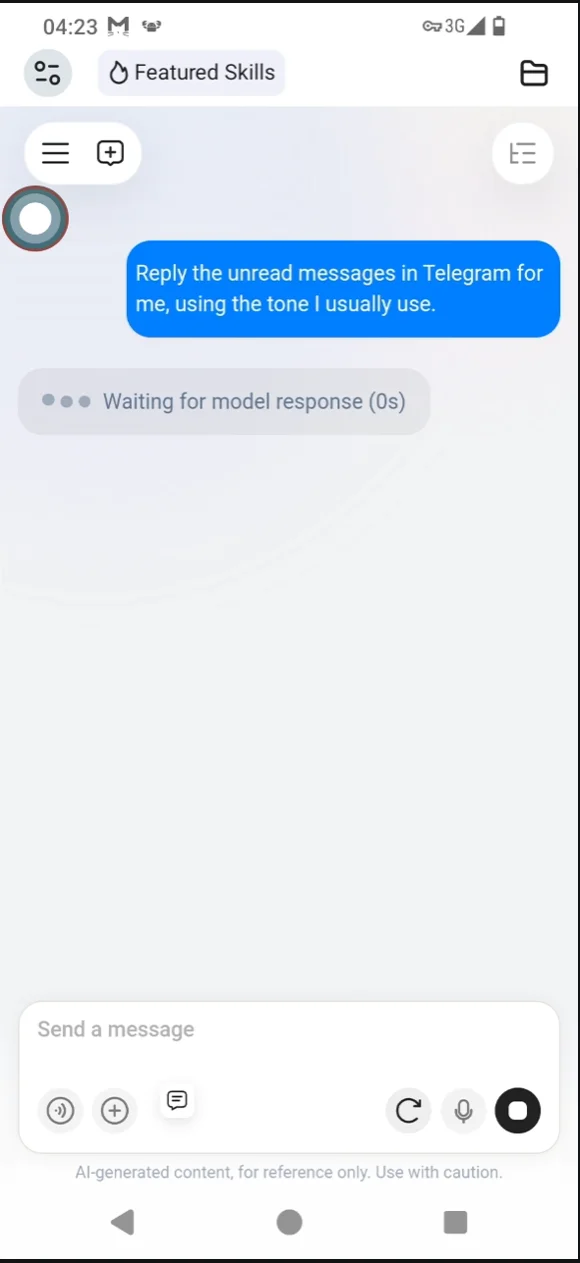
Reply the unread messages in Telegram for me, using the tone I usually use.
This type of request is useful when the user cannot reply manually for the moment but still wants to respond in time. The user does not need to prepare the reply in advance; stating the app and tone is enough.
Prompt example:
3. Message Context Recognition
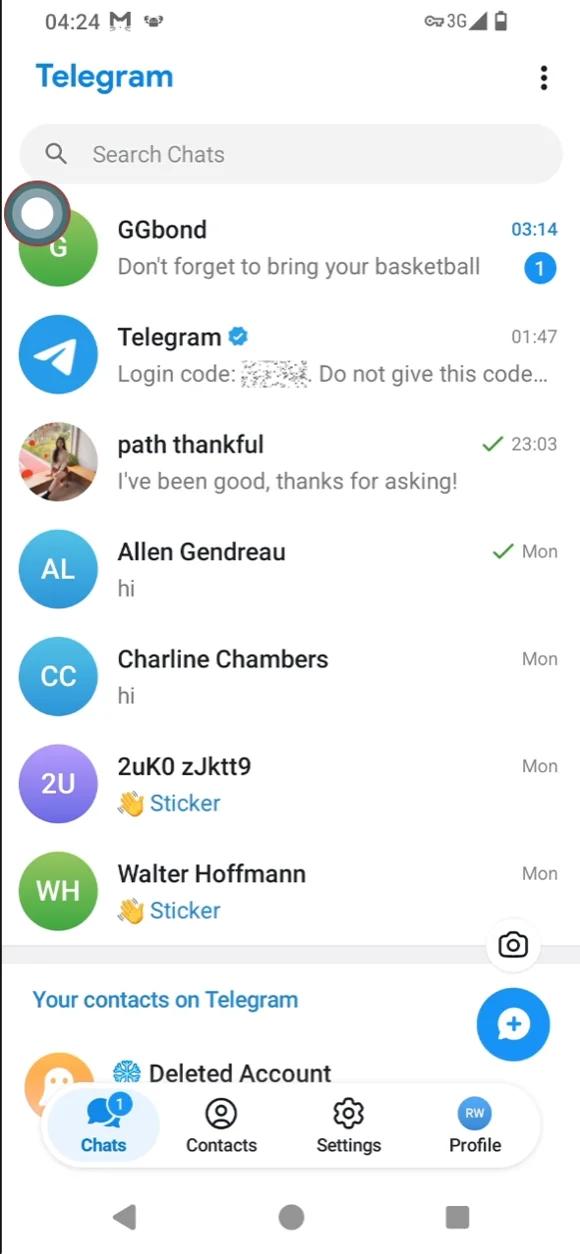
In this example, the Telegram conversation list shows a basketball-related message. The other person reminds the user: "Don't forget to bring your basketball." The message itself is simple, but the user would still need to open the app, review the context, and decide how to reply.
PlugClaw uses the conversation content to understand the current situation: the other person is confirming the evening plan and reminding the user to bring a basketball. Based on this context, the reply focuses on acknowledging the reminder and responding to the arrangement, instead of giving a generic response unrelated to the conversation.
Message context example:
4. Automatic Reply Result
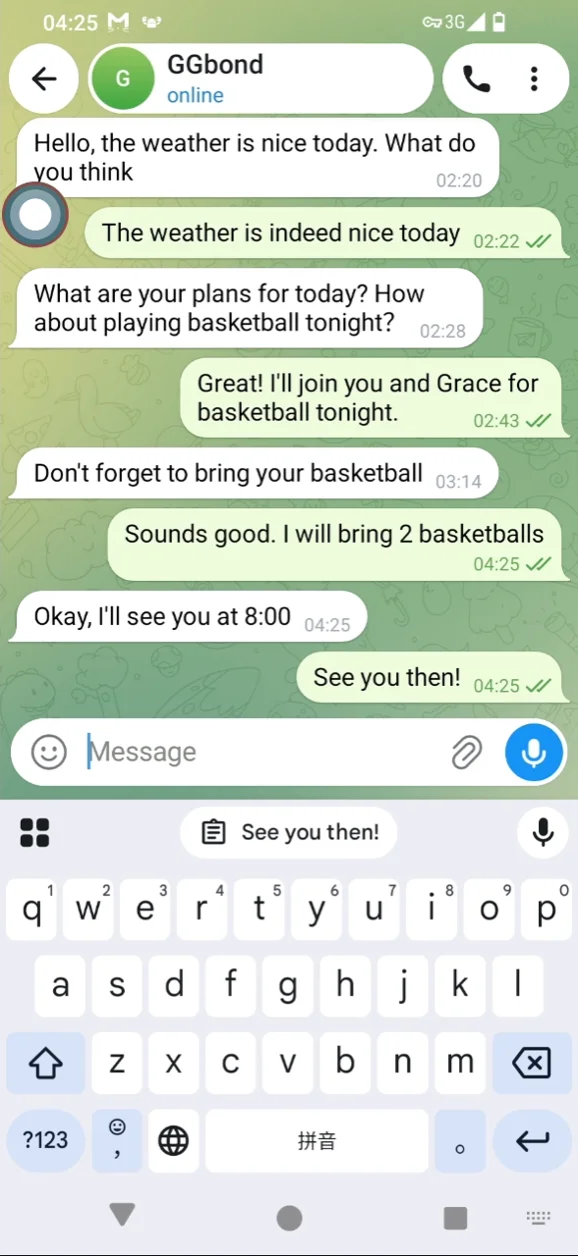
After reading the previous conversation, PlugClaw generates and sends a natural reply:
Sounds good. I will bring 2 basketballs.
When the other person confirms "Okay, I'll see you at 8:00," the system also responds in a concise and natural way:
See you then!
The result shows that the reply addresses the reminder while keeping the tone consistent with the original conversation. For daily communication such as confirmations, reminders, plans, and casual greetings, automatic replies can reduce the time spent switching apps and typing responses manually.
Reply result:
5. Result Feedback
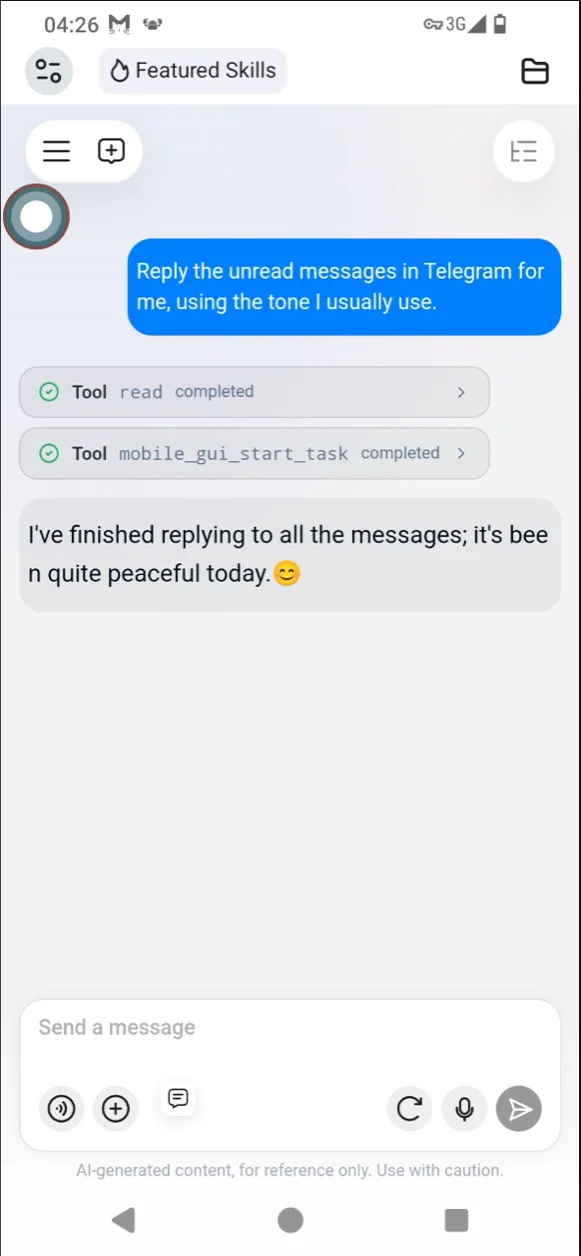
After the message reply is completed, PlugClaw provides brief feedback so the user can confirm that the task is finished. In this example, the feedback is:
I've finished replying to all the messages; it's been quite peaceful today.😊
Completion feedback:
6. Notification-Triggered Auto Reply
Automatic replies can also be set up as event tasks. When a message notification appears, PlugClaw can trigger the preset task and reply according to the configured instruction, without requiring a separate manual prompt each time.
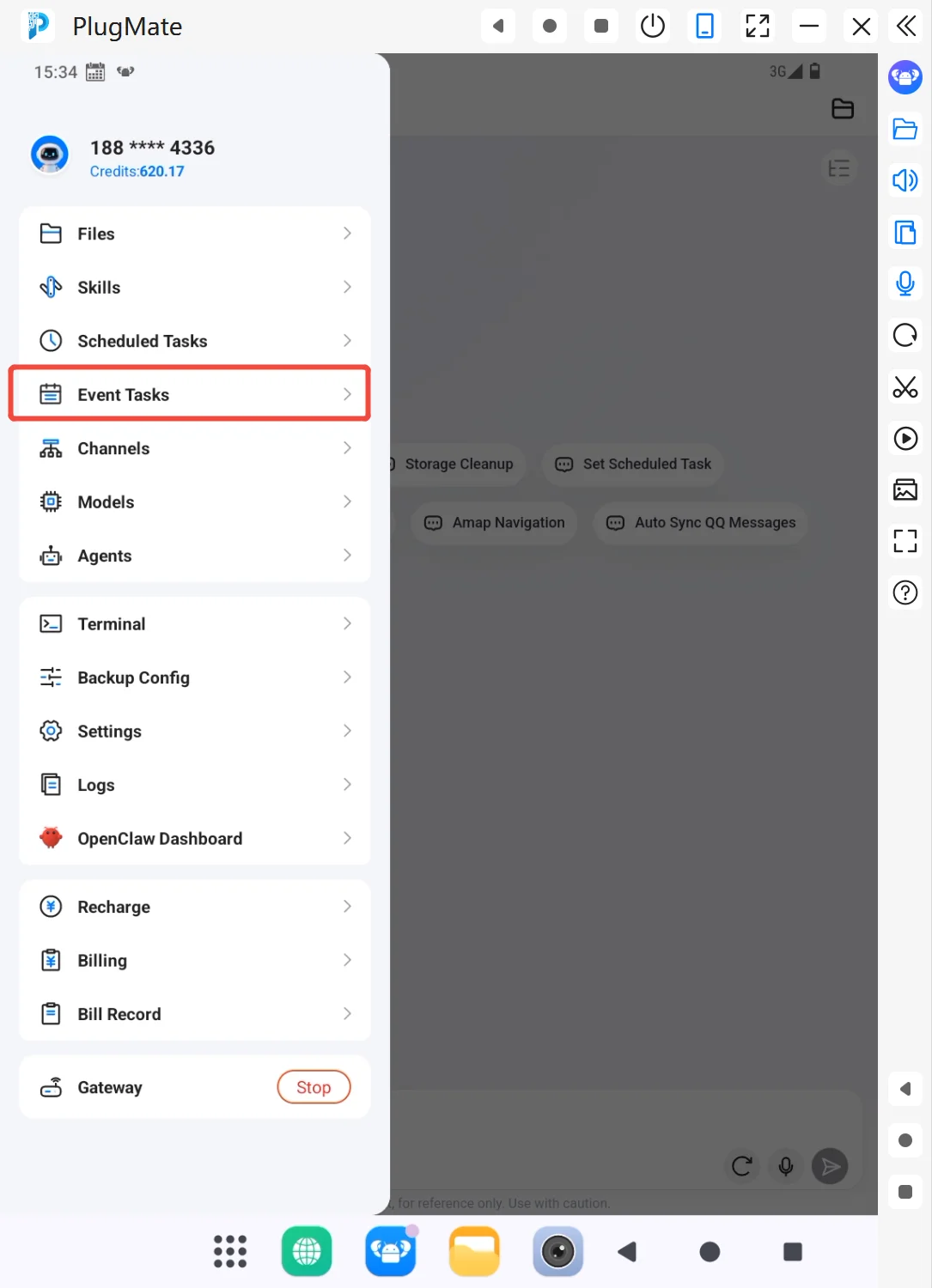
From the side menu, open Event Tasks and create a dedicated task for automatic message replies.
Entry example:
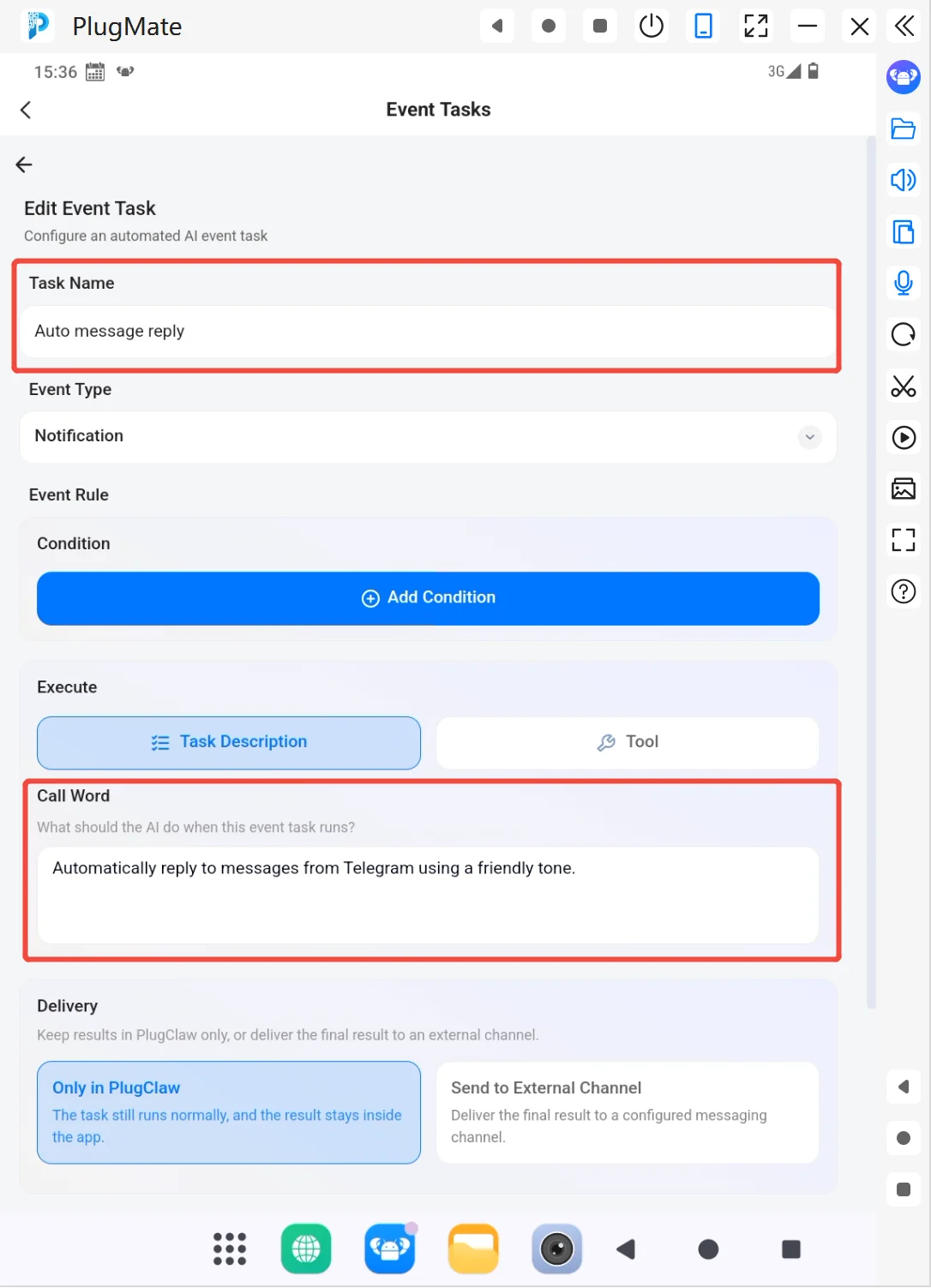
In this example, the task is named “Automatic Message Reply,” the event type is set to status bar notification, and the task instruction can be:
Automatically reply to messages from Telegram using a friendly tone.
After the task is configured, incoming message notifications can trigger the reply task automatically. This is useful for lightweight communication scenarios where messages should be handled promptly with a consistent tone.
Configuration example:
7. Tips
- Best for lightweight communication: Suitable for confirmations, reminders, simple greetings, and daily arrangements.
- Specify the app and tone: For example, "Reply the unread messages in Telegram for me, using the tone I usually use." or "Keep it polite and brief."
- Use event triggers when needed: If messages should be handled after notifications appear, set up an event task with the trigger condition and reply instruction.
- Confirm important content first: For contracts, payments, account security, privacy, or other sensitive topics, it is better to generate a draft first and send it after user confirmation.
- Refine the wording if needed: After the reply is generated, users can still ask for a more formal, shorter, or more natural version.
 PlugOS — La privacidad no es una opción. Es la base
Seguro · Sin publicidad · Sin rastreo · Sin recolección de datos en segundo plano
